Gear Doc Converter Free v2.0 build 111
Quickly convert Word, Excel, PDF, PowerPoint, and other files with ease.
Monitor folders or directories for new files or changes and trigger conversions automatically by dragging and dropping files to folders.
v2.0 build 111 · What's new
64-bit Windows 10 or greater (Arm too), .NET 4.8

Free Document Converter lets you convert documents, emails, and files to over fifty popular formats directly on Windows.
Files saved in a folder you watch are converted as they arrive, hands-free. See how
Drop files on a button that stays on top, then on a format. See how
A "Convert File" menu in File Explorer converts files without opening the program. See how
gdc.exe converts with no windows or prompts, from scripts or Windows Task Scheduler. See how
Word, PDF, Excel, PowerPoint, email, images and more, layout and formatting kept. All formats
Your files never leave your PC, and there's no analytics or telemetry. It goes online only to check for updates, to activate a PRO license with gearmage.com and, if you ask, to download LibreOffice.
Unlimited conversions, no sign-ups, no page, file-count or file-size limits.
English, Español, Français, Deutsch, 日本語, العربية and more, the Explorer menu too. Pick one in Settings › Language.
Simple. Secure. Completely free.
Jump to: What's new · Quick convert · Watch folders · Conversion engine · Presets · Formats · Explorer menu · Pricing · Command line · FAQ
Quick convert buttons convert the files you drop on them, and you can choose the conversion engine: the built-in one or free, open-source libraries.
Click a screenshot to enlarge it.
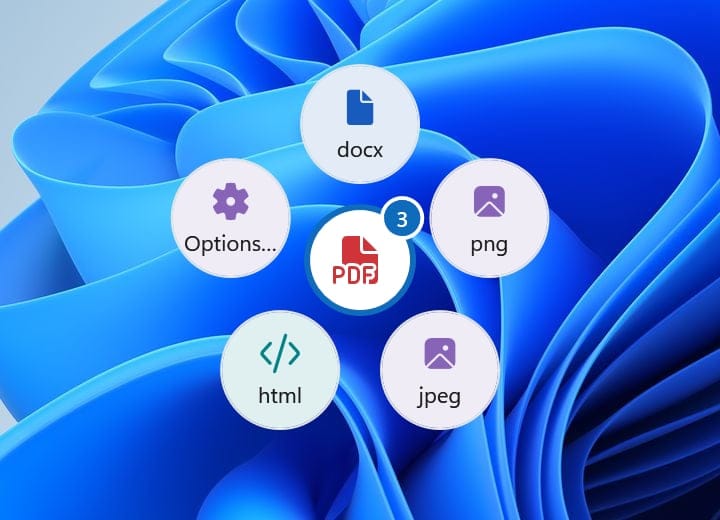
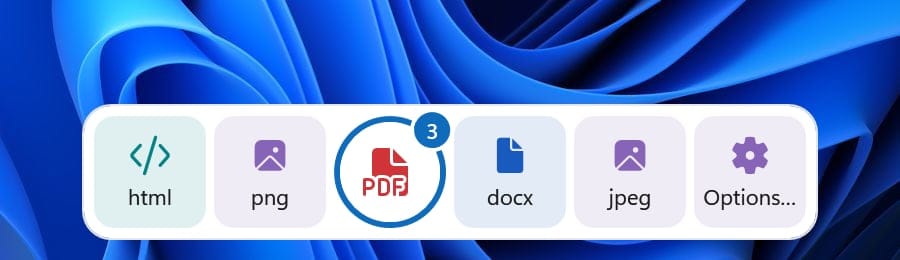
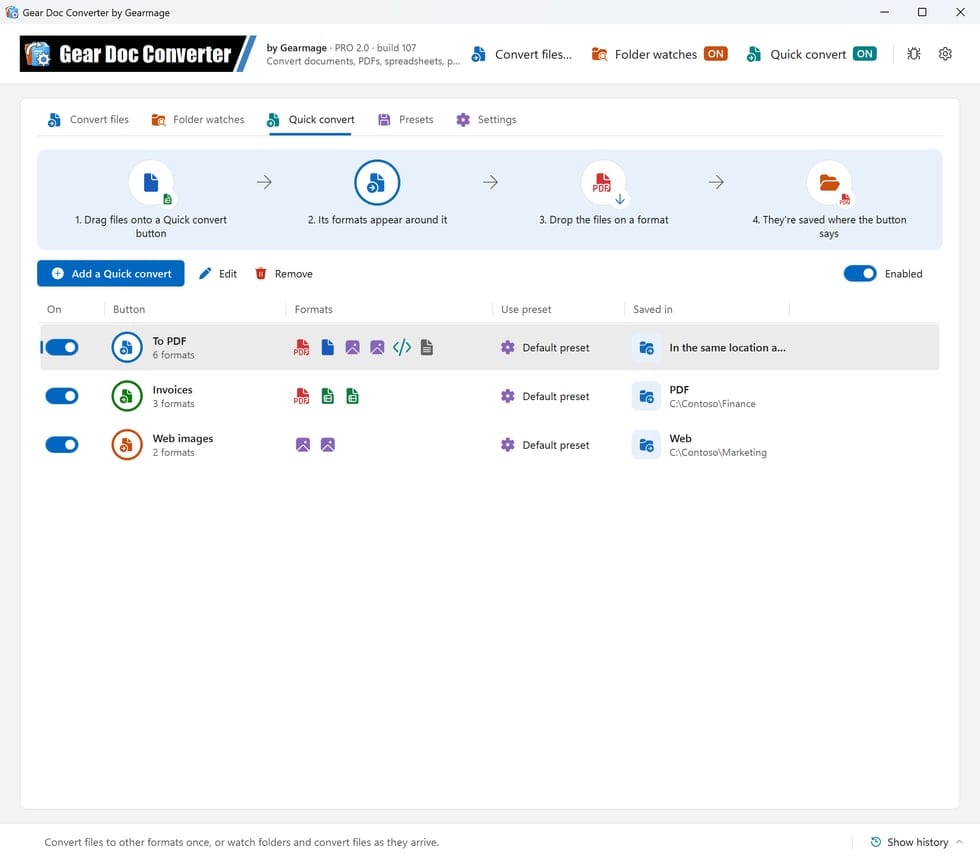
Quick convert buttons stay on top of your other windows. Drag files onto one from File Explorer, your desktop or an email, and the formats it offers appear around it. Drop the files on a format and they're converted, next to the originals or in the button's own folder.
In the Free and PRO versions.

Anywhere on the screen, the formats make a ring; snapped to an edge, a strip along it.
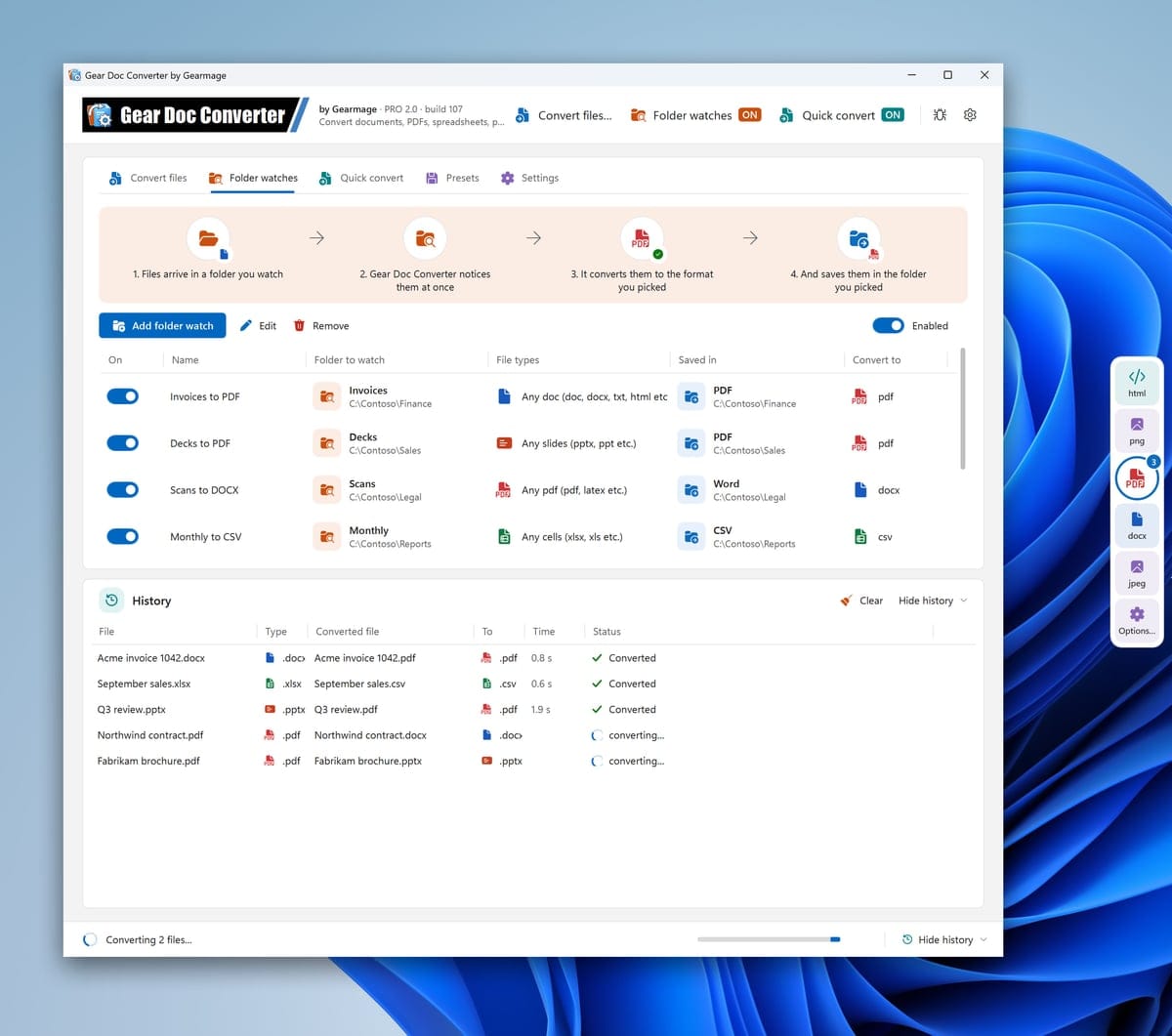
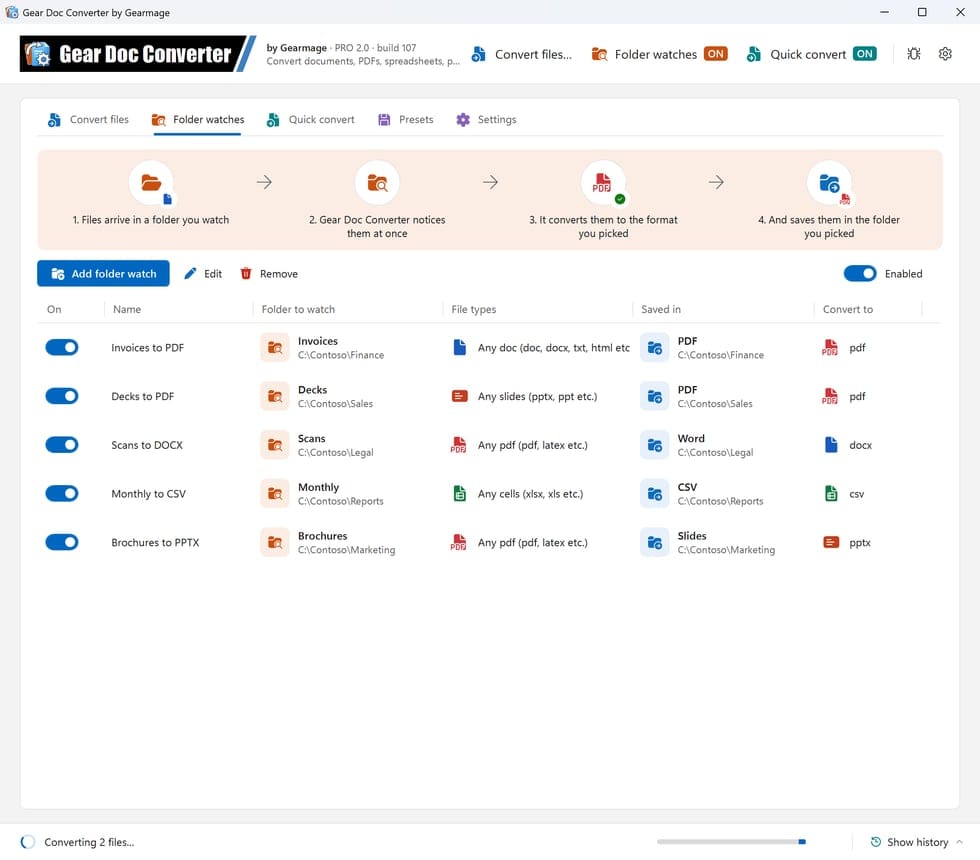
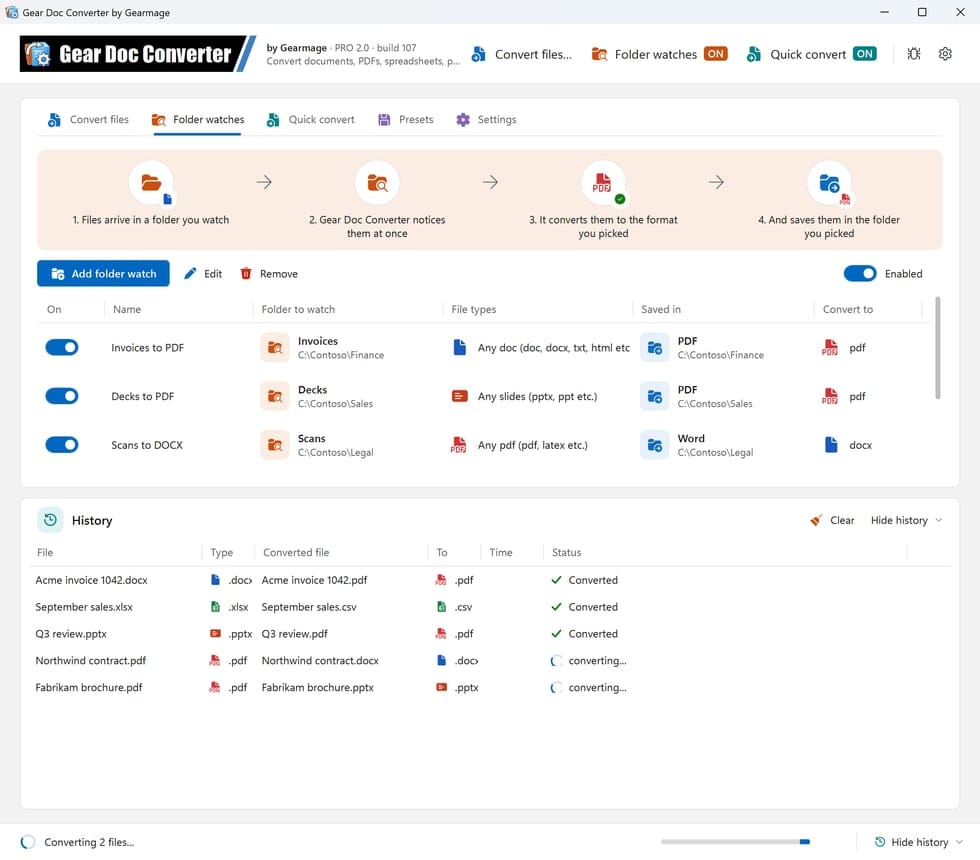
Pick a folder, the types of file and the format, and every file saved there is converted as it arrives, into the folder you choose or next to the originals. Each watch shows where files come from, what's converted and where it's saved.
In the Free and PRO versions.

Add as many buttons as you need on the Quick convert tab. Each has its own colour, the formats it offers in your order, and where it saves: one for PDFs next to the originals, one that saves invoices to your finance folder, one for web images.

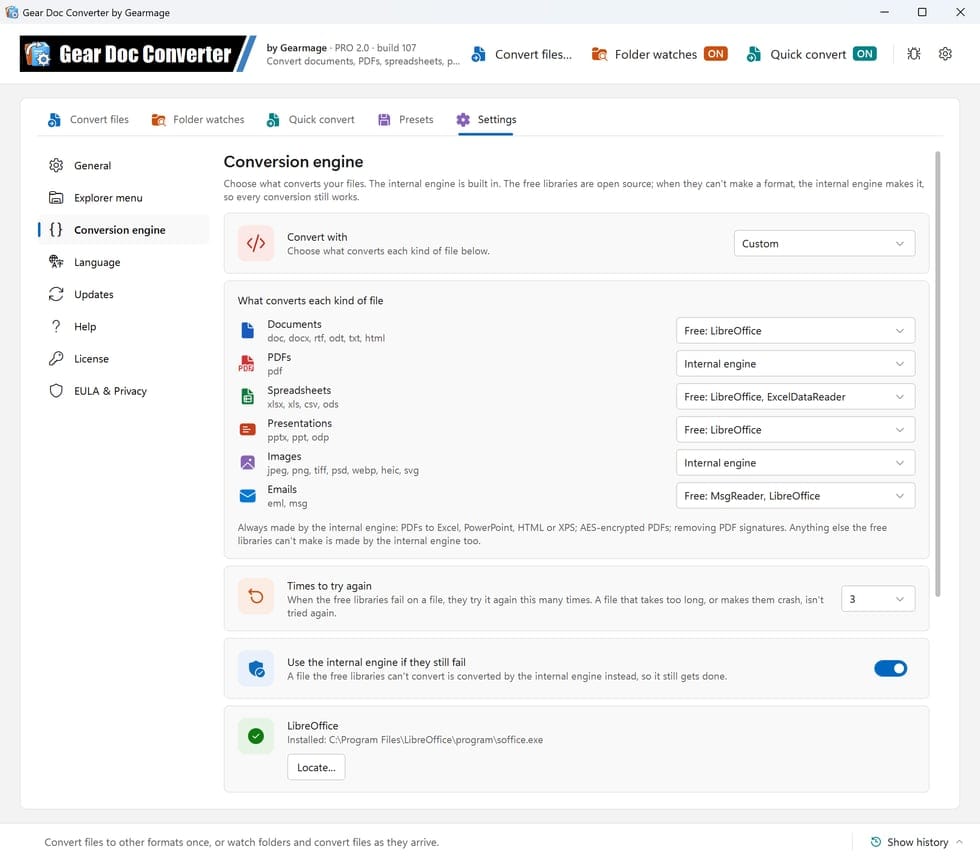
Convert with Gear Doc Converter's built-in internal engine, as before, or with free, open-source libraries: LibreOffice, PDFium, PdfPig, PDFsharp, ImageMagick, ExcelDataReader, Windows' own imaging and MsgReader. Or mix them: Custom picks what converts each kind of file, such as LibreOffice for documents, spreadsheets, presentations and emails, and the internal engine for PDFs and images.
In the Free and PRO versions.

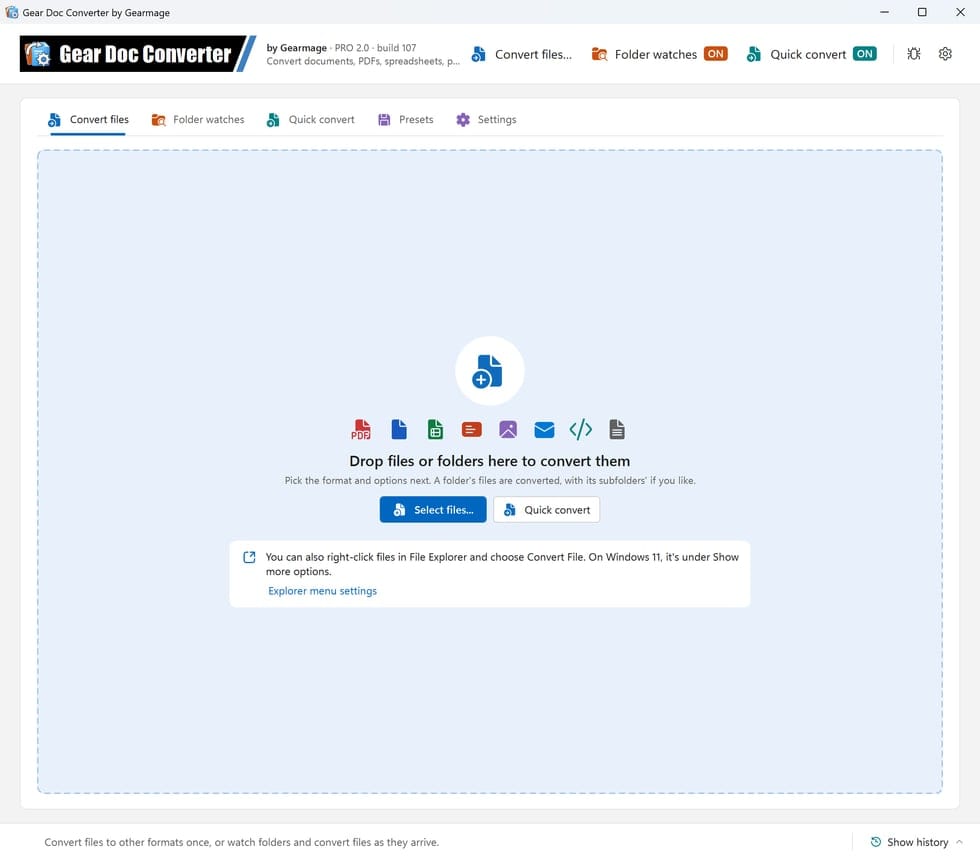
On the Convert files tab, drop files or whole folders on the window, or click Select files..., then pick the format and options. A folder's files are converted, with its subfolders' too if you like.

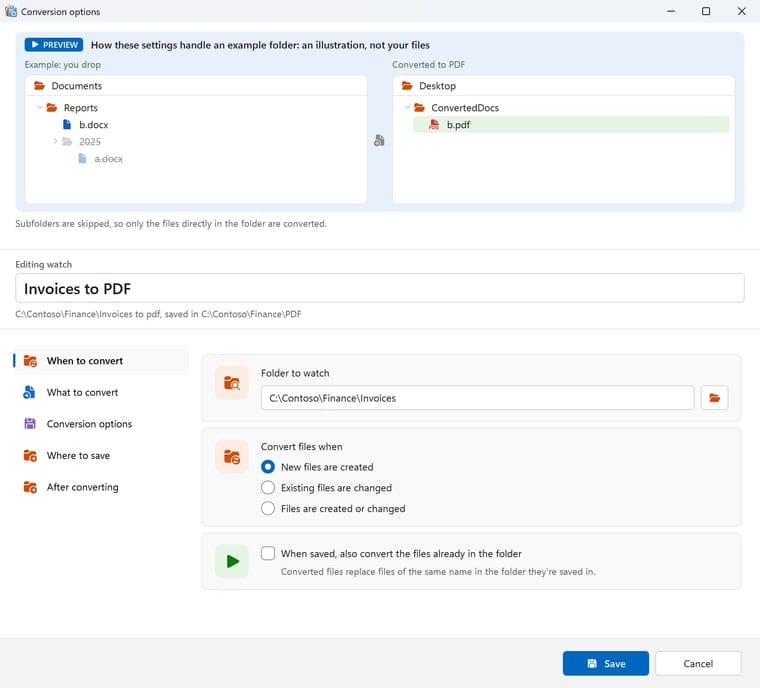
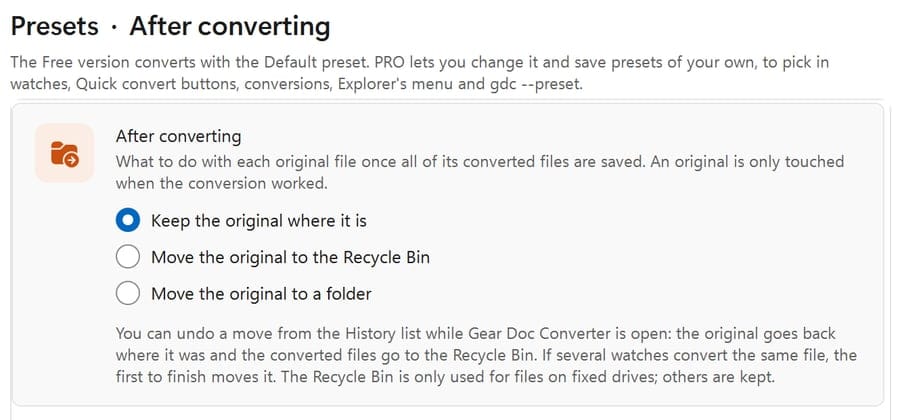
Laid out like Windows' Settings, with a page for each step: When to convert, What to convert, Conversion options, Where to save and After converting. A preview at the top shows, with an example folder, where the converted files will go. A watch's or a Quick convert button's name is under it, where you can rename it.

A one-line status bar at the bottom of the window says what's converting now. Click Show history to see every file converted, with an icon for converting, converted or failed and the time it took; point at a file name to see where it is.

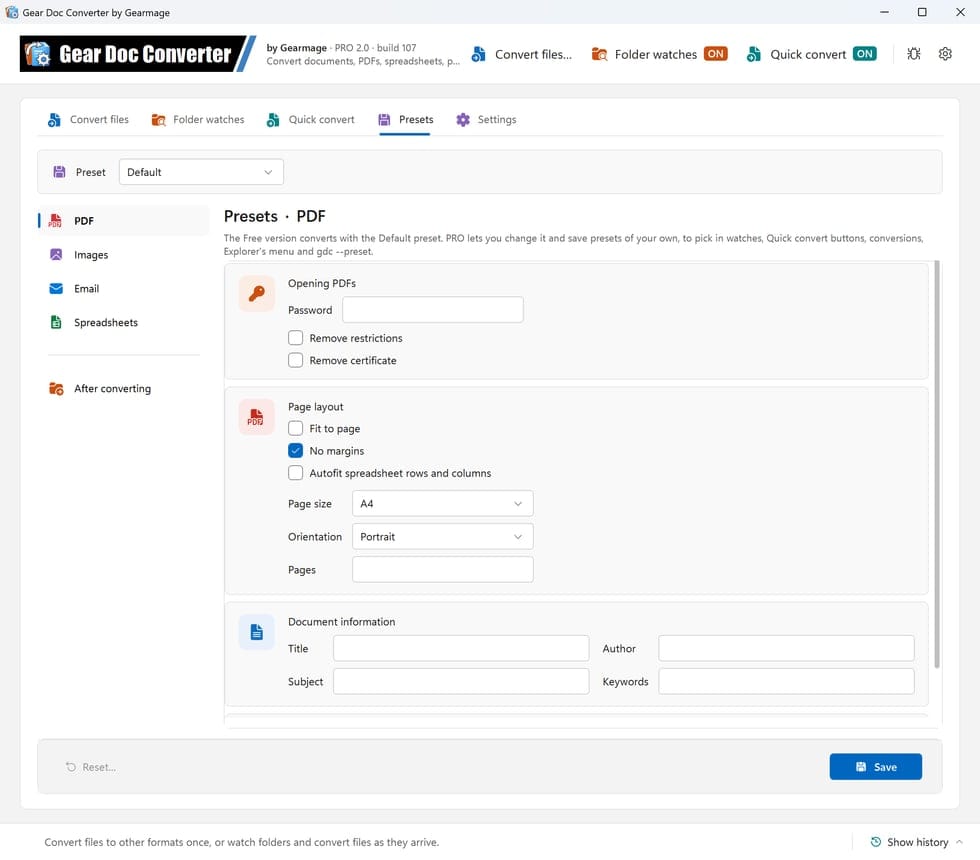
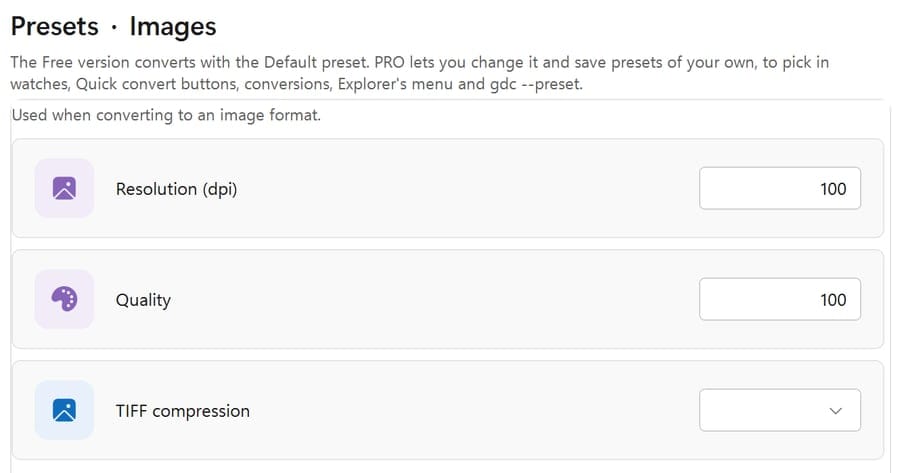
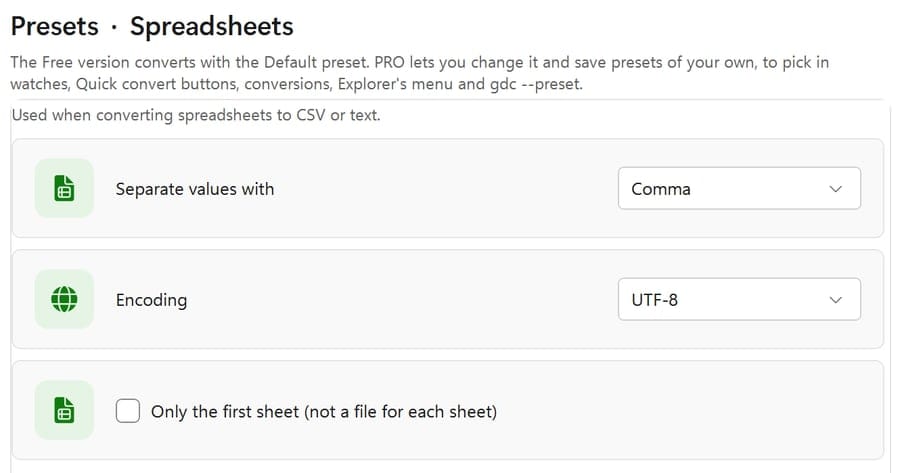
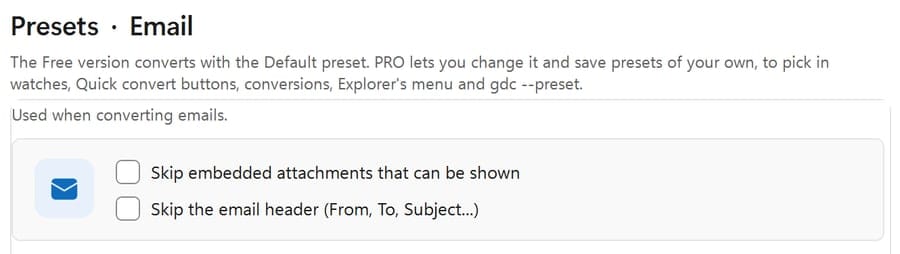
The Presets tab holds the options files are converted with:
The Free version converts everything with the Default options, shown on the Presets tab. PRO Change them, give each watch, Quick convert button or conversion options of its own, and save as many presets as you like under names of your own, such as "Archive (300 dpi)". Use them anywhere: in the program, in Explorer's menu, on a Quick convert button or on the command line (gdc --preset).


Supported Formats
Free Version: Explorer Menu
The Free and PRO versions both add a Convert File menu to Windows Explorer, so you can convert a file without opening the program first.
Right-click → Convert File → To PDF
report.pdf is already there, the new file is saved as report (1).pdf.Available from v1.3 build 103.
Gear Doc Converter Pro Version
The Free version is for personal use. To use Gear Doc Converter at work, in a business or any other organization, get PRO: the commercial license for business use.
Fully functional and free for personal, non-commercial use: unlimited conversions, no watermarks! For business use, get PRO.
A one-time fee for a perpetual license: it never expires, and there's no subscription to renew. The paid PRO version unlocks all capabilities. A new major version, such as 2.0, is a paid upgrade for licenses of earlier versions.
Own version 1.x? Upgrade your license to 2.0.
Pro Version: Headless Command Line
The PRO version includes gdc.exe, a headless command-line converter: it opens no windows and never stops to ask, so it can run unattended from batch files, scripts or Windows Task Scheduler. It uses the same conversion engine and options as the program, and still runs entirely on your PC.
C:\Program Files\Gearmage\Gear Doc Converter.gdc convert with the format to convert to and the files or folders to convert:gdc convert --to pdf "C:\Reports\report.docx"
gdc convert --to docx --out "C:\Converted" --recurse "C:\Incoming"
gdc convert --to png --image-resolution 200 "C:\Scans\scan.pdf"
gdc formats report.pdf
gdc --helpThe first line saves report.pdf next to the Word file. The second converts every file in C:\Incoming and its subfolders into C:\Converted\Incoming, keeping the subfolders (add --flat to put every file directly in C:\Converted). gdc formats lists the formats a file can be converted to, and gdc --help lists every option.
name (1).ext. Add --overwrite to replace them.--recycle-source or --move-source moves each original away once it's converted.--preset "Name" converts with a preset saved in the program (--preset Default for your Default one); any other options you add change just that run. --settings still works too.--user-password env:NAME), never typed on the command line.gdc convert to Windows Task Scheduler to convert a folder every night or every hour.--json, and an exit code: 0 all converted, 1 some failed, 2 none converted, 3 a mistake in the command, 4 no PRO license.Available from v1.3 build 104.
FAQs
The FREE version is fully functional, has no watermarks and watches folders for you. The PRO comes with the following features:
gdc.exe. See Convert from the Command Line.--preset.Its built-in internal engine, unless you choose otherwise in Settings › Conversion engine: Free libraries converts with free, open-source libraries (LibreOffice, PDFium, PdfPig, PDFsharp, ImageMagick, ExcelDataReader, Windows' imaging and MsgReader), and Custom lets you pick for each kind of file. Whatever the free libraries can't make, or fail to make, the internal engine makes, so every conversion still works. Gear Doc Converter can install LibreOffice for you in one click, and the page lists the libraries in use with their licenses. See how.
Have a different question? Ask a question