Organize photos and videos into folders by date, event and trip
Photo Organizer is a free photo folder organizer for Windows. It groups your photos and videos into events and trips, names them like Weekend in Paris and Trip to Italy, shows them on a calendar, and organizes them into folders your way. You see every folder before anything changes, and every change can be undone.
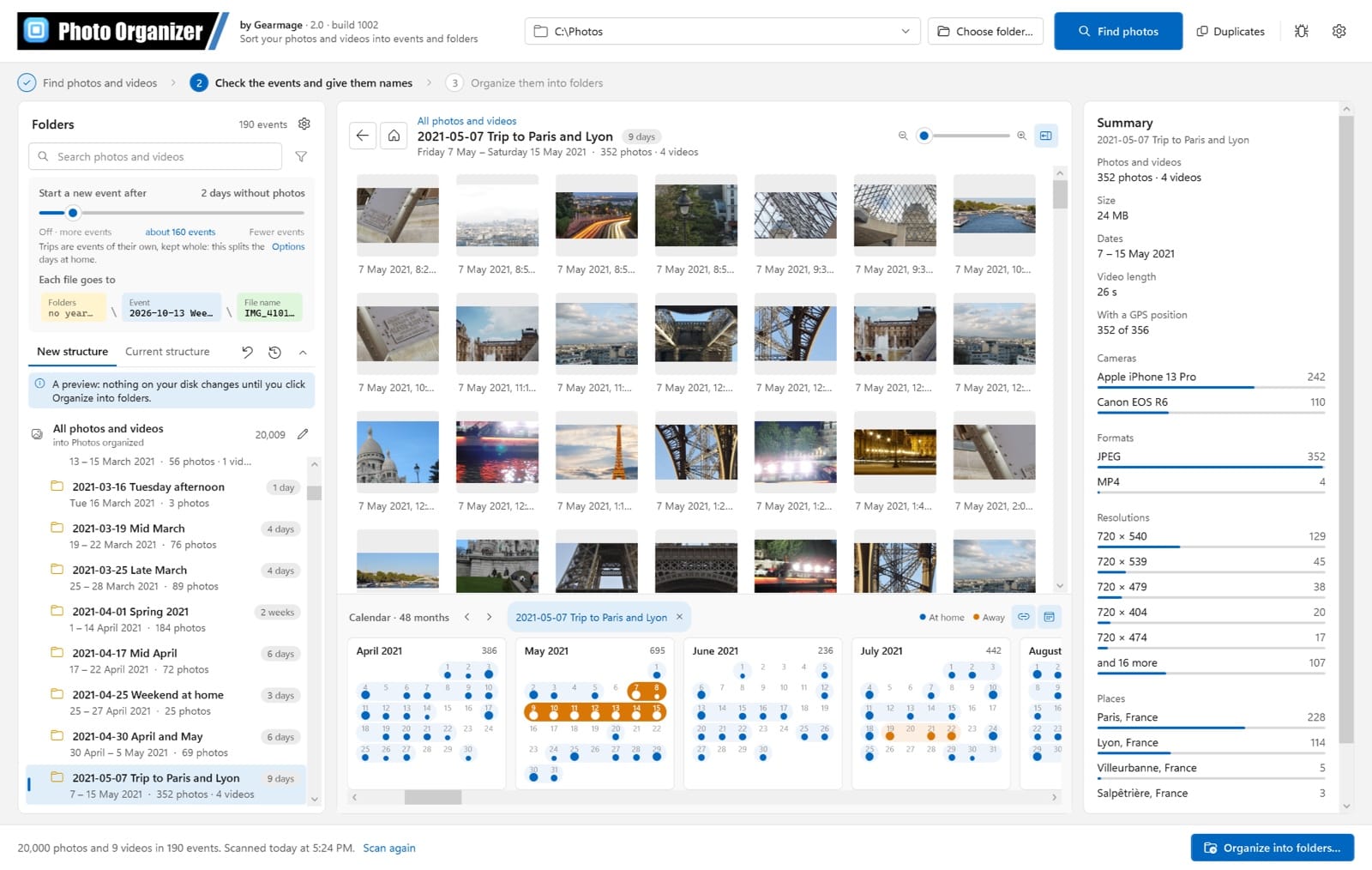
Phones and cameras put everything into one folder. Photo Organizer reads when and where each photo and video was taken, finds the events in them (a day out, a weekend away, a two-week trip), and organizes them into folders like 2024-06-02 Weekend in Paris.
It all runs on your PC: your photos are never uploaded, place names come from data built into the program, and nothing on your disk changes until you click Organize. What you end up with is ordinary folders of your photos, not a catalog, so you are never locked in.
Why Photo Organizer
Organize a messy photo folder into events you can find
Events and trips, found for you
A new event after the days without photos you choose; trips away from home kept together; weekends as one event.
A calendar of your life in photos
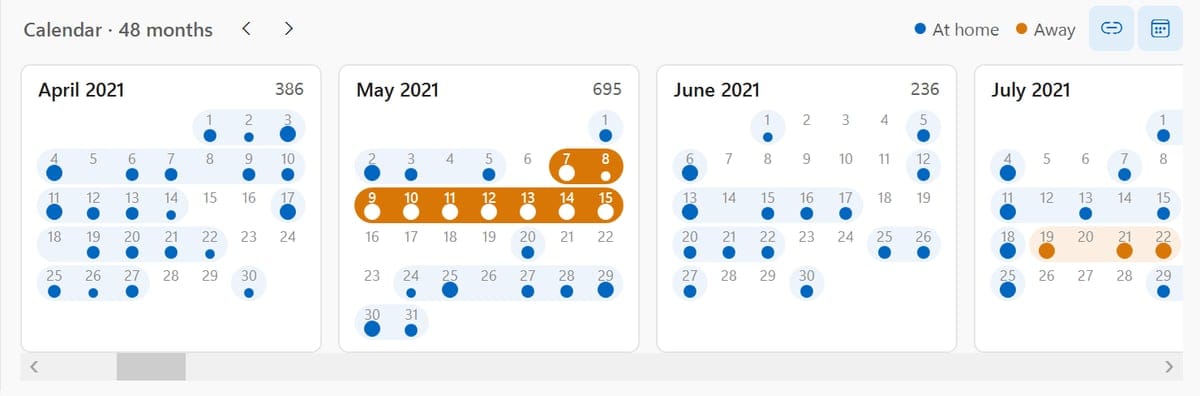
Every month at a glance: days with photos, trips in orange, events joined by a band. It scrolls with your photos.
See it before it happens
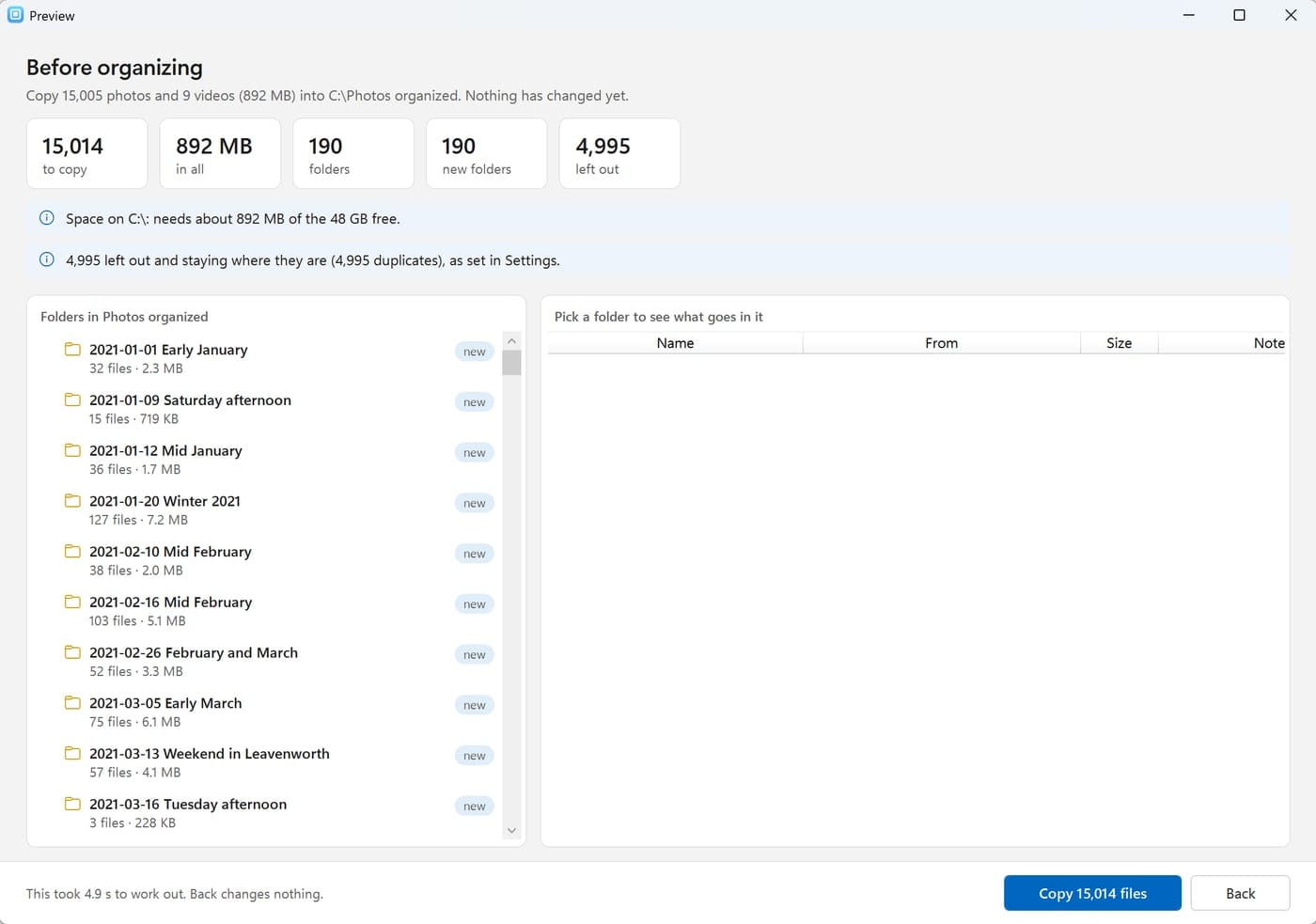
A preview of every folder and file, the space it needs and what's left out. Nothing changes until you say so.
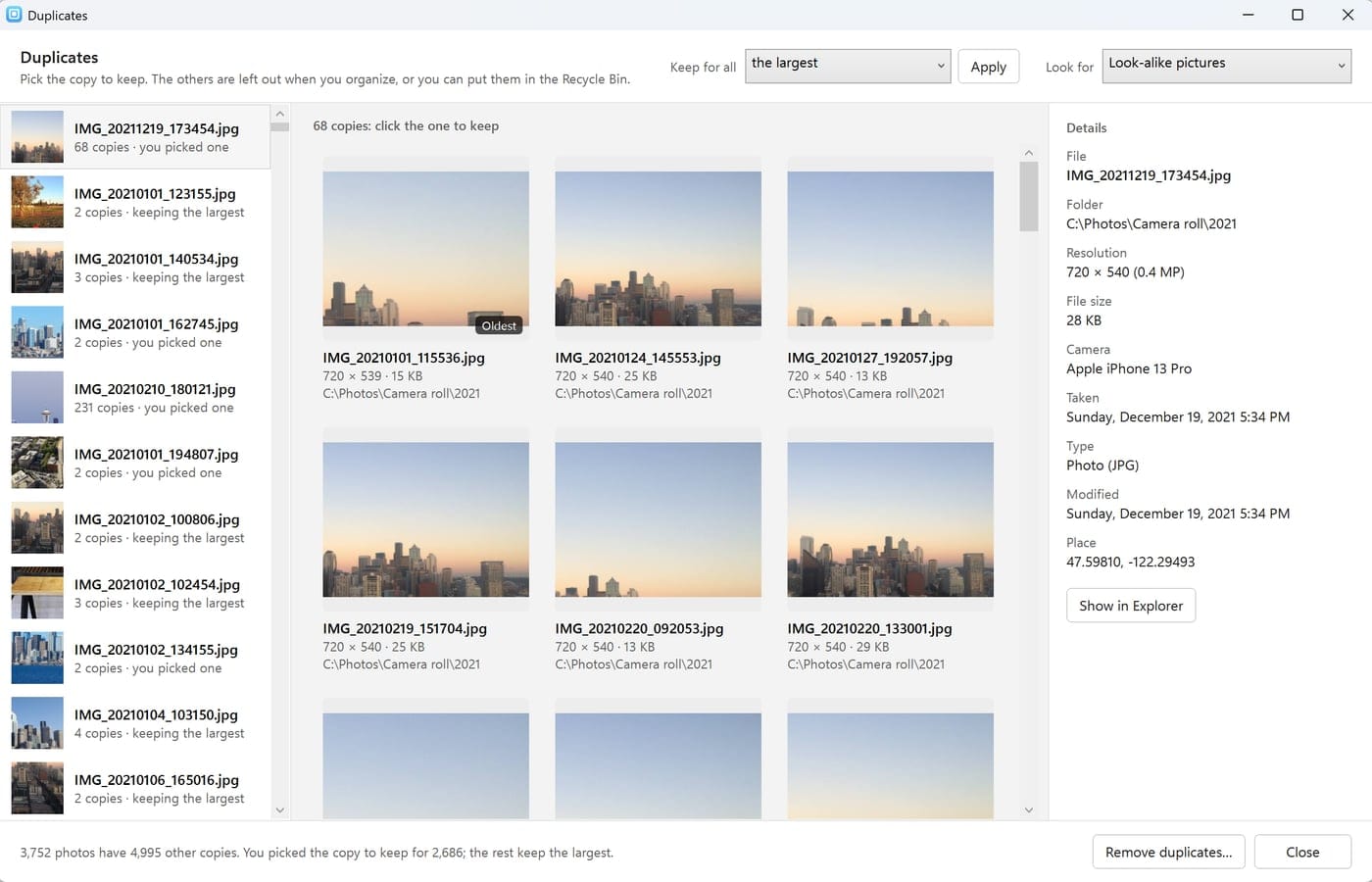
Duplicates, side by side
Exact copies, the same photo saved twice, or look-alikes. Pick the one to keep, or keep the largest for all.
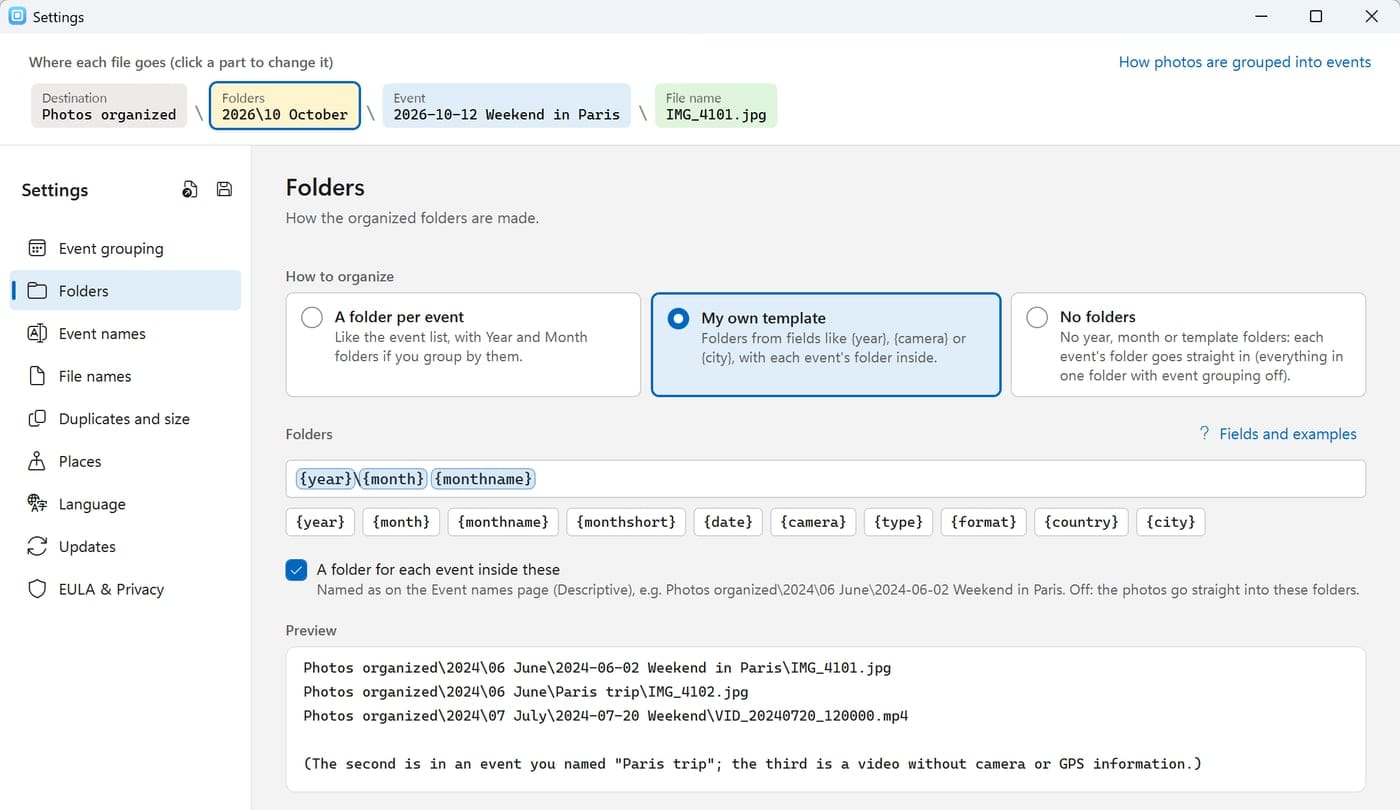
Folders exactly your way
A folder per event, years and months, your own template, or no folders at all. Drag fields like {year} into place.
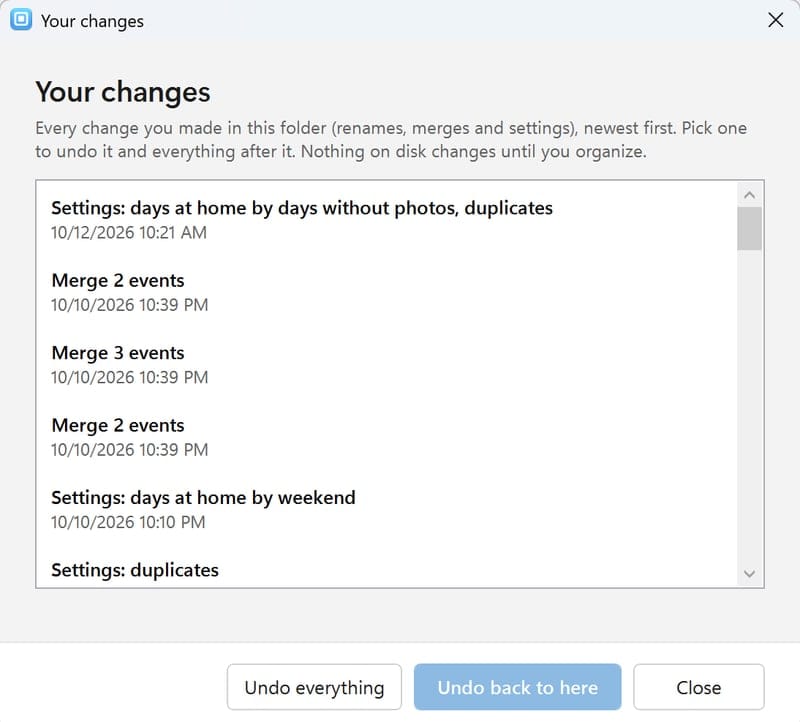
Every change can be undone
Renames, merges and settings are all in your history, and each organize can be undone too, file for file.
Photo Organizer finds every photo and video in a folder and its sub-folders, reads when each one was taken (from the camera, the date in the file name, or the file's own dates), and groups them into events.
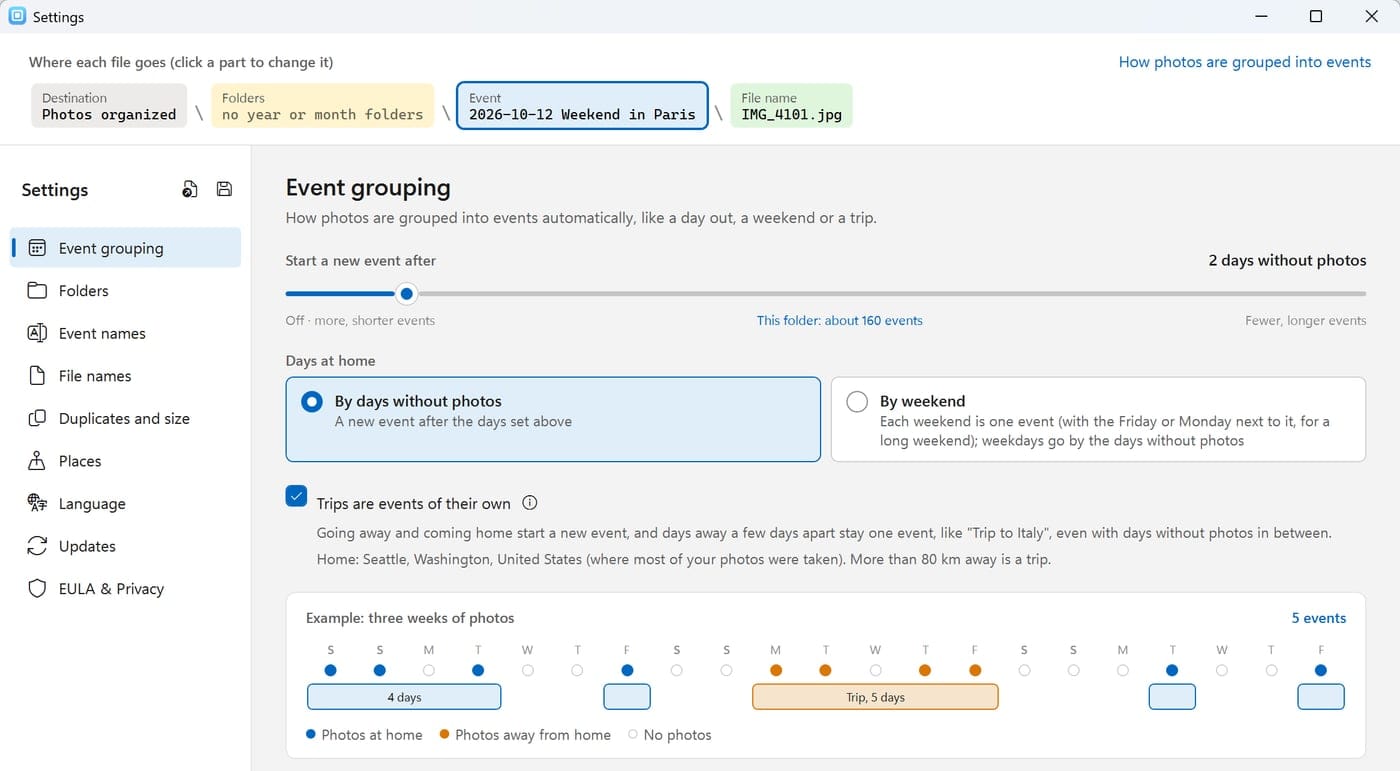
One slider, in the main window and in Settings: start a new event after 1 to 30 days without photos, and see how many events that makes for your folder as you drag. All the way left is Off: no events, just your folders.
Trips are events of their own. Leaving home and coming back start a new event, and days away a few days apart stay one trip, even with days without photos in between. Home is where most of your photos were taken.
By weekend: each weekend at home is one event, and weekdays follow the slider.
A live example of three weeks of photos shows how your choices group them, before you save.
Merge or rename any event: Ctrl+click events and merge them, click a name once to type your own.
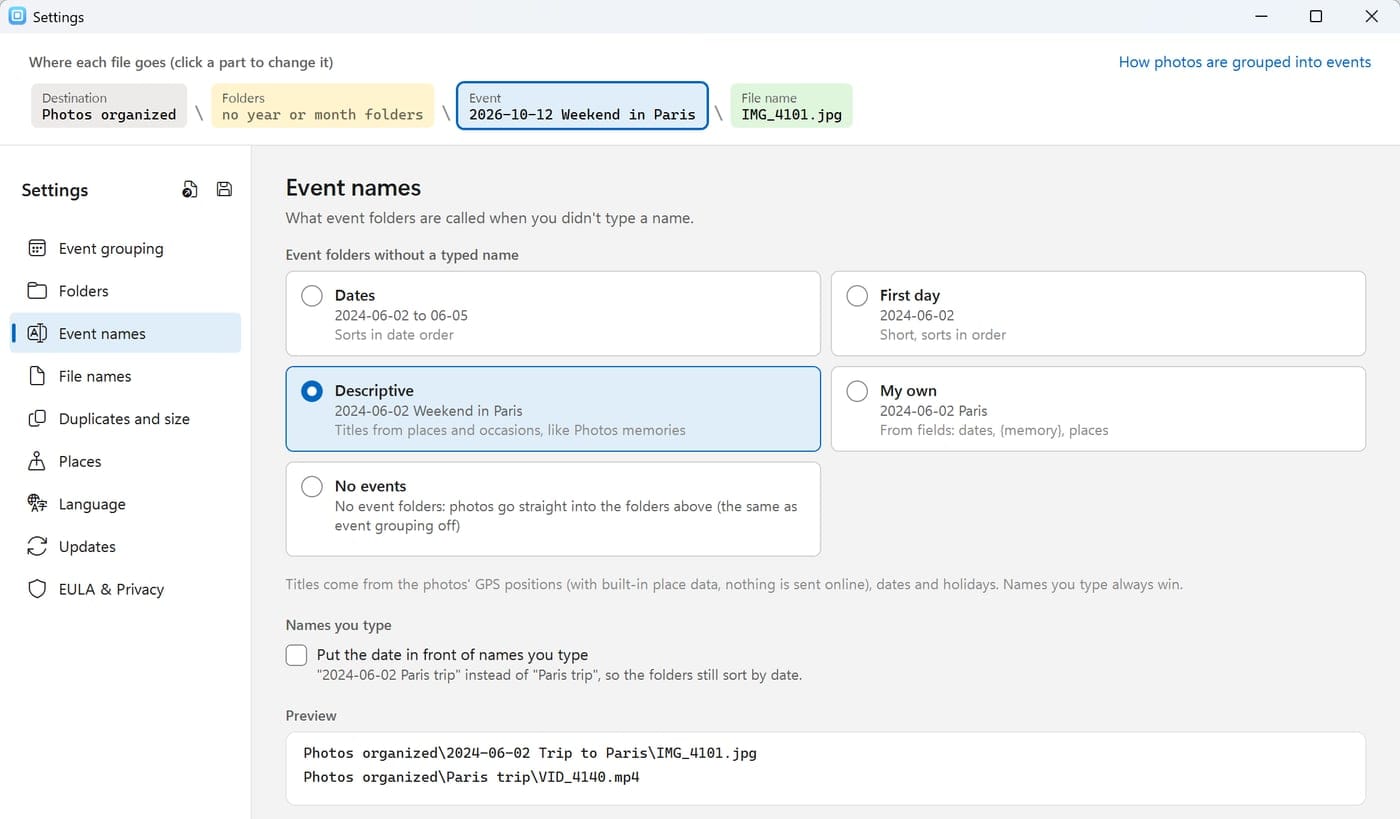
Event names
Name photo events automatically
With Descriptive names, each event is named from where and when its photos were taken, like the memories on your phone:
Trips:Weekend in Leavenworth, Trip to Paris and Lyon, Trip to Italy.
Holidays:Christmas 2024, Thanksgiving 2024, Christmas in Paris.
At home:Saturday afternoon, Mid January, Summer 2024.
Or by date:2024-06-02 to 06-05, the first day only, or your own from fields like {eventstart} {city}.
Names you type always win, and folders still sort by date: 2024-09-02 Trip to Italy.
Places come from the GPS positions in your photos and 161,000 places built into the program (GeoNames), so nothing is looked up online.
Calendar
Browse your photos by date on a calendar
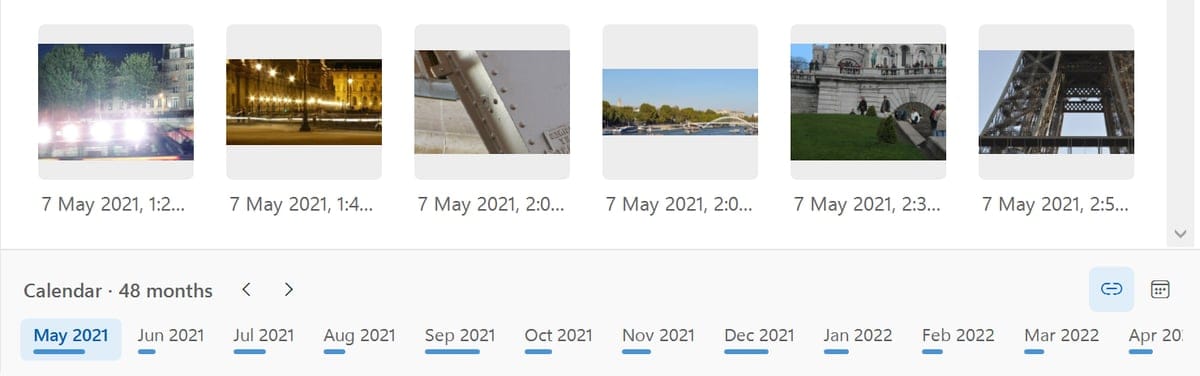
Month by month under your photos: a dot on each day with photos (bigger for busier days), blue at home, orange away, and each event's days joined by a band.
Click a day to see its photos; the event it belongs to is picked out in the folder list.
Scrolls with your photos, both ways: scroll the photos and the calendar follows, scroll the calendar and the photos follow. One click turns that off.
Folded away, it's a slim timeline of months, each with a bar for how many photos it has. Click a month to open the calendar there, or drag it to scroll.
Folders
Sort photos into folders by year, month or event
Each file's place is shown as a path you can click: each part opens its settings.
Photos organized\2024\06 June\2024-06-02 Weekend in Paris\IMG_4101.jpg
Destination: any folder you choose. Your originals stay where they are when you copy.
Folders: a folder per event, year and month folders (2024, Year 2024 or 24; 06 June, June or 06), your own template, or no folders at all.
Templates from fields like {year}{monthname}{camera}{country}{city}: type { to pick one, or drag them into place.
File names: keep the originals, or name them from the date taken, the event or the camera: {date:yyyy-MM-dd HHmmss}.
Saved settings: keep a set of choices under a name, like Trips by country or Plain years, and switch between them.
The folder list always shows exactly the folders organizing will make.
Duplicates
Find and remove duplicate photos
Three ways to find them: exact copies, the same photo saved twice (same moment and camera, like a resized copy), or look-alikes: re-saved, resized or lightly edited pictures, and burst shots.
Side by side: each set of copies with their resolution, size, camera, date and place. Click the one to keep.
Keep for all by a rule (the largest, the oldest, the first found), then look through to check.
Remove duplicates when you're sure: move them to a folder, to the Recycle Bin, or delete them for good. Or just leave them out when organizing.
Works on its own, in a window beside the main one, with Show in Explorer and Open with on every picture.
Leave out by size: skip thumbnails, small pictures from chats, or anything outside the sizes you choose.
Organizing
Preview before you copy or move photos
Finding photos, grouping, naming and merging only change what you see. Your disk changes only when you click Organize into folders, and even then you see a preview first:
The preview: how many files go where, how much space it needs and has, the new folders, and what's left out and why.
Copy or move. Copying leaves your originals; moving can back everything up first, and checks each copy.
The results afterwards: what was done, and for anything that wasn't (a file in use, a full disk), what to do about it and whether trying again will fix it. Retry does just those files.
A log of every file, and the progress as it goes: thousands of photos in minutes.
Undo
Every change can be undone
While you work: renames, merges and settings changes are all in your history. Undo them one at a time (Ctrl+Z), go back to any point, or put one folder back as it was. Your changes are kept with the folder, also when you add new photos.
After organizing: each organize can be undone too. Moved files go back where they were, copies are removed (only if you didn't change them), and the folders it made are tidied away, for that organize and every later one.
Made for big libraries
Fast with big photo libraries, and in your language
Big libraries
Years of photos are no problem. A clear progress panel while it scans (photos, videos, dates found so far) with Cancel, and details are remembered, so the next time is a second.
Smooth to browse
Photos load as you scroll, with no pages; zoom in for bigger pictures and fewer on each row. Search by name, place, date or file name.
Photos and videos
JPEG, PNG, HEIC, WebP, camera RAW (CR3, NEF, ARW, DNG…), MP4, MOV and more, read with Windows' own codecs. Right-click any picture to show it in Explorer or open it with another app.
Today's Windows
Runs natively on Windows 10 and 11, on Intel, AMD and ARM PCs. Signed by Gearmage, with updates you choose to install.
In 11 languages, with dates and months in yours
English
Español
Français
Deutsch
Italiano
Português (Brasil)
日本語
简体中文
한국어
العربية
עברית
Privacy
Private by design: your photos stay on your PC
Photo Organizer runs on your PC and reads your photos where they are. Your photos, their details and your folder names never leave your computer: no account, no cloud, no upload. Places come from built-in data.
Neighbourhoods and landmarks online, off unless you switch it on (GPS positions are then sent to OpenStreetMap while organizing).
The update check: a small file listing the latest version, read from gearmage.com once a day. Switch it off in Settings › Updates.
A bug report, only if you choose to send one: it opens in your own email program, so you see what's sent.
No lock-in
Your photos end up in plain folders, not in a database
Many photo programs are a viewer on top of a database. Your pictures sit in the program's catalog, and the albums, names and tags you spent hours on stay inside it. Switch programs, or lose the catalog, and that work is gone.
Photo Organizer does it the other way round. It puts your photos into ordinary folders on your disk, with the event's name in the folder's name, like 2024-06-02 Weekend in Paris. That is the whole result, and it doesn't need Photo Organizer to open it.
Open it with anything: File Explorer, any photo viewer or editor, a phone, a TV, another computer. If a program can open a folder, it can open your photos.
Your own files and formats: JPEG, HEIC, camera RAW, MP4 and the rest stay as they are, not wrapped in a library or converted.
Leave whenever you like: uninstall Photo Organizer and your folders stay exactly as they are.
Just want to look at your photos?
Photo Organizer shows your photos, but its job is sorting them. If all you need is a viewer, Windows Photos, built into Windows, opens Photo Organizer's folders just as well. Come back when you have a big pile to sort, de-duplicate and archive.
Photos organized
2024
06 June
2024-06-02 Weekend in Paris
IMG_4101.jpg
IMG_4102.jpg
2024-06-29 Weekend in Leavenworth
09 September
2024-09-02 Trip to Italy
Folders and photos, nothing else. Open it with any program, anywhere.
Made for photo backups and archives
A backup is just a copy. Copy the folder to an external drive, a NAS or cloud storage. There is no catalog to export or restore.
One folder per event, sorted by date, so you can archive a finished year as a unit and find an event again by its name and date.
Still readable in ten years, by whatever program you use then.
Photo Organizer does keep its own notes (your event names, merges and undo history) on your PC, so it can remember your work. The folders it made don't depend on them.
FAQs
Photo Organizer: frequently asked questions
Will it change or move my photos?
Not until you click Organize into folders, and then you see a preview first. Finding photos, grouping them, renaming and merging events only change what you see. When you organize, you choose to copy (your originals stay where they are) or move (with an optional backup first), and every organize can be undone afterwards.
Are my photos uploaded anywhere?
No. Everything happens on your PC. Place names come from data built into the program. The only optional online parts are the neighbourhood and landmark lookup (off unless you switch it on) and the daily check for a new version, which sends nothing about you or your photos. See the Privacy Policy.
How does it decide where one event ends?
A new event starts after the number of days without photos you set with the slider (2 by default). Trips are kept together: leaving home and coming back start a new event, and days away a few days apart stay one trip. You can also make each weekend at home one event, merge events, or switch grouping off.
What's a trip, if my camera doesn't record where photos were taken?
Home is where most of your photos were taken, and a trip is days more than 80 km from home, told by the photos that have a GPS position. Events are made by date first, so photos from a camera without GPS taken on the same days as your phone's are in the same events. A stretch with no GPS at all in the middle of a trip joins it when the trip carries on afterwards.
How do I organize photos into folders by date?
Pick the folder with your photos and Photo Organizer scans it, sub-folders included, reading when each photo was taken. Choose how the folders should look (a folder per event, year and month folders such as 2024\06 June, or your own template), look at the preview of every folder, then click Organize into folders to copy or move the photos in. Your originals stay put when you copy.
Can it organize videos in a folder too?
Yes. Photos and videos (MP4, MOV, AVI, MKV and more) are sorted together by the date they were taken, so a day's clips end up in the same event folder as its pictures.
How do I organize a big photo collection for backup or archive?
Organize it into dated folders, one per event, then copy the result to an external drive, a NAS or cloud storage. Because the result is plain folders, there is no catalog to export, and an archive of one year is just that year's folder. More about no lock-in.
Where do the organized photos go?
Into the folder you choose (Photo Organizer asks the first time you organize). It can even be inside your photos folder: Photo Organizer leaves it out when it looks for photos, so nothing is counted twice.
Do I need Photo Organizer to open my organized photos?
No. They are ordinary files in ordinary folders: open, copy, back up or move them with File Explorer or any other program. Photo Organizer doesn't wrap them in a catalog or database, and uninstalling it leaves your photos as they are. It keeps its own notes (your event names, merges and undo history) on your PC to remember your work, but the folders it made don't depend on them. More about no lock-in.
What if I add new photos later?
Click Scan again (or pick the folder from the list of folders you looked at before). New photos join their events, and your names, merges and settings are kept.
Which photo and video formats does it support?
JPEG, PNG, GIF, BMP, TIFF, WebP, HEIC and HEIF, camera RAW files (CR2, CR3, NEF, ARW, DNG, ORF, RW2 and more) and videos such as MP4, MOV, AVI, MKV, WMV and 3GP. Dates, cameras, sizes and GPS positions are read with Windows' own media support, so a format Windows can show (with its codec installed) works best.
How do I get new versions?
Photo Organizer checks for new versions and offers them when they come out (Settings › Updates). See what's new in each version. If something goes wrong, it offers to send us a bug report, and we'd love to hear what you think.
Is there a Mac version?
Not yet; Photo Organizer is for Windows 10 and 11. Let us know if you'd like a Mac version.
Is Photo Organizer the same as Media Event Organizer?
Yes. Media Event Organizer is the earlier name of Photo Organizer. It is the same program from Gearmage, and this page is where to get the current version.
Sample photos in the pictures: public domain (CC0) from Wikimedia Commons; their dates and places were set for the demo.