Mail Attachment Downloader 4.0 is a new 64-bit program that keeps, reads and automates your email on Windows, with no cloud service in between. Choose from four PRO editions, each with everything in the one before it.
Backup & archiveAll PRO editionsNew in 4.0Keep an encrypted, searchable copy of each mailbox, export it to PST, MBOX, EML, MSG, PDF or ZIP, and restore or import mail.
ParserPRO Parser and upNew in 4.0Read invoice numbers, totals and line items out of emails and files into CSV, Excel or Google Sheets, with e-invoices read exactly.
AI AssistantNew in 4.0Describe what to download and the AI builds the rule. Run it with the built-in AI, your own server or a cloud service you choose.
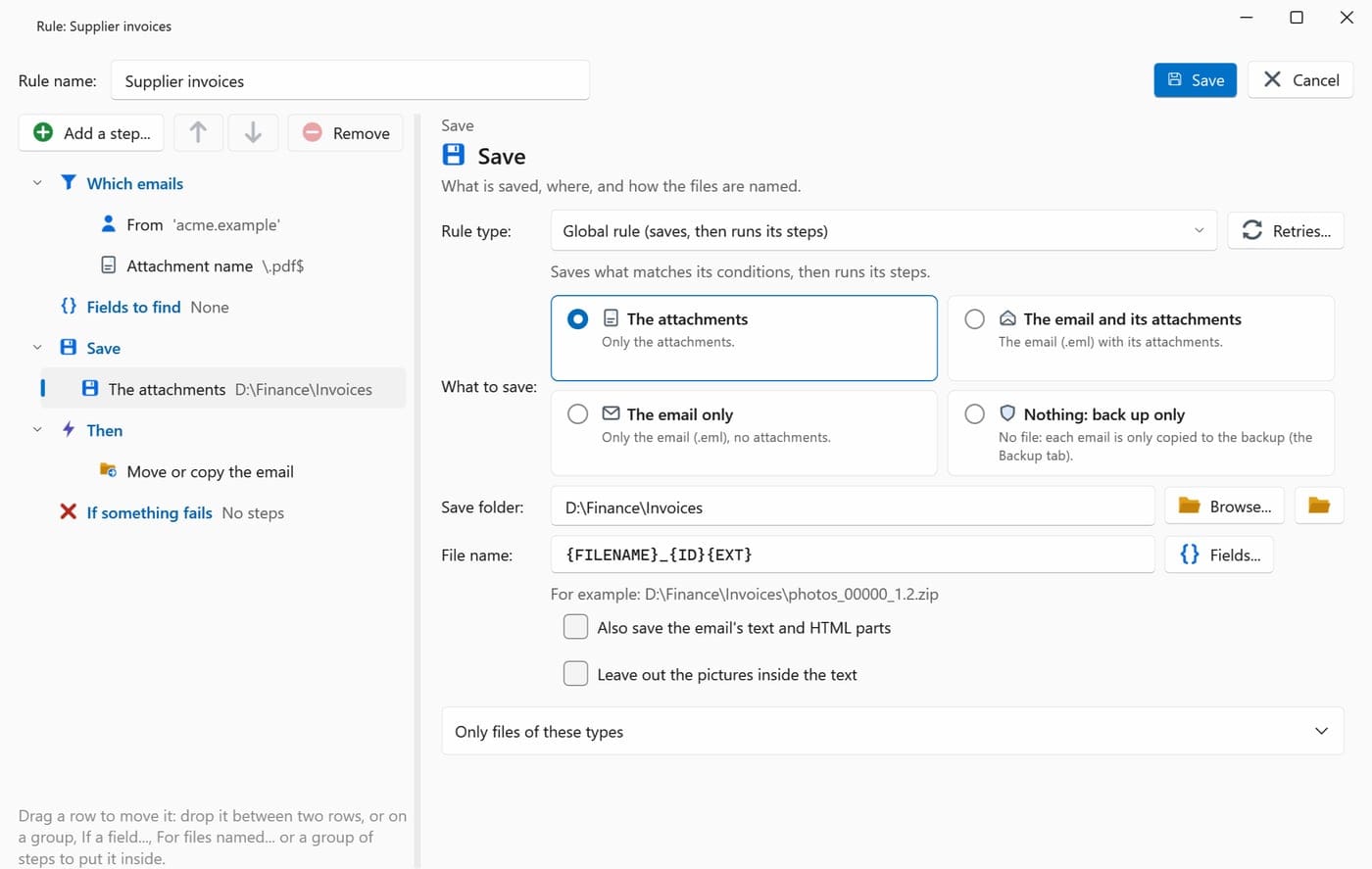
Emails, attachments, or bothNew in 4.04.0 can save just the emails, just the attachments, or both. 3.x saved attachments only. In every edition, Free included.
Rules & filtersPRO Rules Client and upThe PRO Rules tab and Rule Editor, with filters on any field, chained rules and a check for rules that can never run.
SourcesPRO Rules Client and upNew in 4.0Read from email, and from folders, network shares, SharePoint, OneDrive and S3. PRO Rules Server adds database tables, Slack and Teams.
Upload to cloudPRO Rules Client and upNew in 4.0Send files to OneDrive, SharePoint, S3, Azure Blob, SFTP and FTPS servers, WebDAV, a network share, Google Drive or Dropbox.
Run summaries & notificationsNew in 4.0A report when each download ends, and alerts to Slack, Teams, Telegram, Discord, Google Chat, ntfy, Pushover, webhook or email.
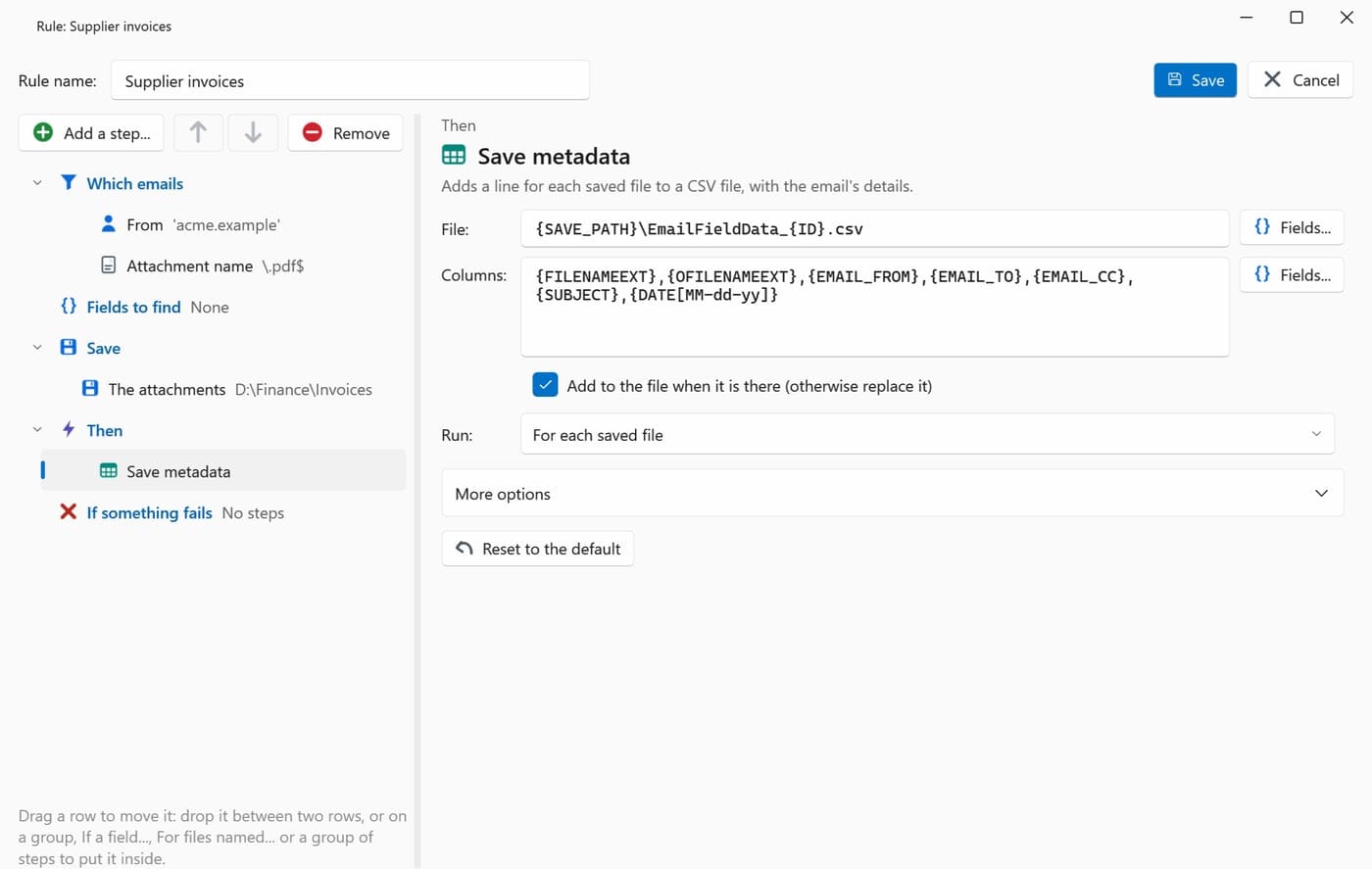
Save & convertPRO Rules Client and upName files and folders from any field, log details to CSV, convert to 50+ formats and work with PDFs.
IntegratePRO Rules ServerDatabases, scripts, webhooks and AI prompts, and AI agents such as Copilot and Claude Code that can ask about your downloads.
24×7 Windows servicePRO Rules ServerKeeps running when nobody is signed in and starts again after a reboot.
Which edition?
Each edition includes everything in the one before it. The pricing page compares them side by side, with every feature and the prices.
A PRO program without a licence works as the Free edition. Moving down an edition deletes nothing: your rules, parsers and watches are kept, they just don't run, and a banner says why.
Sources
Mail Attachment Downloader reads from email and from other places. Email works in every edition; the other sources are in the PRO Rules editions.
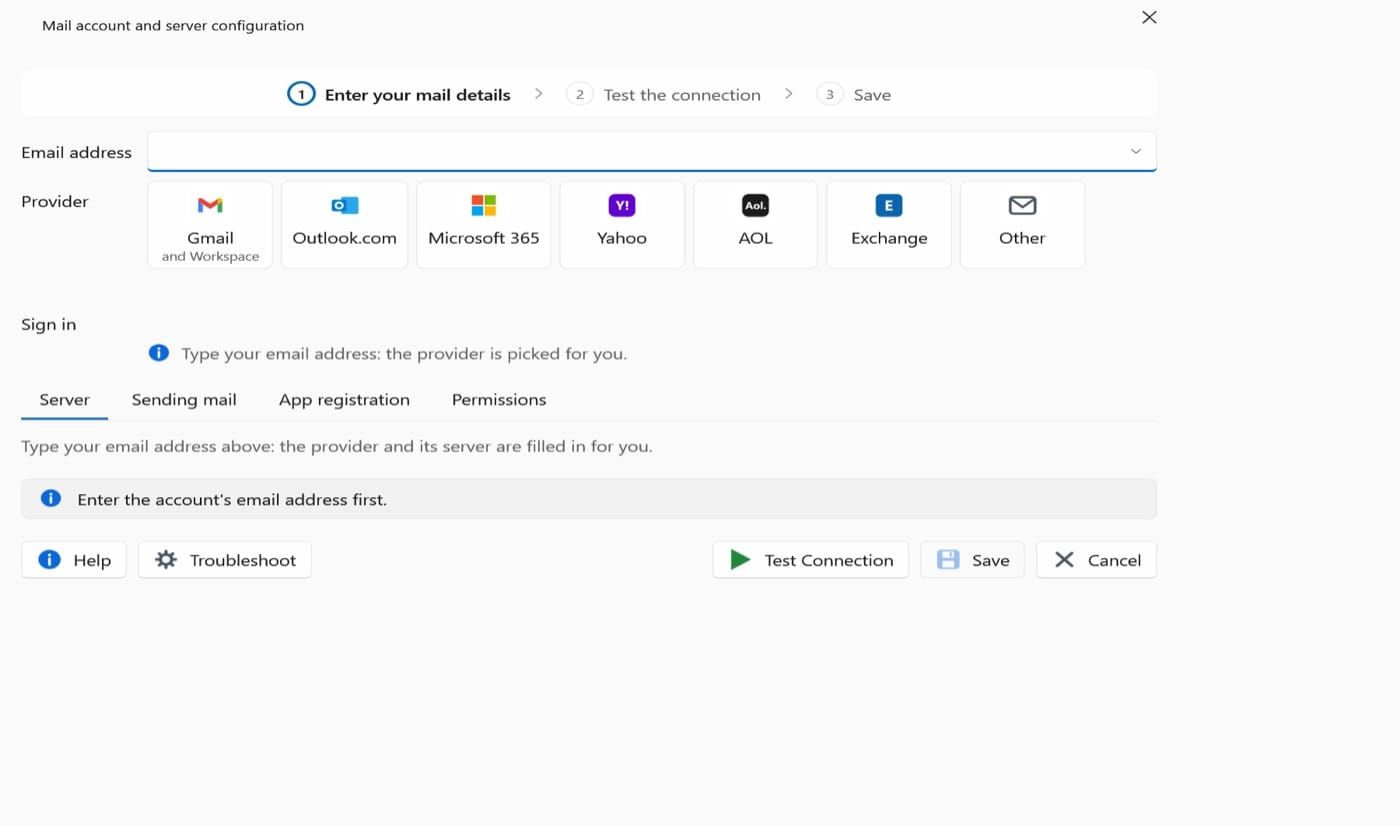
Sign in with Google in your browser: no Google password is kept in the app. Google Workspace accounts on your own domain are recognized from the domain's mail servers and use the same sign-in. If you prefer, Gmail also works with an app password (with 2-Step Verification on), and the setup walks you through making one.
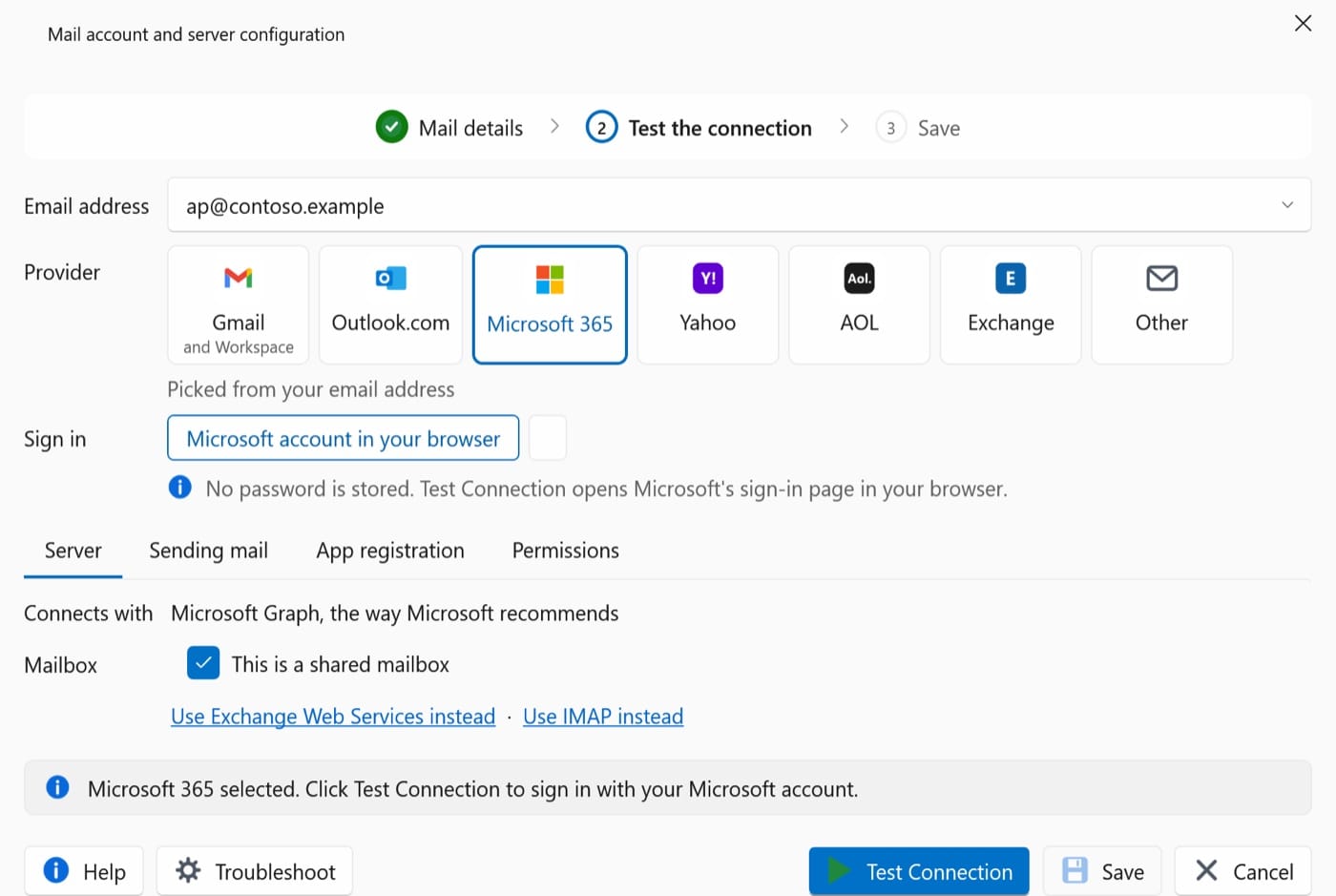
Microsoft 365 and Exchange, including shared mailboxes
Connect natively through Microsoft Graph or Exchange, with modern sign-in. Shared mailboxes and groups appear in the folder list next to your own Inbox. Your organization can also use its own app registration, with app-only access for a service that runs unattended.
Microsoft 365 account
The free edition has basic Office 365 / Exchange support. Exchange through EWS is for on-premises servers: Microsoft is switching EWS off for Exchange Online, so use a Microsoft 365 account there.
150+email services, web hosts and internet providers recognized
26mail server products, for your company’s own server
Anyother mailbox with IMAP or POP3
From Yahoo, AOL and iCloud to web hosts such as GoDaddy and IONOS, internet providers such as Comcast and WEB.DE, and company servers such as Zimbra and Kerio: type your email address and the server, port and security are filled in for you, including your own domain hosted at one of these providers. Or pick yours from the Provider list, which you can search as you type. Where a provider needs an app password, a step-by-step guide takes you to the right page.
Not on the list? It still works: Mail Attachment Downloader connects to pretty much any mailbox that offers IMAP (or POP3). Enter the server your provider gives you.
Popular providers set up for you (50 of 150+)
Email services
Gmail, Google Workspace, Microsoft 365, Outlook.com, Yahoo Mail, AOL Mail, Apple iCloud Mail, Zoho Mail, GMX, Mail.com, Fastmail, Amazon WorkMail
A new-account walkthrough with a tile for each provider, a Provider list of 150+ setups you can search as you type, and guides for the app passwords Yahoo, AOL, iCloud and Gmail need. When your address doesn’t tell which provider it is, the walkthrough asks before the password. Connection Diagnostics checks the connection and warns about firewalls that inspect TLS traffic.
Besides every schedule choice (15 minutes, hourly, at a set time), tick Also download new email as soon as it arrives. IMAP accounts pick up mail within seconds; Microsoft 365 accounts are checked every minute. FREE offers None or Daily.
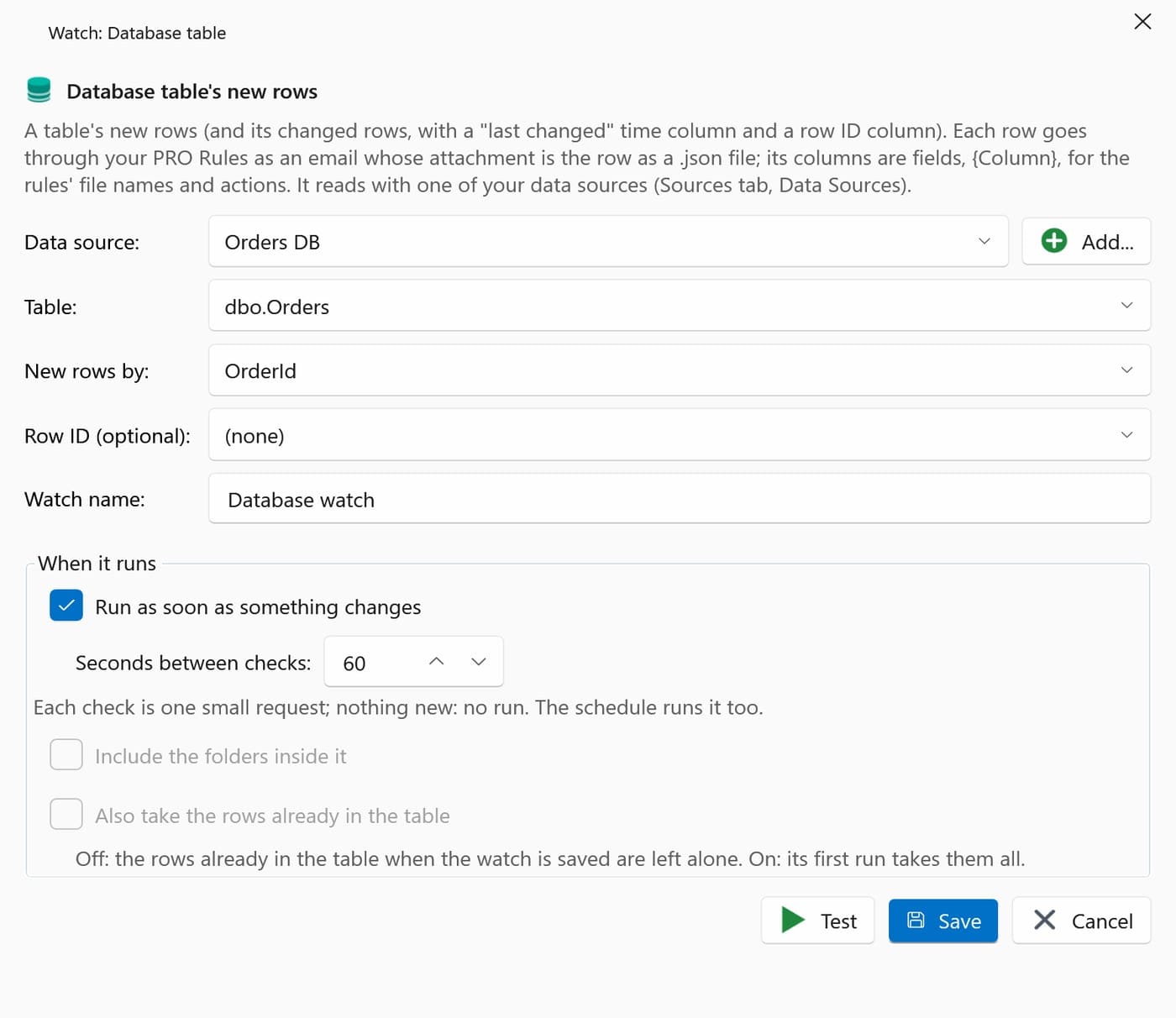
A watch works like an account, but its source is new files in a folder or network share, SharePoint, OneDrive or S3 (and S3-compatible storage), completed DocuSign envelopes, and, in PRO Rules Server, database tables and Slack and Teams channels. Your rules, History, Redo and the Downloads tab work for them just as for email. Watches check about every minute, and folders also react to Windows' own change events. PRO Rules Server adds database tables, Slack and Teams as watched sources.
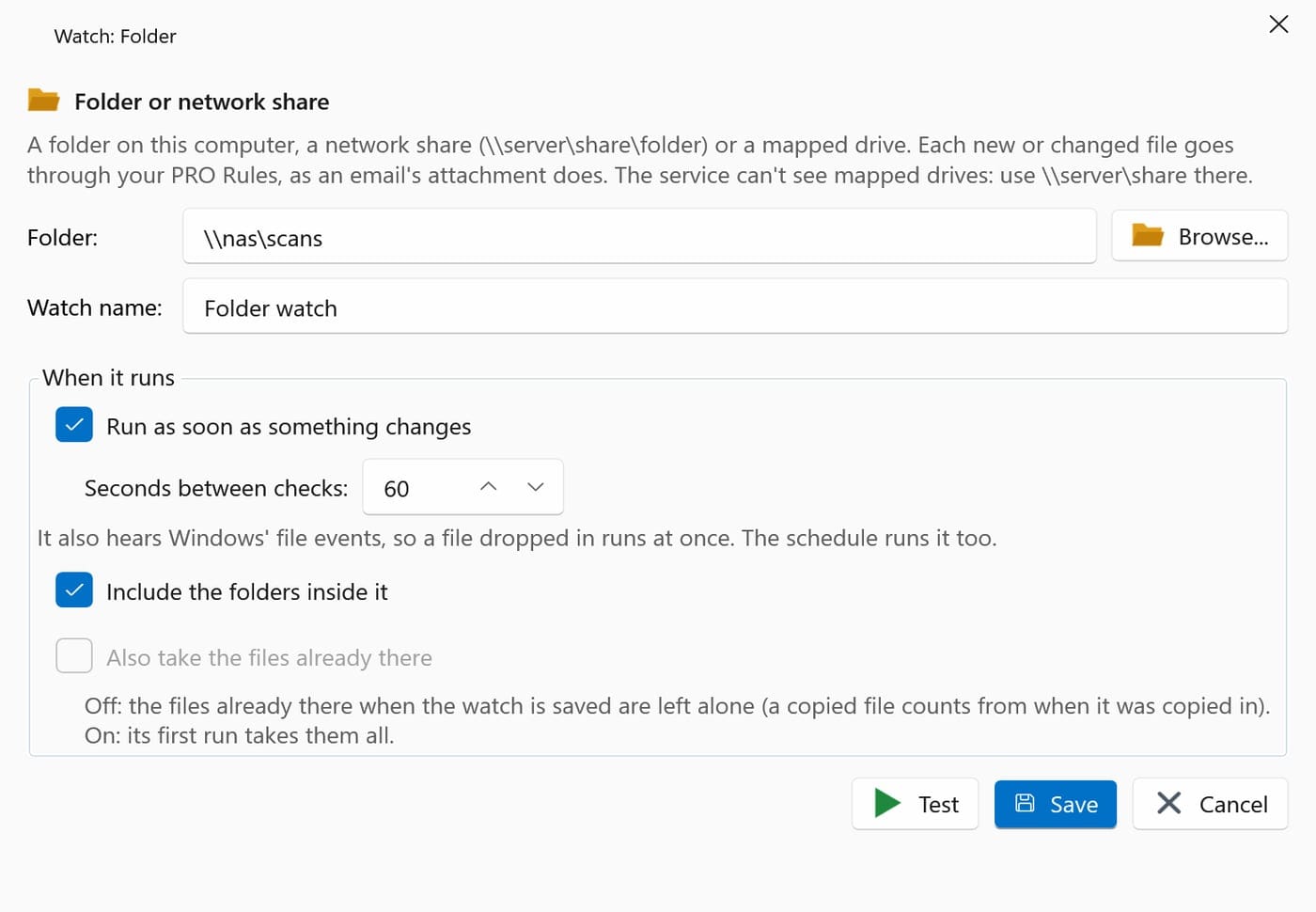
Watch a local folder or a network share, such as the one a scanner or another program drops files into. New files go through your rules like attachments do: read, renamed, converted, handed off. The folder is checked about every minute, and also reacts to Windows' own change events.
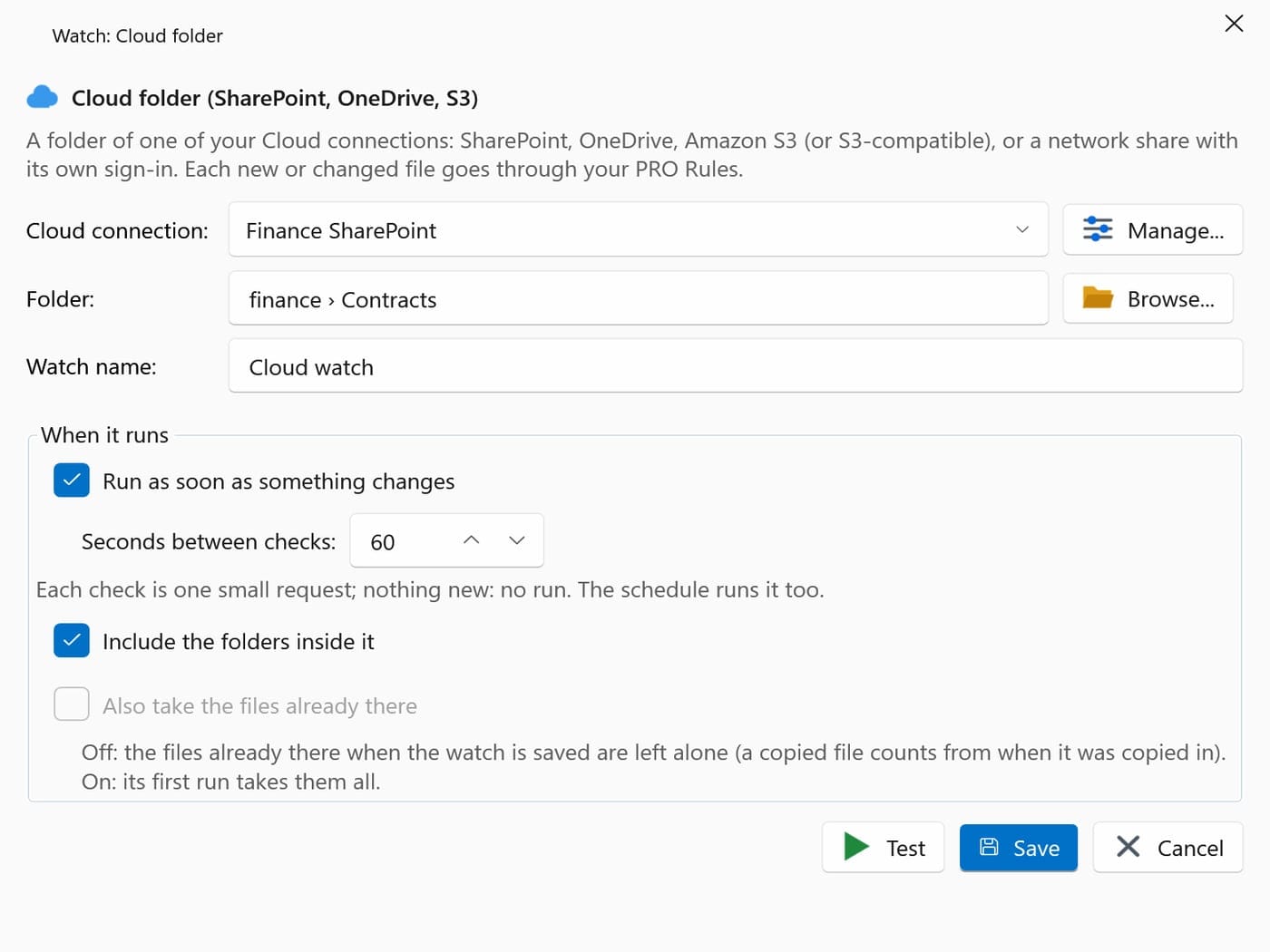
Watch a SharePoint library, OneDrive or an Amazon S3 (or S3-compatible) bucket, and process new files as they arrive. Handy for taking documents out of one system, reading them, and handing them to another.
Tested against test services. Live tries with real SharePoint and S3 are still to come. Azure Blob, WebDAV, SFTP, Google Drive and Dropbox can be uploaded to, but can't be watched yet.
Take completed DocuSign envelopes as input: the signed PDF (combined, or one per document) and optionally the certificate of completion go through your rules, so signed contracts can be filed, renamed and handed on without anyone downloading them.
Tested against a test DocuSign service. A live try with a real DocuSign account is still to come.
Treat new rows in a database table as the things to process: each one goes through your rules, so a record can be turned into a file, a message or a call to another system. A PRO Rules Server source.
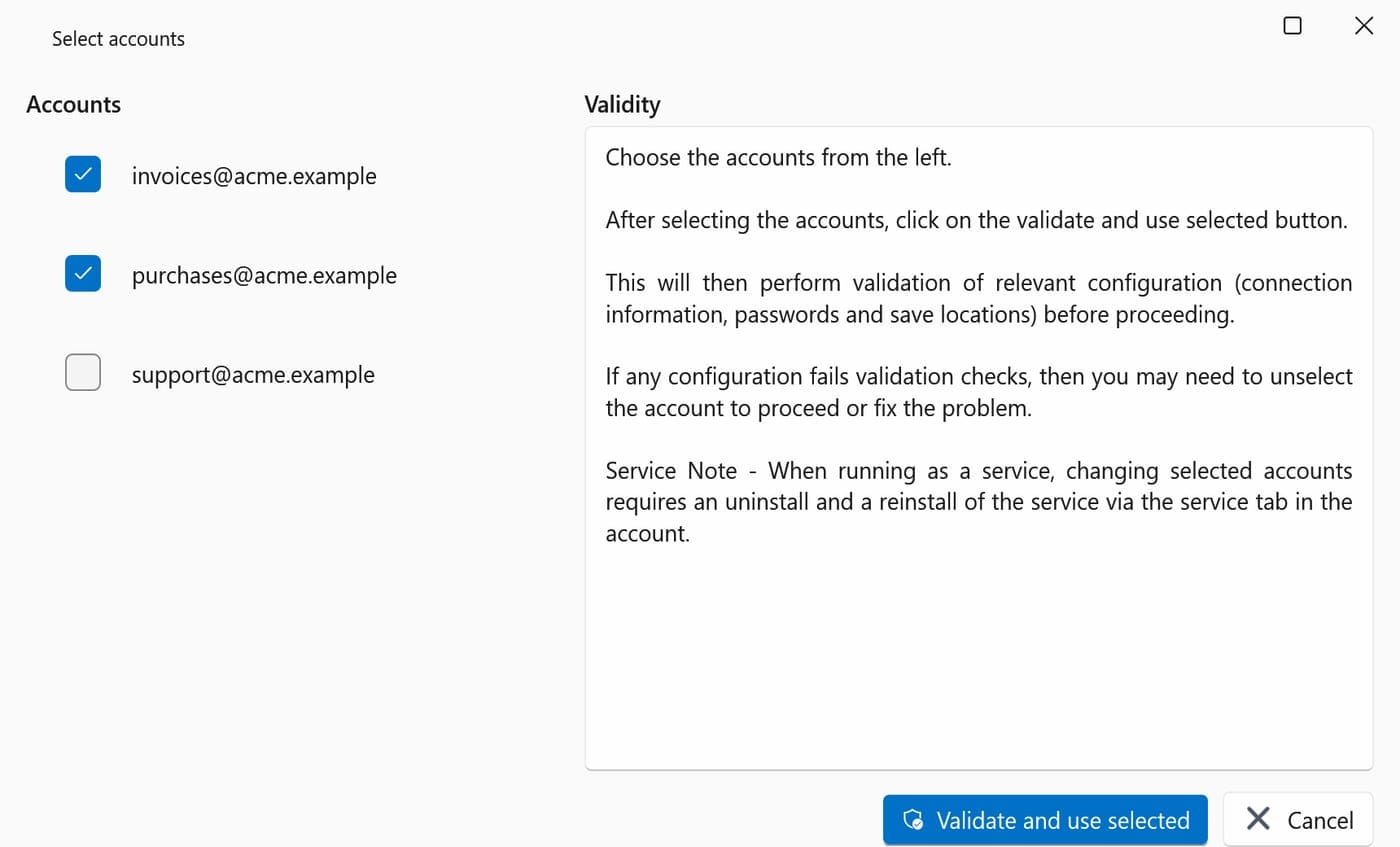
Run several sources together in one run, instead of one at a time. PRO Backup runs up to 3 accounts together, PRO Parser up to 5, and the two Rules editions as many as you have (3.x Pro Client stopped at 15). Sources you set up beyond the limit are kept and run on their own.
Choose sources
Backup & archiveNew in 4.0
Keep a searchable, encrypted copy of your mailboxes, take it with you, and put it back. Included from PRO Backup.
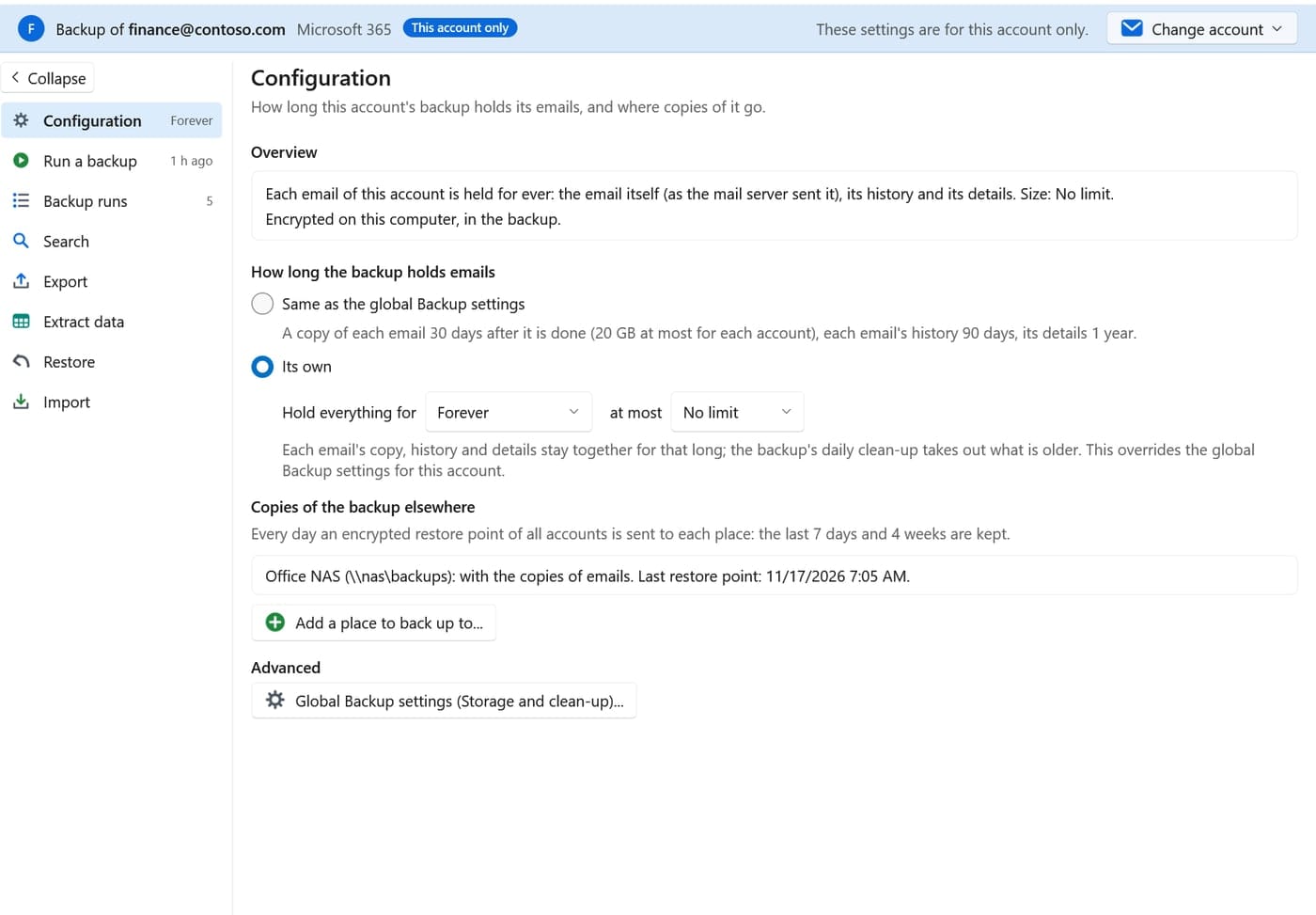
The new Backup tab keeps a copy of every email in an account's folders, encrypted on your own system, for as long as you choose (from 30 days to forever, with an optional size limit, set per account). The first backup can be stopped and resumed, and every later run adds only what is new. Emails deleted on the server stay in the backup for as long as you say.
Configuration
Choose what each account keeps, for how long, and whether deleted mail stays.
Back up now
Run a backup whenever you like, apart from the schedule, and watch it in Backup runs.
Search
Search the backup by sender, subject, date or text without connecting to the mail server.
Nothing but a backup
In What to save, choose Nothing: back up only to keep the emails without saving files.
Backup tab: Configuration
Watches keep what they pick up, too (PRO Rules Client and up): files as they were, and with PRO Rules Server also database table rows and Slack or Teams messages, each as an encrypted copy. The Search, Export and Restore pages are built around email.
FREE shows the Backup tab as a preview and keeps history for 1 day, with no copies of emails.
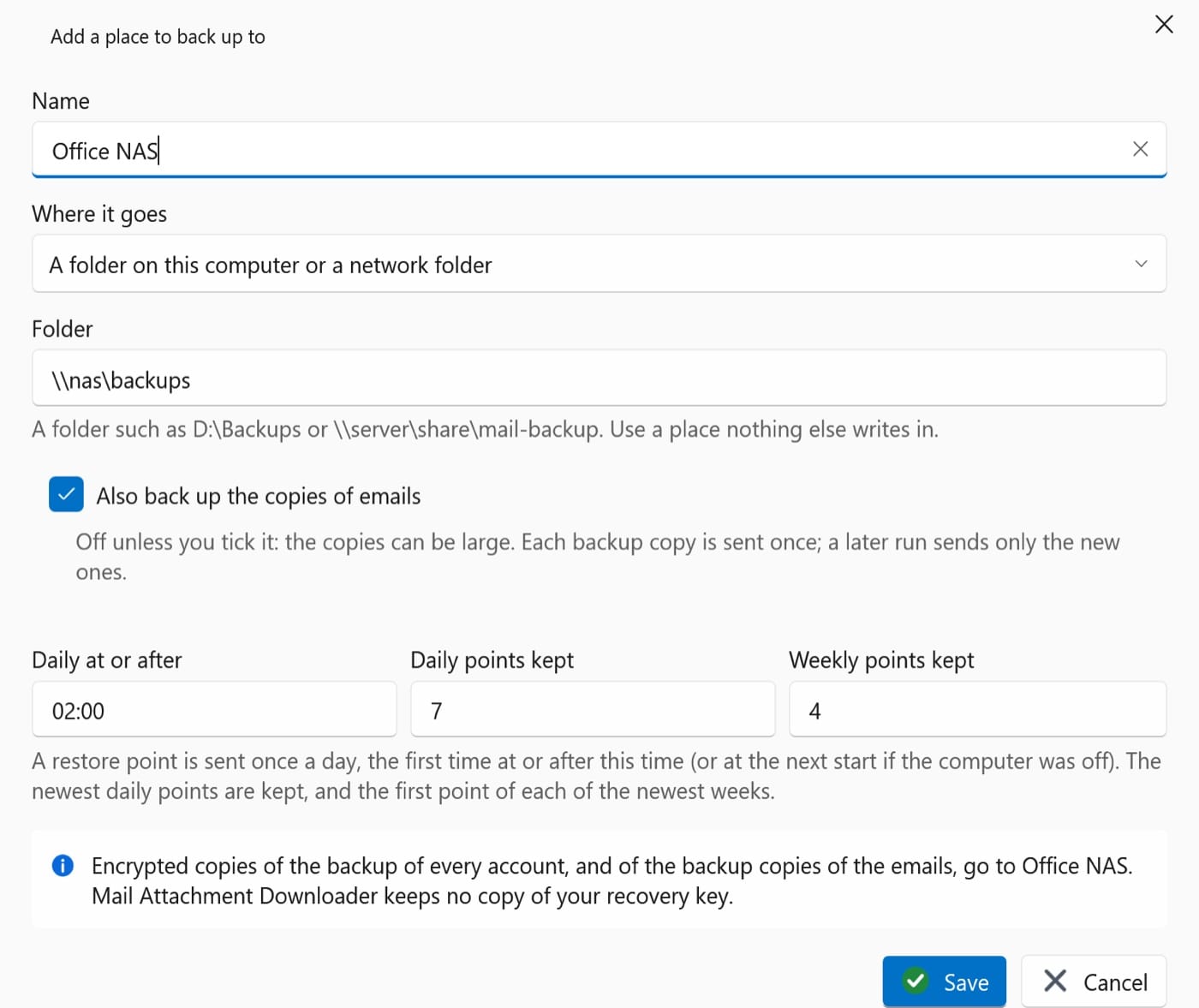
Once a day (02:00 by default) the backup's restore points of every account are copied to a folder, a network share, Amazon S3 or Azure Blob storage. The last 7 daily and 4 weekly points are kept. Everything is encrypted, and a recovery key lets you open it on another system if this one is lost. Each place has a box to also include the copies of the emails themselves.
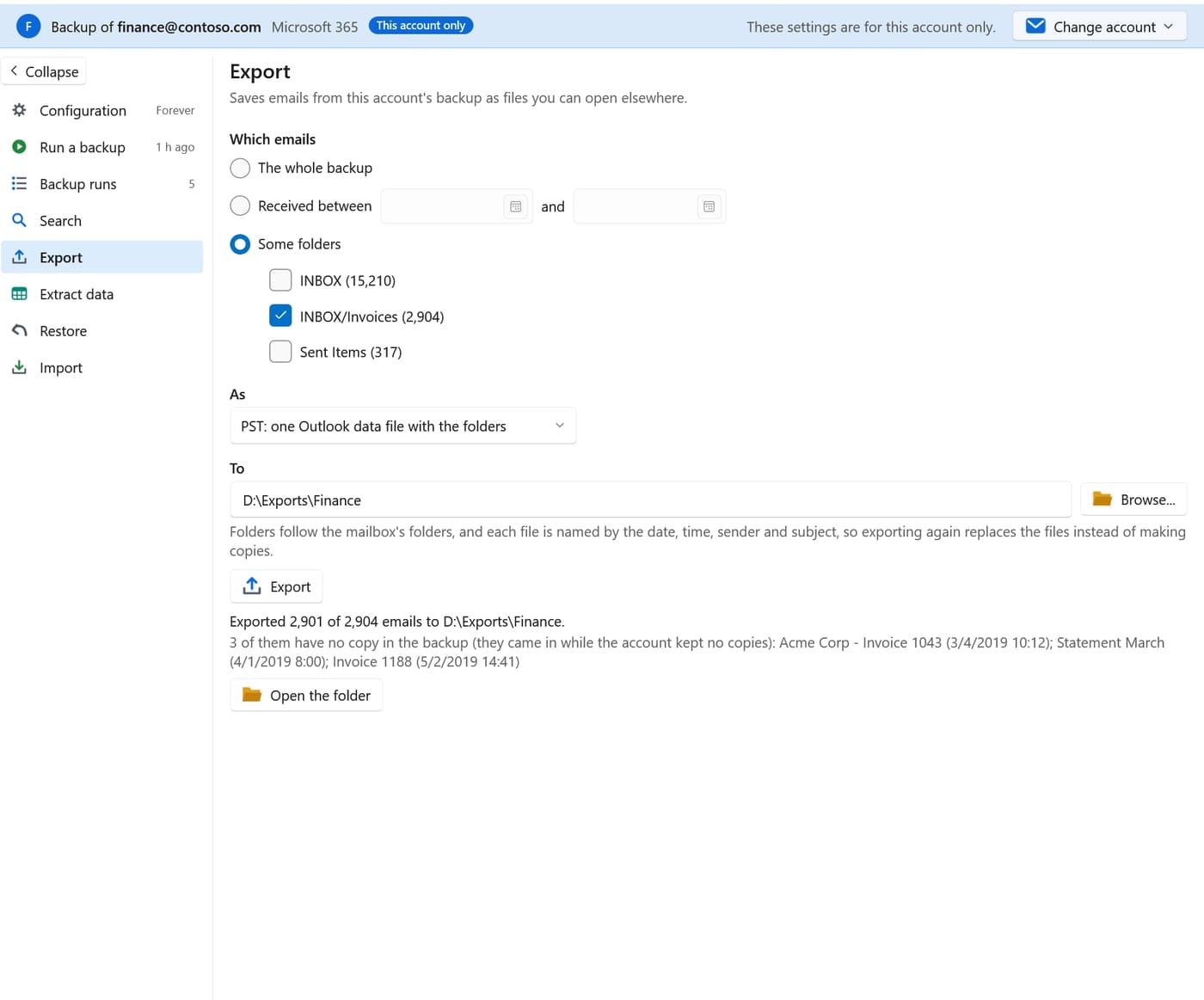
Turn the backup into files other programs open: EML, MBOX (one per folder), MSG, PST for Outlook, PDF (one per email, attachments next to it) or a ZIP of EML files. Export the whole backup, a date span or chosen folders. File names are the same every time, so exporting again replaces the files instead of adding copies. From the Downloads tab, Export N emails… exports just the ones you picked.
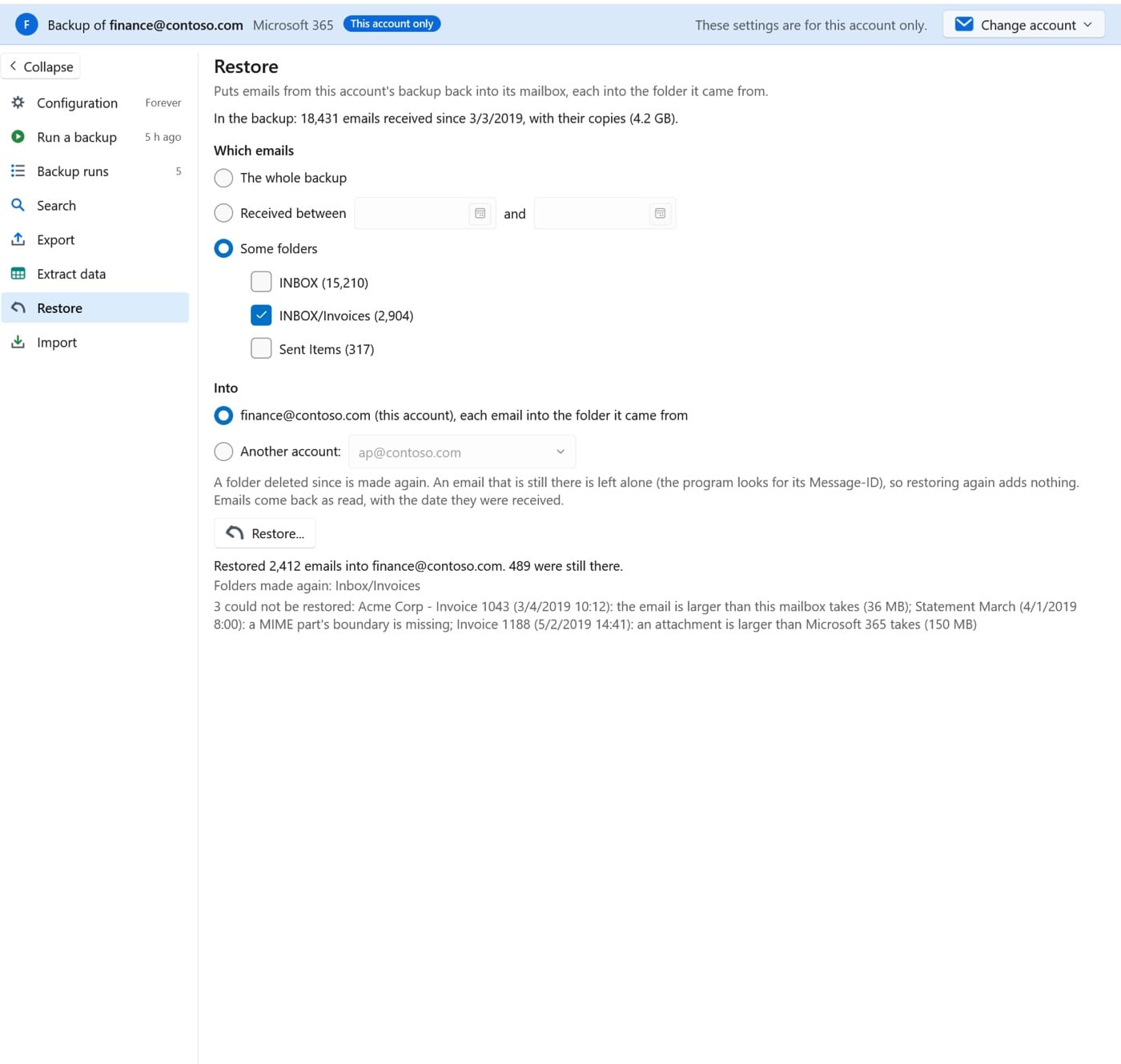
Put emails back into their own folders on the server (folders deleted since are made again). Emails already there are skipped, so restoring twice adds nothing. It works with IMAP and Gmail, Microsoft 365 and Exchange accounts, can be stopped and continued later, and for a Gmail account it paces itself around Google's daily limit, so a very large mailbox can take several days.
Restore is built and tested against test servers. It hasn't yet been tried on real Microsoft 365, Exchange and Gmail mailboxes, which is part of what the preview is for. POP3 accounts and watches can be exported but not restored.
Choose a different kind of account in Restore's Into box, such as Gmail into Microsoft 365 or Yahoo into IMAP, to copy your mail across. Pick the folders to copy, and whether read/unread, stars and labels (as categories) come along. It is a copy: nothing is deleted from the source, and each email is copied once. Mail only: calendars, contacts, rules and signatures aren't included.
Bring old mail into an account's backup from a PST file, an MBOX file or Thunderbird-style folder, or a folder of EML files. Duplicates are skipped, imported emails don't trigger your rules, and each import is a run you can look at (or restore from) afterwards. Add from another computer's backup merges the emails a backup from another system has and this one lacks.
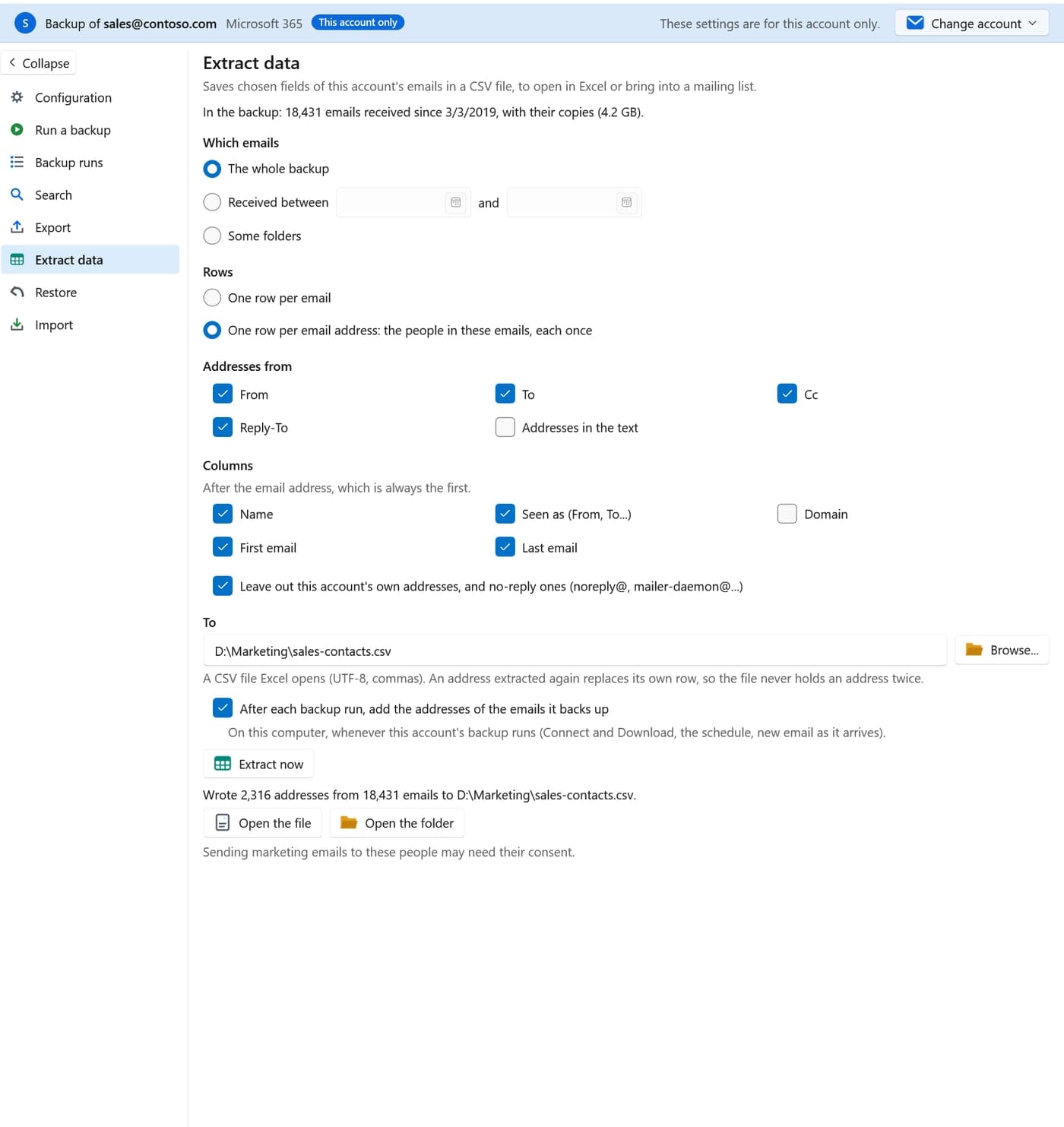
Write the details of the backup's emails to a CSV file that Excel opens: one row per email (received, from, to, cc, reply-to, subject, folder, attachments, size) or one row per email address (name, domain, first and last email, with your own and no-reply addresses left out). It can run after every backup, and never adds the same row twice.
FREE can try it on up to 25 emails of the last day. If you use addresses for marketing, check whether you need the senders' consent first.
Every account and watch remembers each email it has seen, so nothing is downloaded or processed twice, even after you download All mail, restart, or the server renumbers a folder. A step that fails is retried on its own and a step that finished never runs again. Each email shows what happened to it, and Redo reprocesses an email from its stored copy. Several emails are downloaded at once.
How long
Settings › Backup and History sets how long copies, history and details are kept. FREE keeps 1 day.
Redo and backfill
Run a changed rule on emails you already have, or bring in emails from before you started.
Never twice
Only a tiny record remains once details are gone, which is what stops a second download.
ParserNew in 4.0
Pull invoice numbers, totals, dates, line items and other values out of emails and files into a spreadsheet or database, without writing rules. Highlight a value or describe it in words, let AI help, and send doubtful emails to review. Included from PRO Parser.
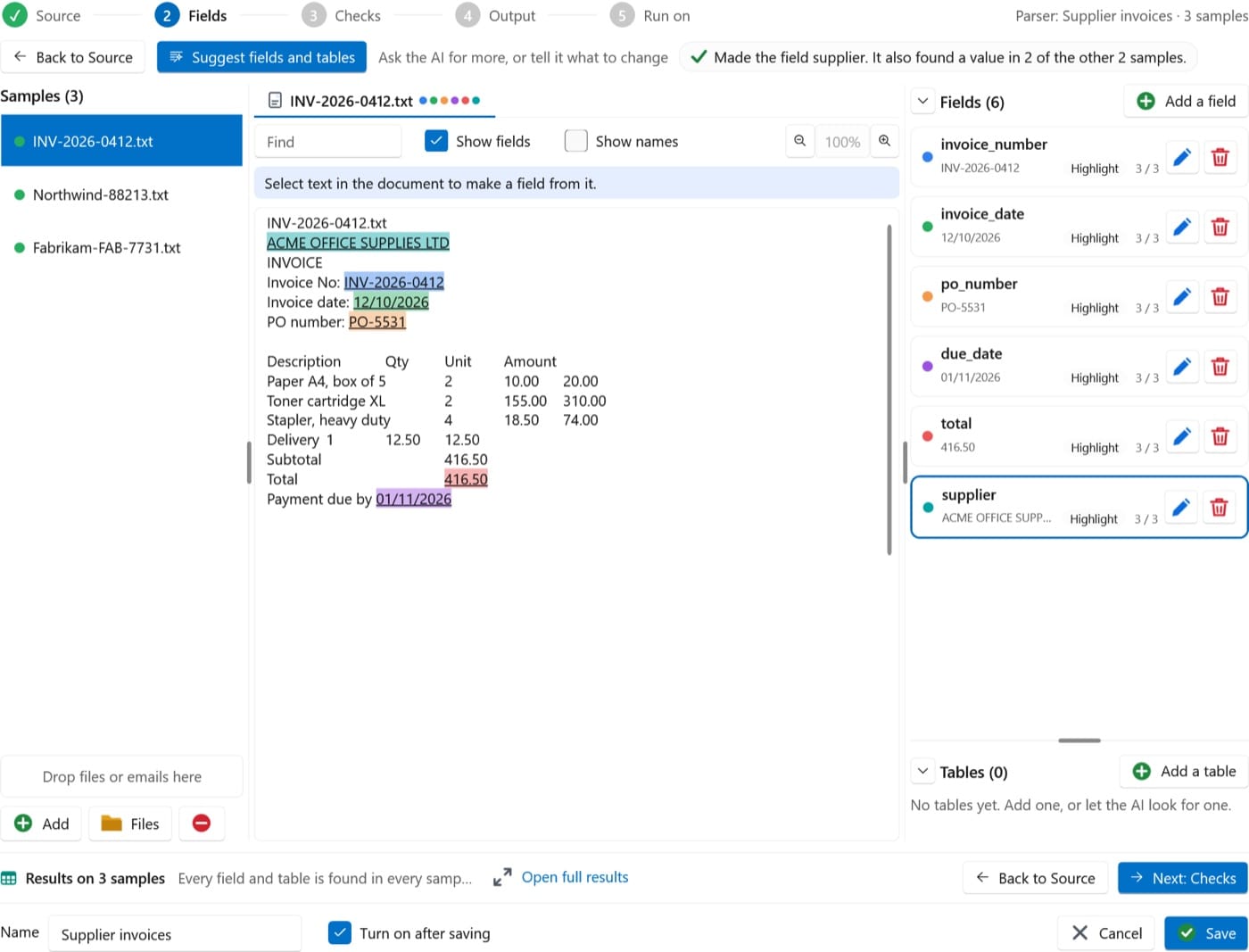
The Parser tab reads fields out of emails and their files. Highlight a value in a sample email, or just describe it in words and let AI find it, and the parser finds it in the next ones. It can read line-item tables and check them against the total, and it reads e-invoices (Factur-X, ZUGFeRD, XRechnung, Peppol, UBL) exactly, with no AI. When it isn't sure, the email waits in Needs you for you to approve or fix, and the same invoice arriving twice is caught.
Highlight or describe
Mark the value in a sample, or say "the invoice number" and let AI find it.
Tables and totals
Line items become rows, checked against the total on the document.
Needs you
Doubtful emails wait for a quick review instead of landing in your data wrong.
Test every output
Each output has a Test button before it runs for real.
Parser tab
Parsers run first. Whatever no parser takes is saved by the account's own settings (Account rule). PRO Parser has no Rule Editor: for rules with many steps, use PRO Rules Client.
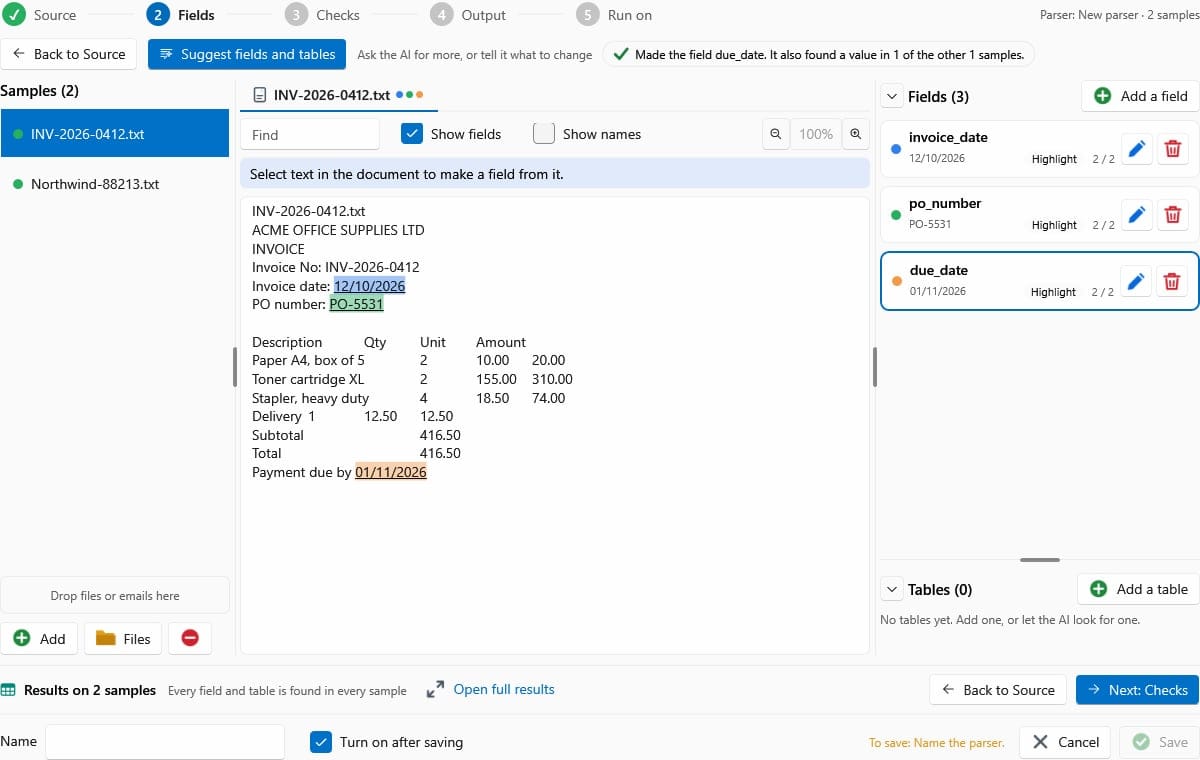
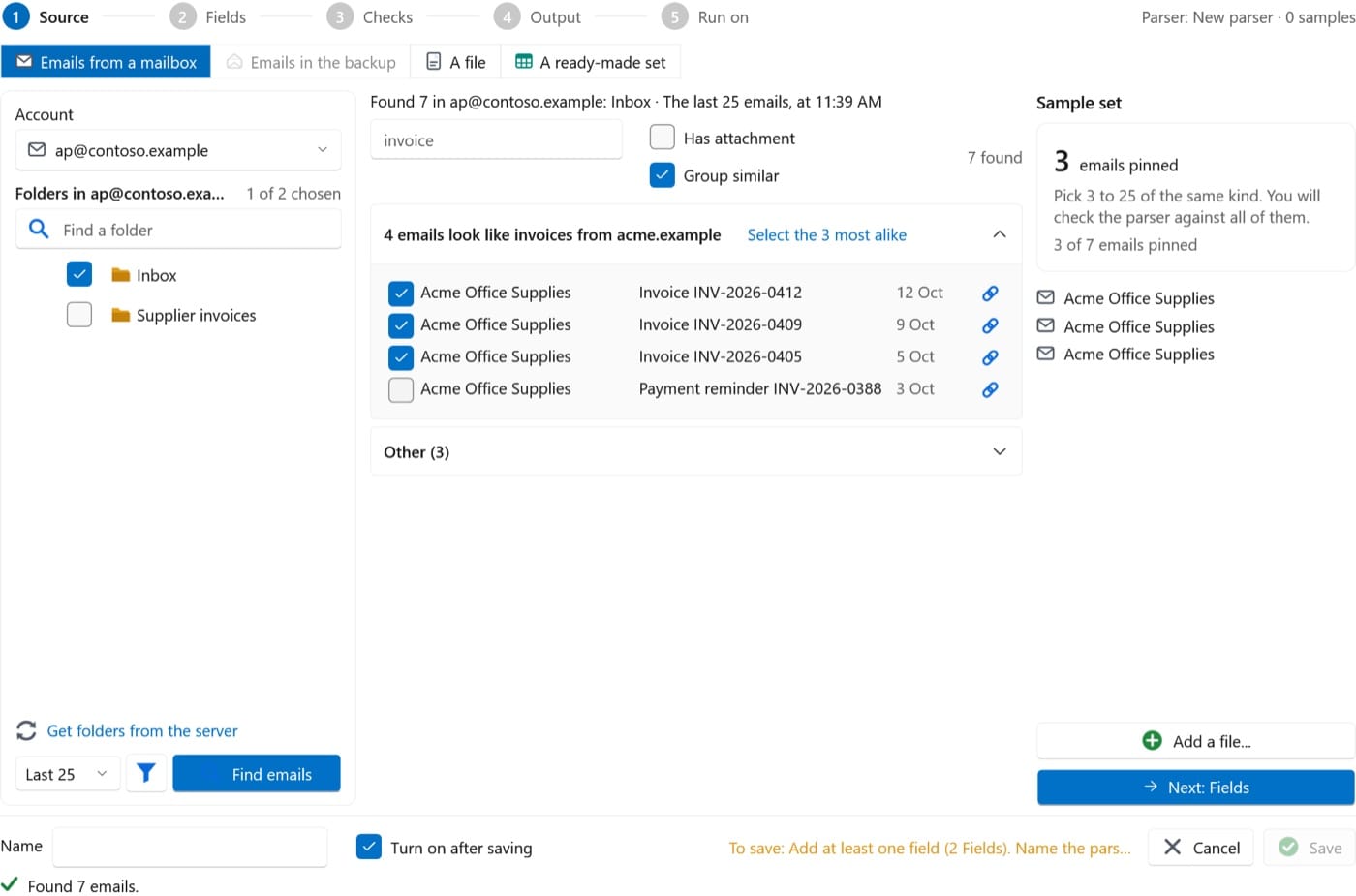
Build a parser from the real thing. Pick samples from your mailbox (similar emails are grouped together), from the emails History has already kept (no sign-in, nothing is fetched again), or from files: .eml, .msg, PDF, Word, Excel, pictures and scans, which are read with OCR. Drop files straight onto the sample list, or start from a ready-made set. A saved parser remembers its samples, so you can open it later and keep teaching it.
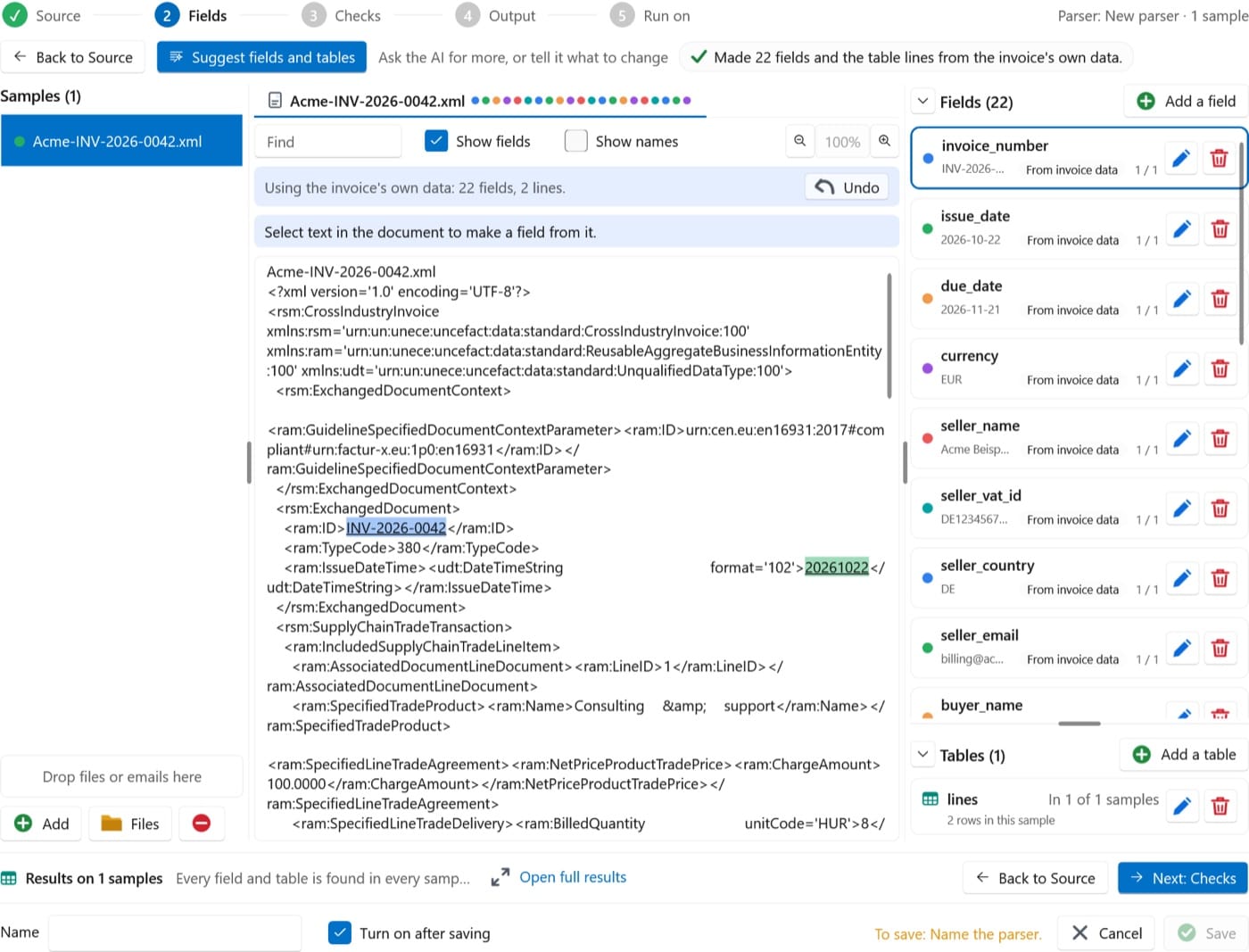
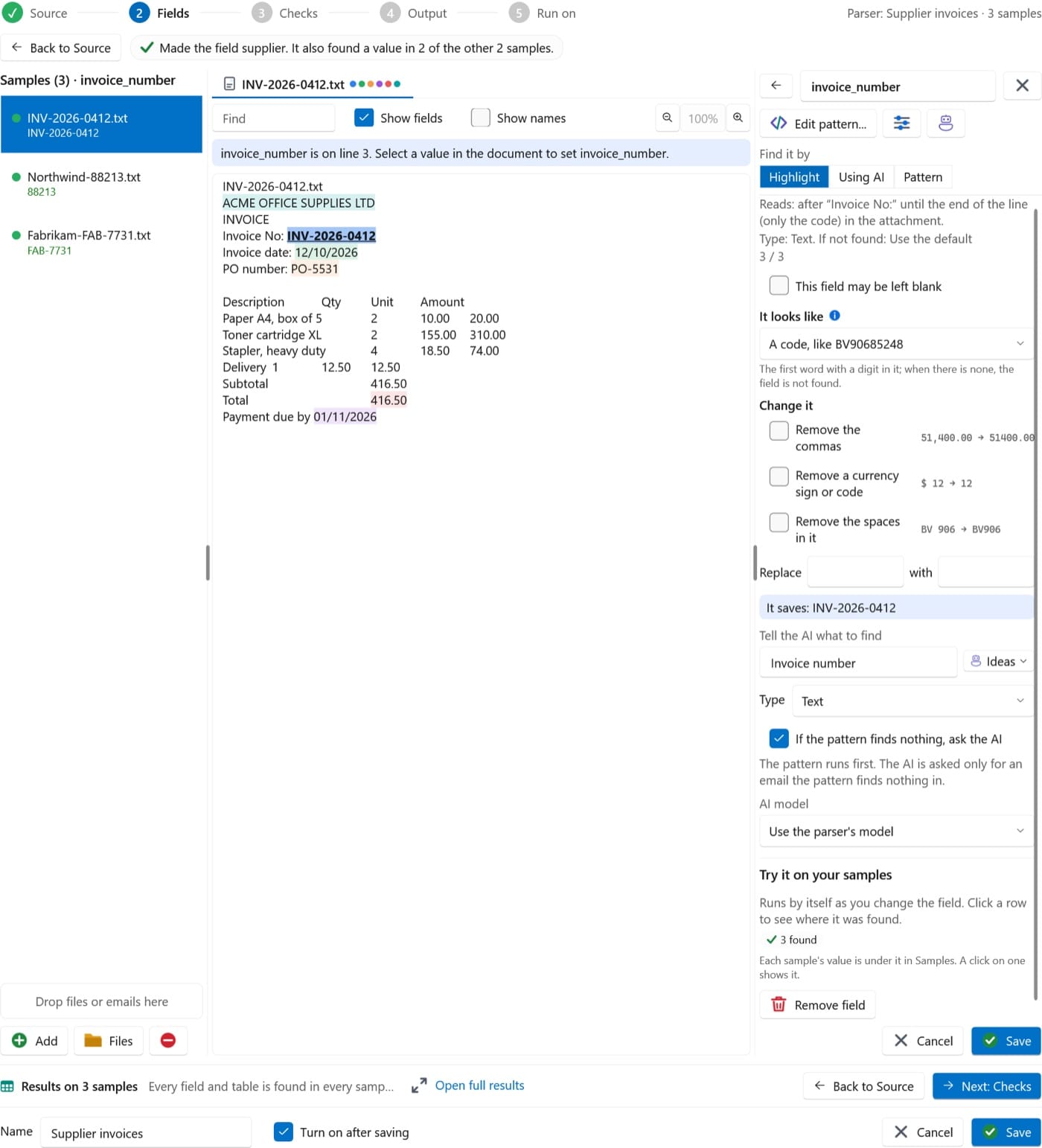
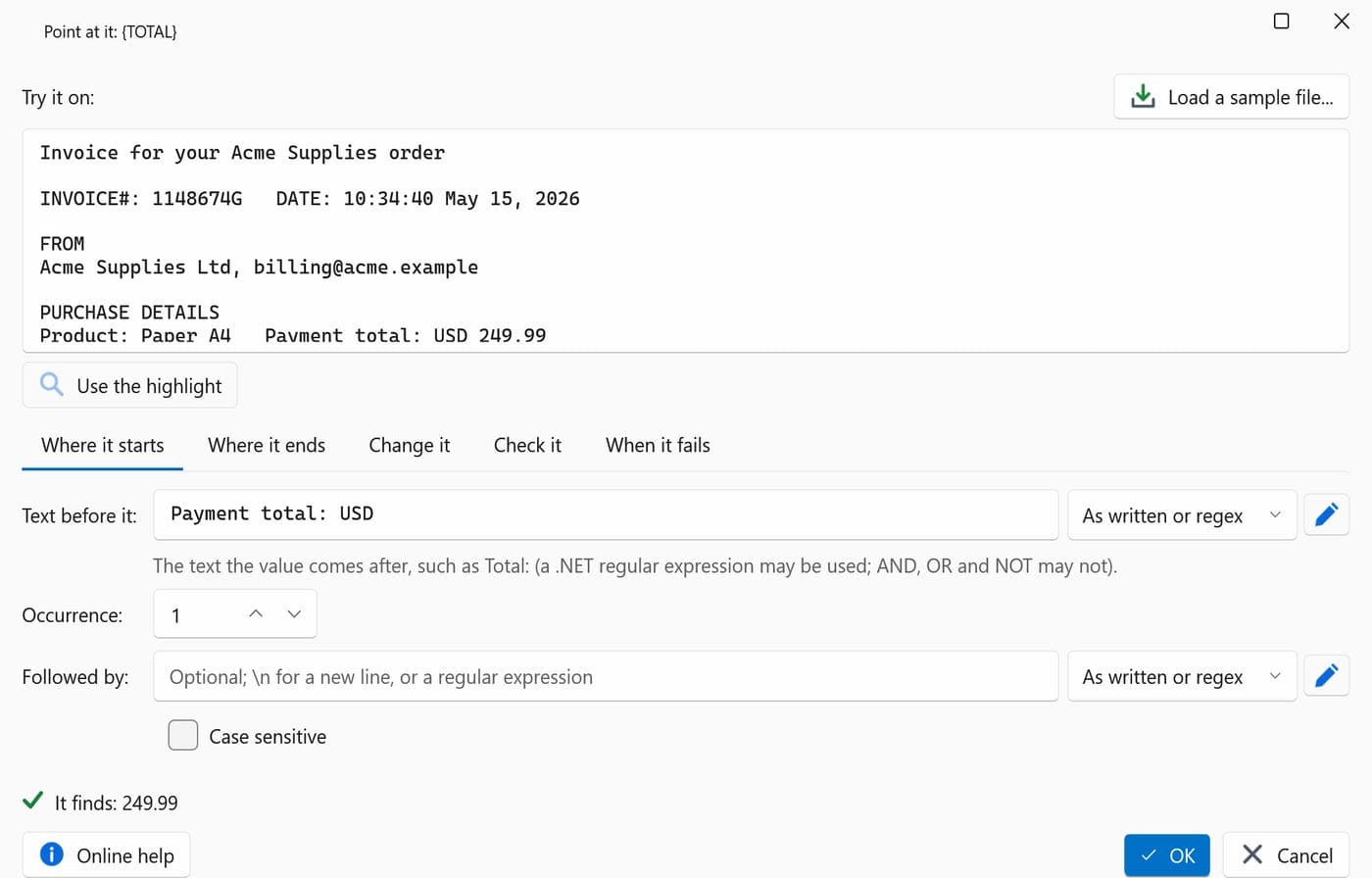
Select the invoice number, a date or a total in a sample and the Parser works out how to find it again. It checks the pattern against every sample, and a hit rate under each field shows how many it reads. When one misses, a drawer says why and what to try. Pattern fields are fast and free, and nothing is sent anywhere.
Highlight
Describe it in words: AI finds and highlights the value
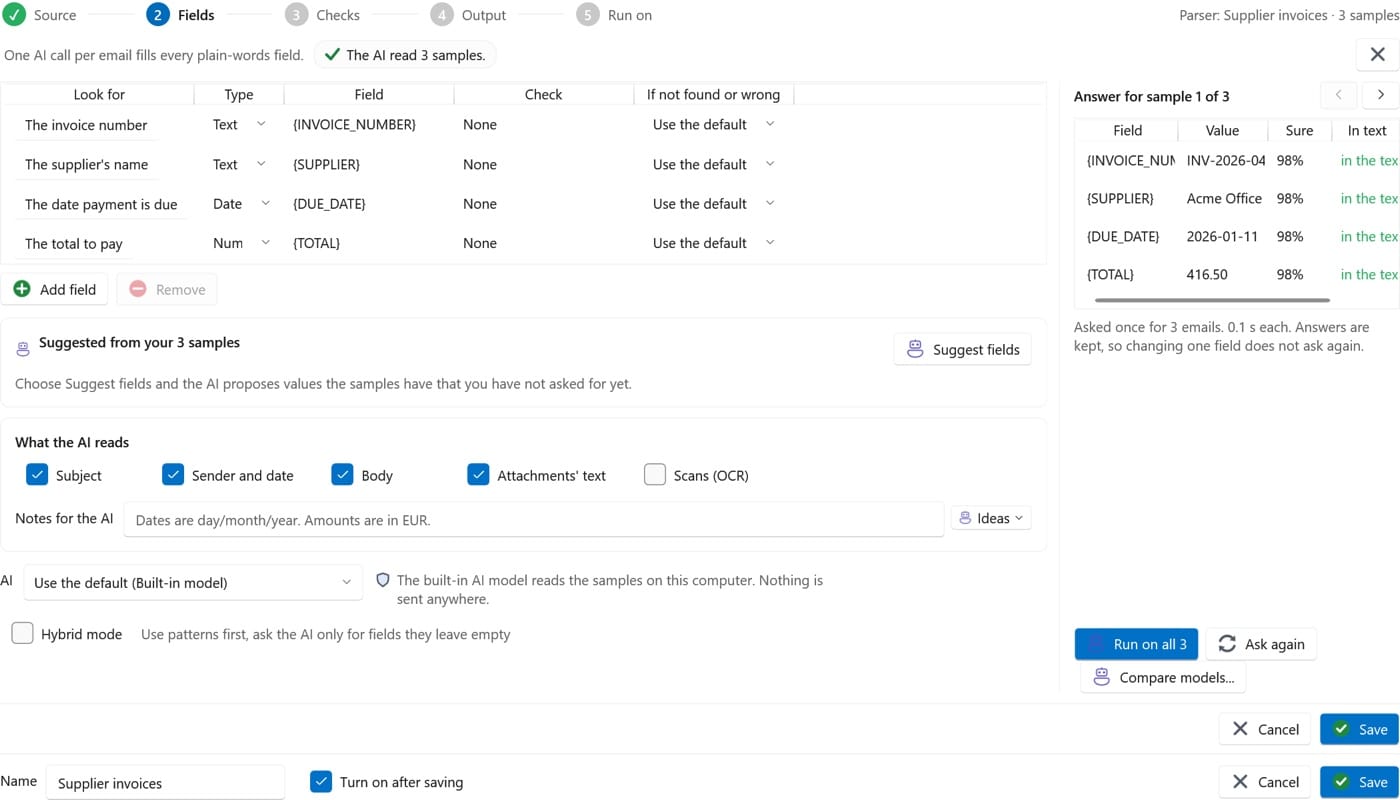
Don't want to mark each value? Describe the field in plain words, such as "the invoice number" or "the payment due date", and the AI finds it and highlights where it read it in the document, with a confidence percentage and the quote it came from. A value the AI invents that isn't in the text is flagged. Suggest fields and tables proposes the ones a sample offers, so you tick what you want.
Highlight first
Where a plain pattern reads most of your samples, the Parser uses the pattern and keeps the AI as the backup, so most reads cost nothing.
Your choice of AI
The built-in AI runs on your own system. Or use your own server, OpenAI, Claude, Gemini or Azure OpenAI.
Asks before it sends
A cloud AI asks first and names exactly what would leave your computer.
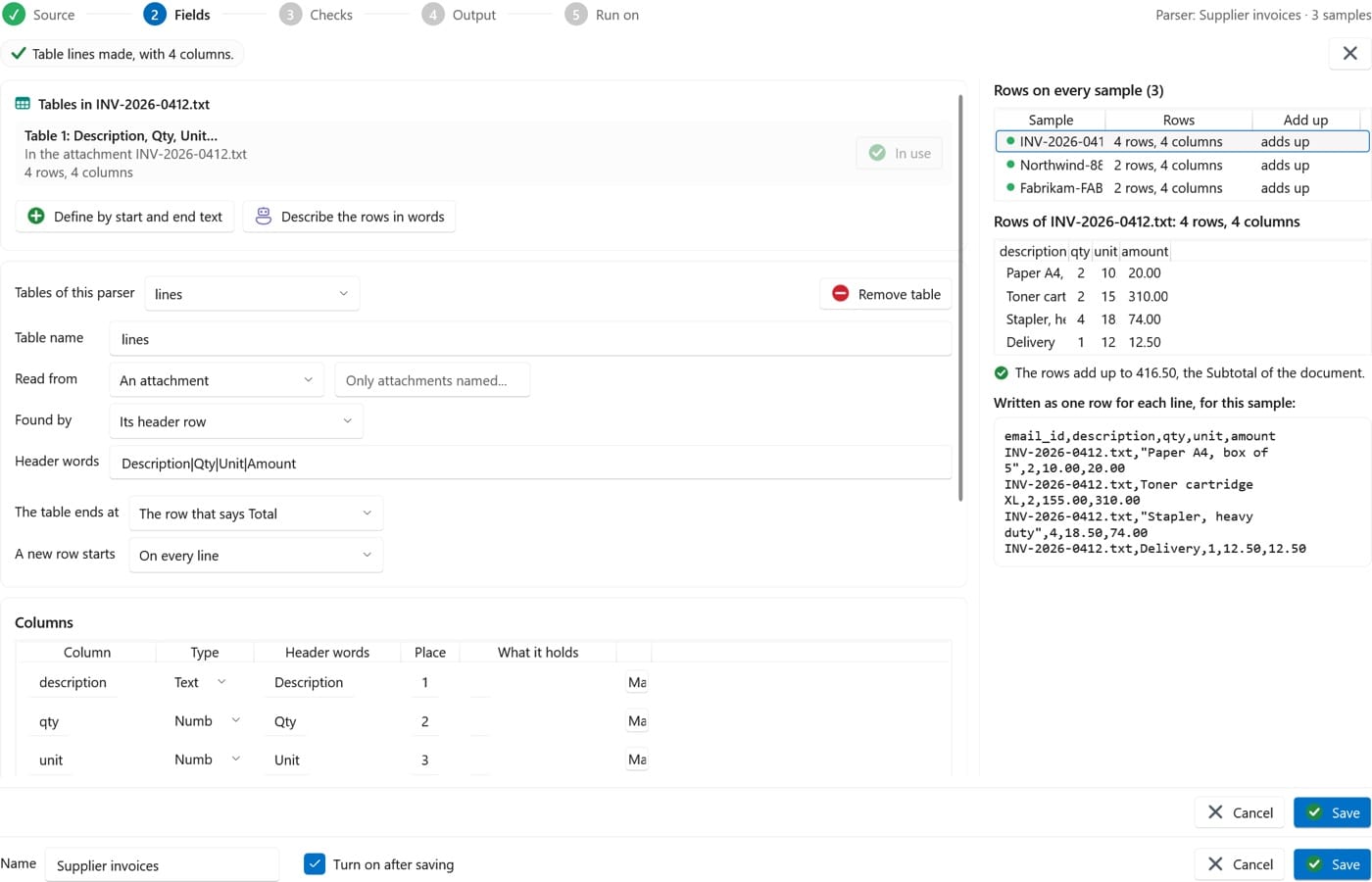
Invoices and orders are mostly tables, and the Parser reads them as rows and columns. It finds tables in PDFs, HTML emails, spreadsheets and CSV files. It joins a table that runs over several pages, keeps a wrapped description with its row, and stops at the Total row. Then it checks that the lines add up to the document's subtotal or total, so a misread amount doesn't slip through.
Teach it once
Learn a table from several samples, or select the lines you want in the document.
Or describe the rows
Have the AI read the rows from a description in plain words.
Optional tables
Mark a table that some documents do not have, so a missing one is not a problem.
Many invoices carry a structured copy of themselves. The Parser reads it exactly, with no pattern and no AI: invoice number, dates, seller and buyer, VAT ids, IBAN, totals and every line item. It reads Factur-X and ZUGFeRD 2, XRechnung, Peppol BIS Billing and EN 16931, as a separate XML file or as the XML embedded in a PDF, and credit notes too. Nothing leaves your computer, and each value is highlighted where it sits in the invoice data.
Give a field a pattern and an AI backup. The pattern reads what it can; the AI is asked only when the pattern finds nothing. Add a second AI model as well: the first model reads everything, and the second is asked only for the fields the first left empty or wasn't sure of. Run the first locally and the second in the cloud, and the cloud only sees the gaps. Answers are remembered while the program runs so the same question isn't paid for twice, and your emails' text is never kept.
AI backup
Checks, and send to review when something is missing
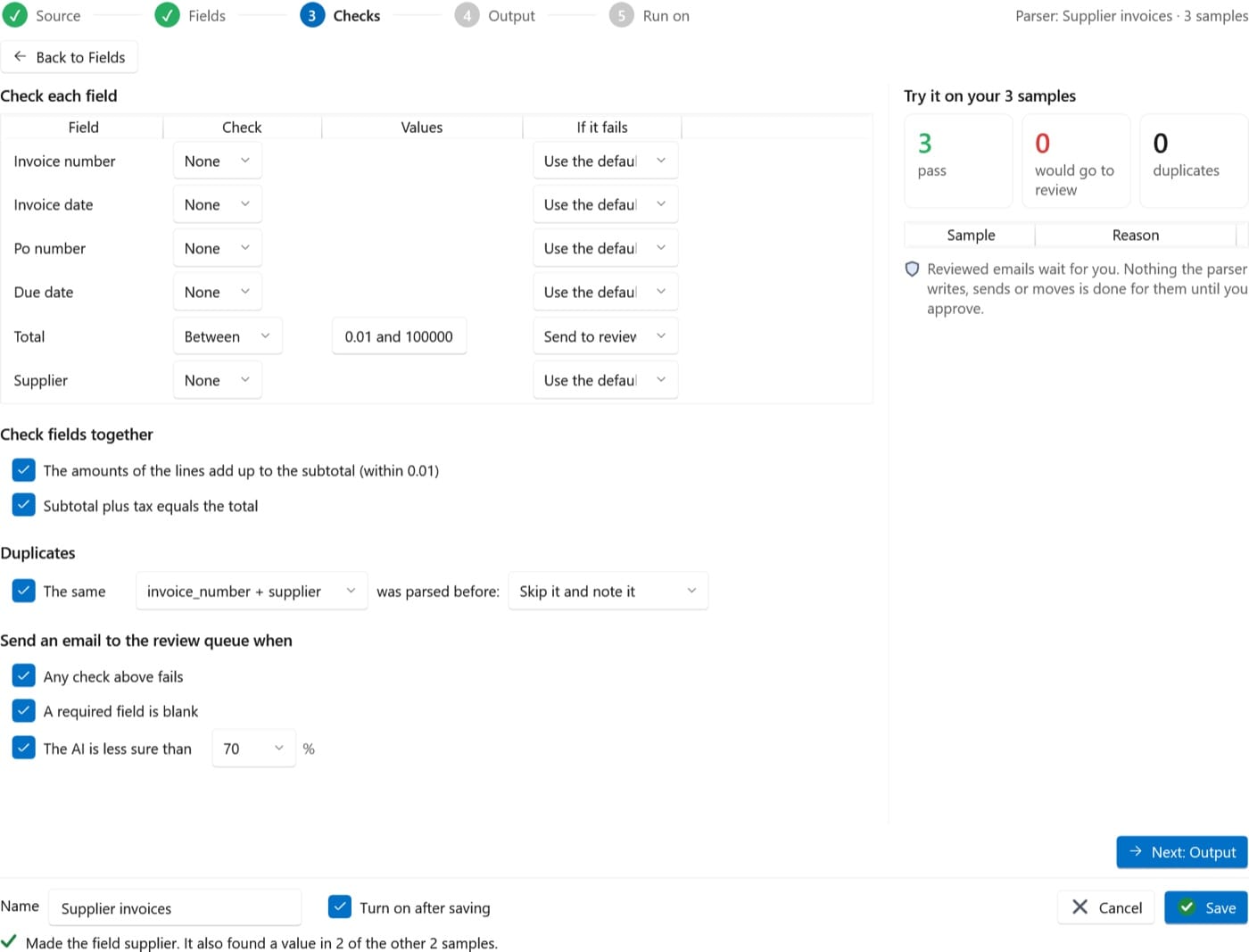
Decide what a good read looks like, and let the Parser hold back everything else. Mark fields required, add checks (not blank, between two values, in a list, not before a date), check that subtotal plus tax equals the total, and review when the AI is less sure than a percentage you set. A table that is missing or doesn't add up is held too, and the same invoice arriving twice can be skipped or reviewed.
A held email stops the steps after it: nothing is written to your CSV, database or sheet, sent or moved until someone approves it. A field you mark optional isn't reported when it's blank.
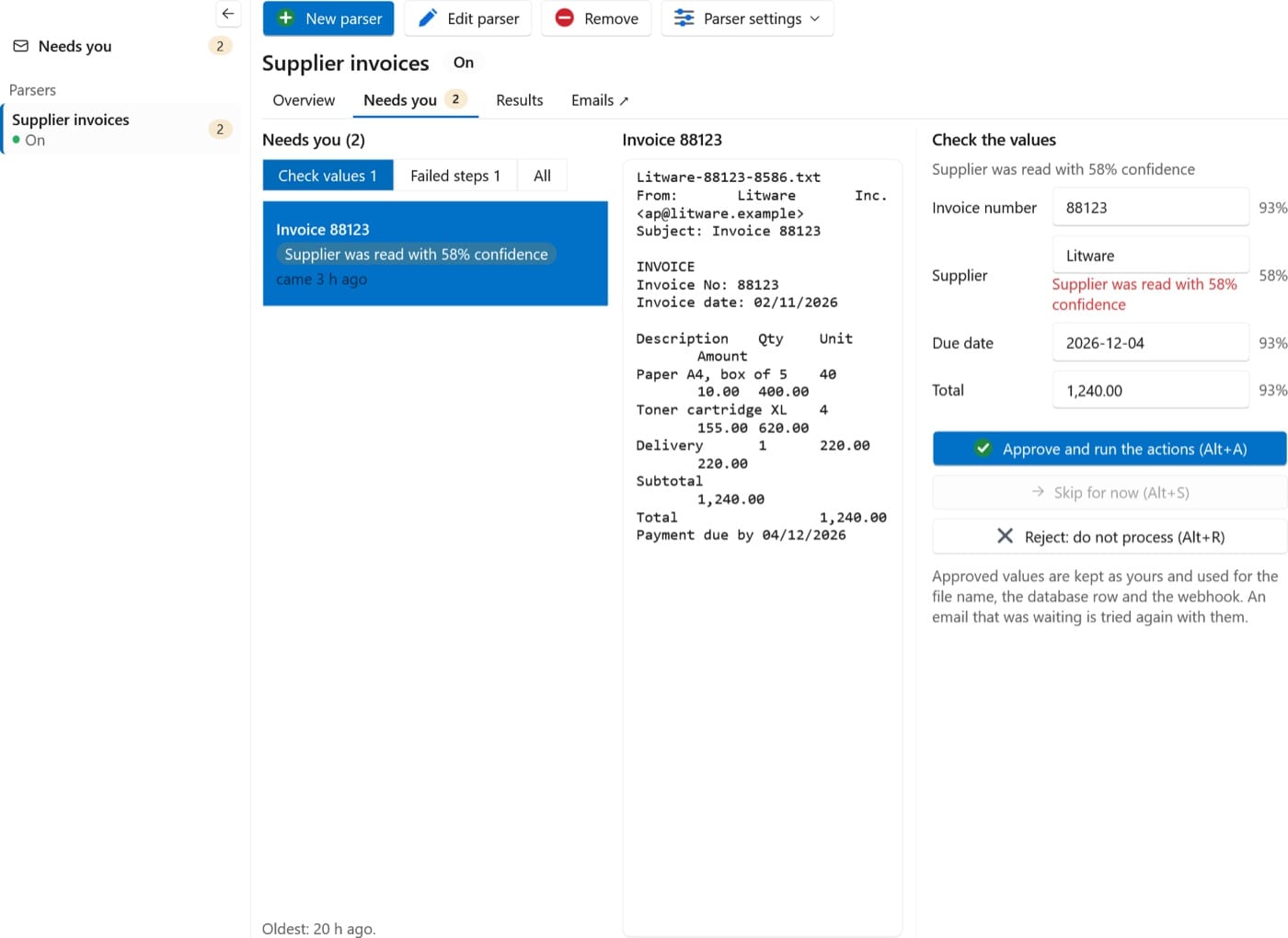
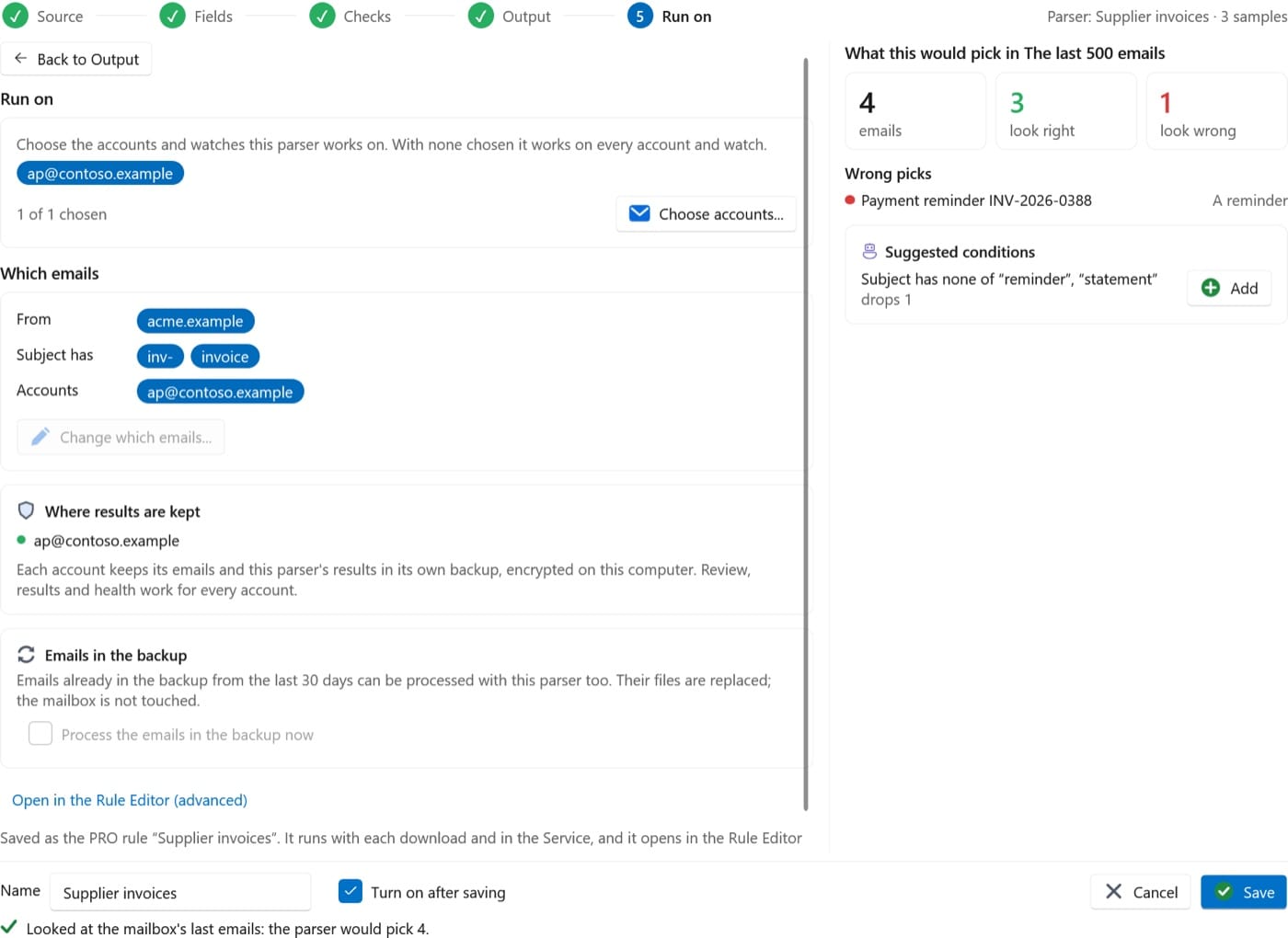
Emails that failed a check wait in Needs you instead of landing in your data wrong. Open one and you see the kept copy of the email beside its values, each with the AI's confidence. Fix a value and Approve (your values are kept as yours and the email carries on), Skip it, or Reject it with a reason. Waiting emails survive a restart and also work when the Windows service is running them. A badge shows how many are waiting.
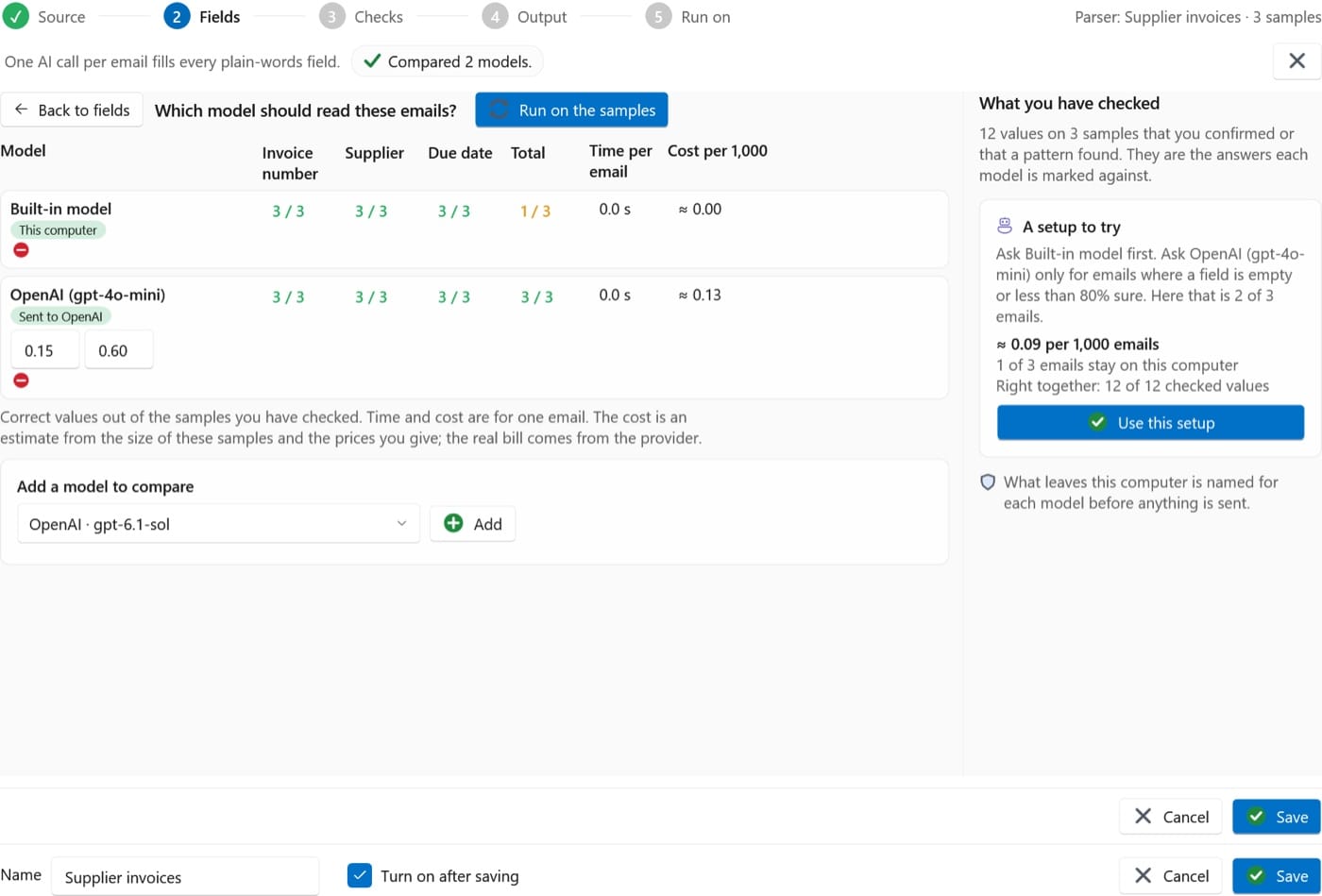
Not sure which AI to use? Compare models runs each one on your samples and marks it against the answers you confirmed: how many fields it got right, how long an email takes, the estimated cost of 1,000 emails (using the prices you type in), and where your data goes. It can also propose a setup: the built-in model first, and a cloud model only for the emails where a field is empty or under 80 percent sure, then save it as the second model with one click.
Compare models
Results: every record, exported or processed again
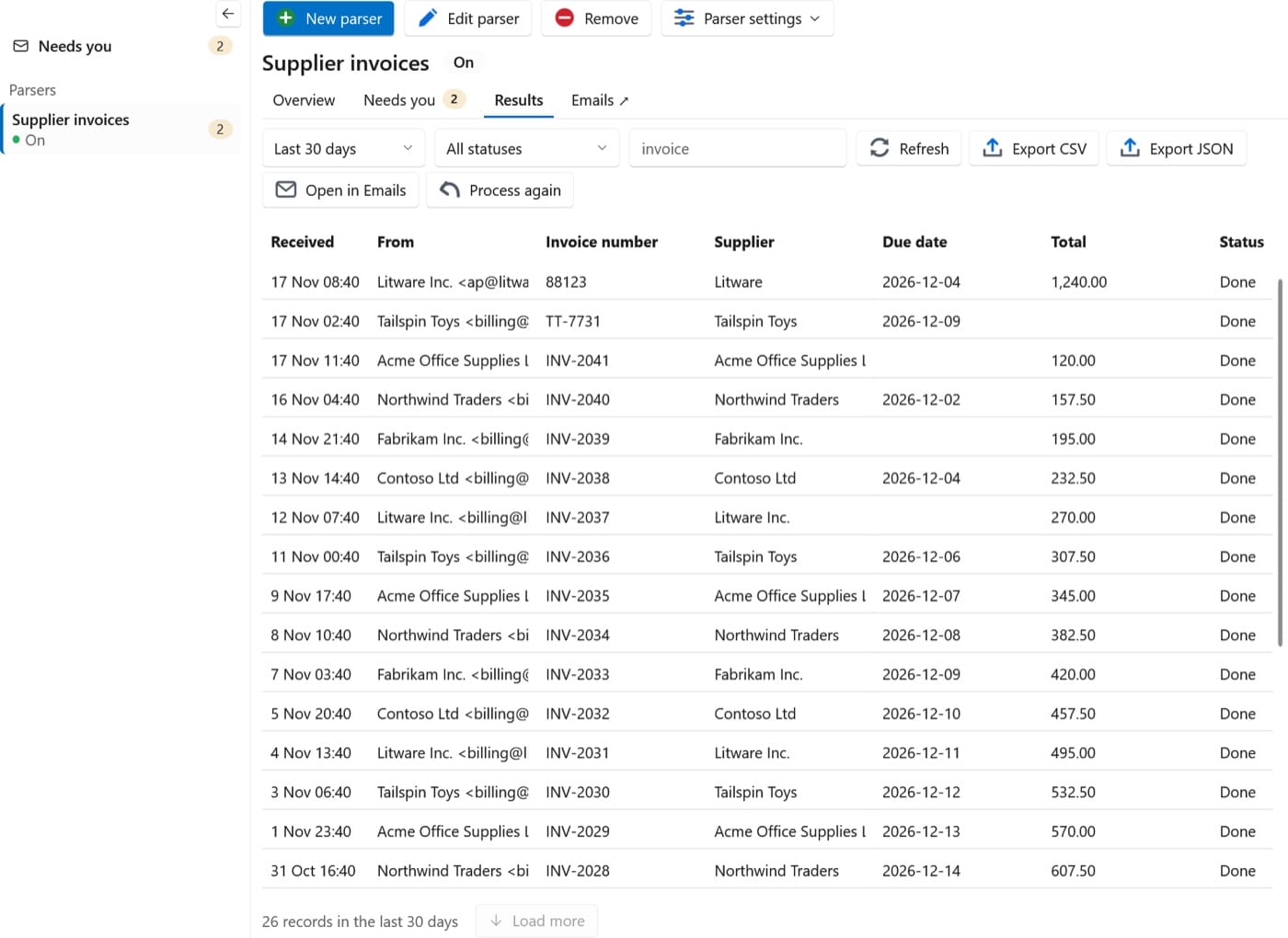
See everything a parser has read, newest first: filter by time, by state (done, waiting, corrected or approved) or by text, export to CSV or JSON, jump to the emails in Activity, or Process again from the kept copies, which never fetches anything from your mailbox a second time.
Results
Health: notice when a supplier changes their layout
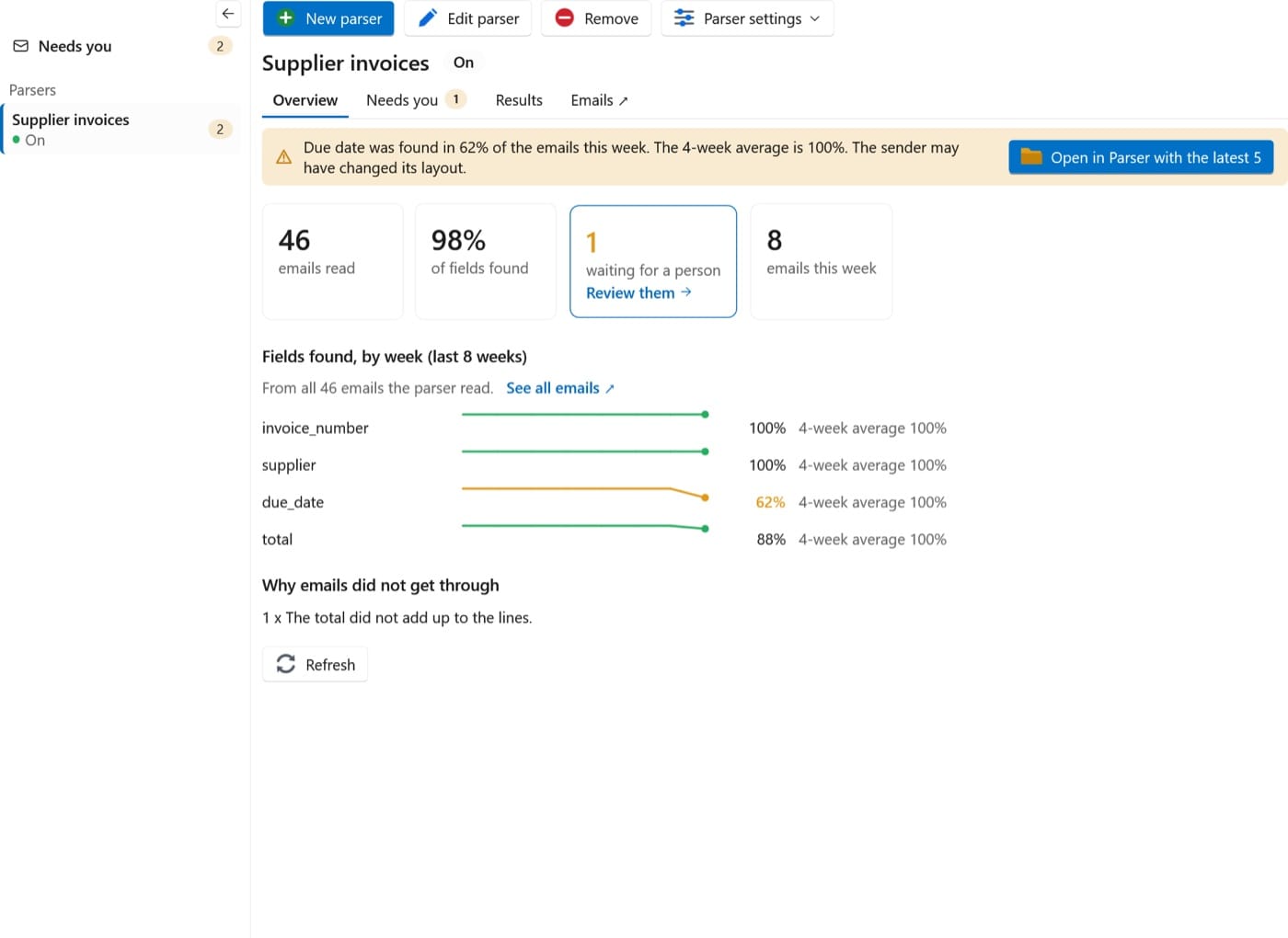
Parsers go quiet when a sender changes their invoice. Health shows emails read, the share of fields found, how many are waiting, and an 8-week trend for each field. When a field's hit rate drops well below its recent average you get a drift alert, with Open in Parser with the latest 5 so you can re-teach it from the newest emails. It also lists why emails didn't get through.
Health
Output: CSV, Excel, Google Sheets, a database and more
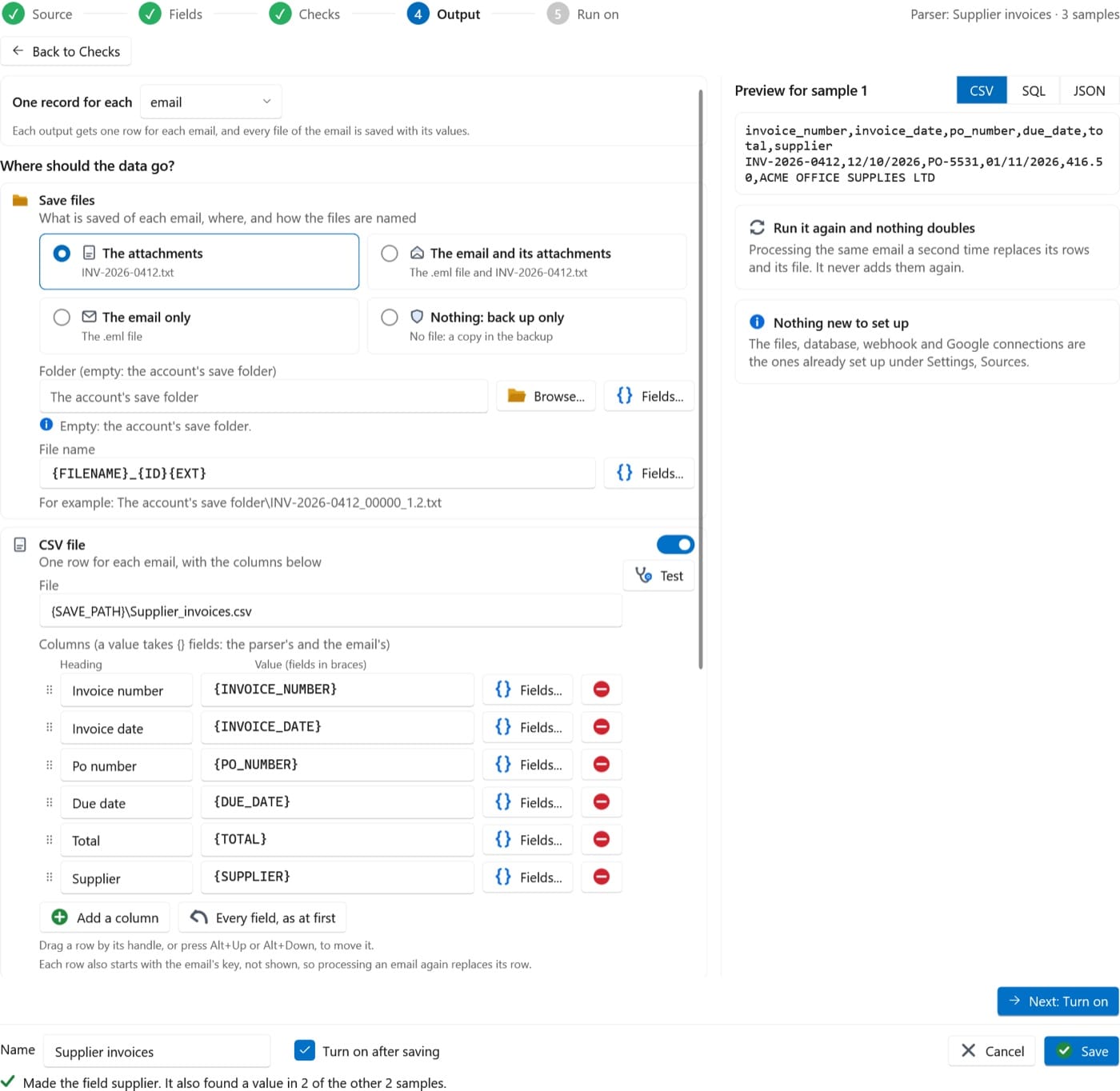
Send what a parser reads to CSV (values with commas are quoted properly), Excel or Google Sheets, using a Columns list of the fields you choose. Processing an email again replaces its row instead of adding a second. The lines of a table can go to their own tab or table, one row per line, linked back to the email. You can also save the email under a folder and name you set, or move it to a folder of its account. Every output has a Test button before it runs for real.
SQL database, webhook and Tell me (a message to Slack, Teams, Discord and more) outputs need PRO Rules Server. An output that sends values off your computer asks first and says where they go.
Before you switch a parser on, see which emails from the last 30 days its conditions would pick. Turn it on and, if you like, process those kept emails straight away, from the stored copies, so nothing is downloaded again. It is saved as a PRO rule, and the Rule Editor shows its reading steps as one Run Parser step, so you can add your own steps after it. Parsers run first; whatever no parser takes is saved by the account's own settings.
With PRO Rules Client or Server you can open that rule and add more steps after the parser. PRO Parser on its own uses the outputs the Parser offers.
Turn on
AI featuresNew in 4.0
Every AI feature in one place. AI never reads your emails unless you choose an engine and say yes.
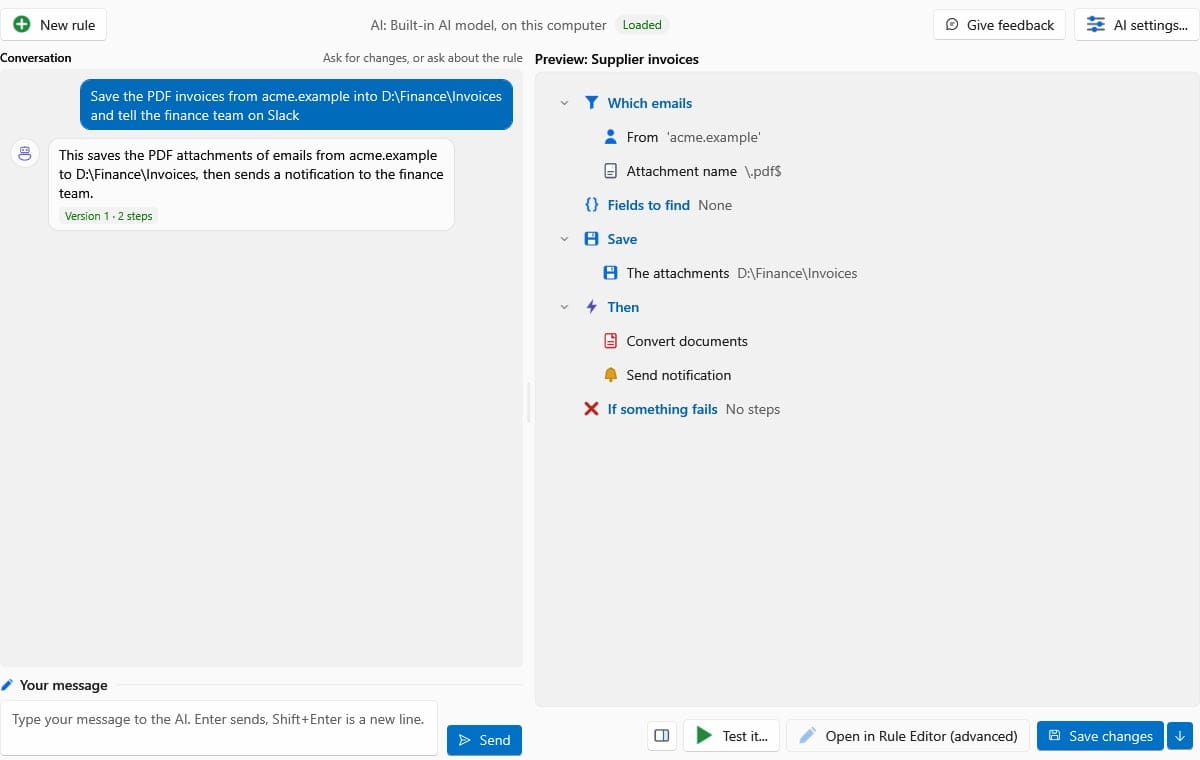
The new first tab. Tell it in plain words which emails to download and what to do with them, and the AI draws the rule as a diagram you change by clicking: its conditions, save folder, file names, what to save, its actions in order, and what to do when something fails. Prefer questions to typing? A guided start asks which emails, what to save, where, and what else to do, and the rule fills in as you answer.
Test on your emails
Run the rule on real emails, tick the results that are wrong, and the AI fixes it.
Every change is a version
Go back to any earlier version of the rule.
Asks, never guesses
When it needs who to email or which folder, it asks, with what you have set up as buttons.
AI Assistant tab
FREE has it too: Apply to my filters… fills in the account's own settings and marks the parts that need PRO. With PRO Rules Client or Server, save the rule or open it in the Rule Editor. The AI Assistant is in beta.
Your choice of AI: built in, your own server, or a cloud service
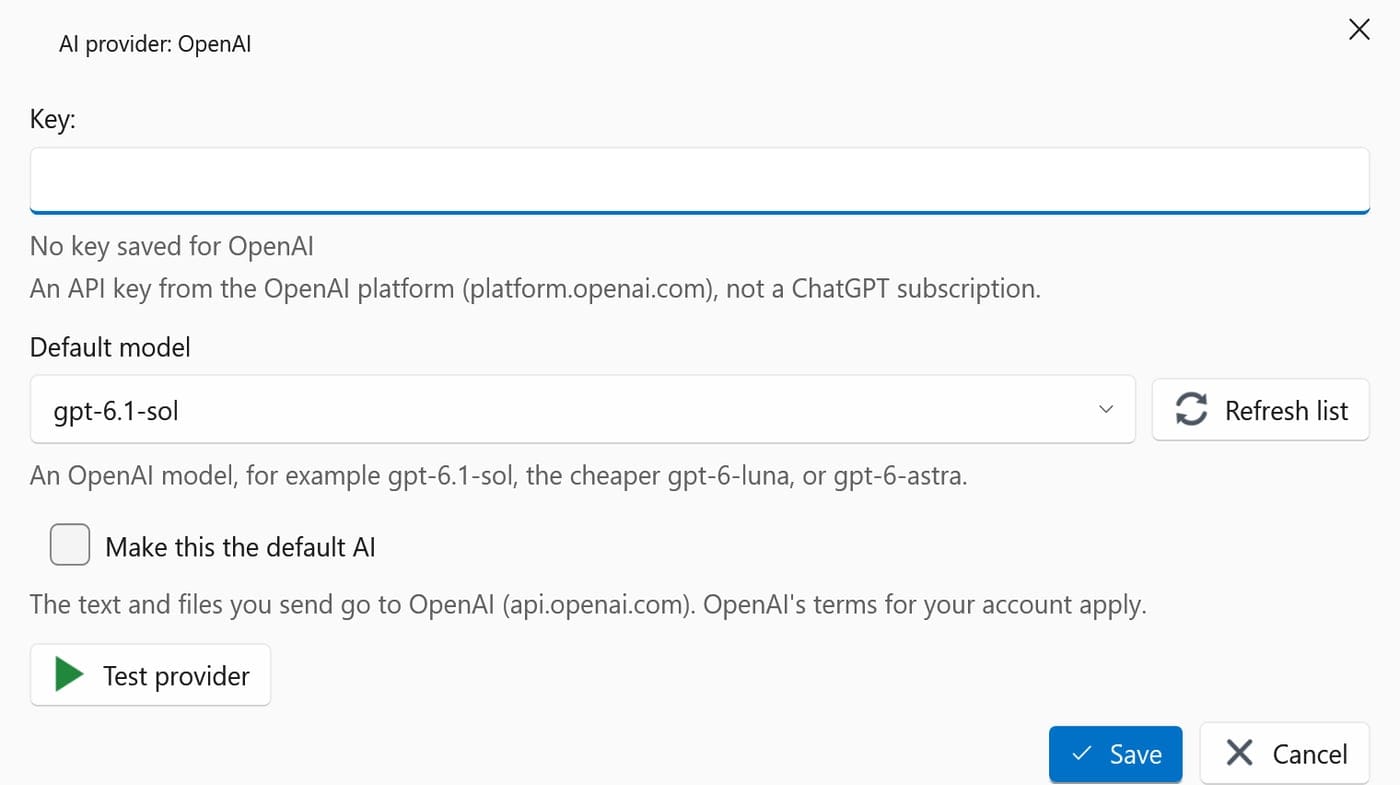
The built-in AI runs on your own system with limited rights, after a one-time download of about 2.2 GB. Nothing you type or test is sent anywhere. Or point it at your own Ollama or LM Studio server, or use OpenAI, Anthropic Claude, Google Gemini or Microsoft Azure OpenAI with your own account and key.
Nothing goes to a cloud service until you choose it and say yes, and it asks again if you change the service. What it sends is spelled out in the window. The text of your emails and files is never sent.
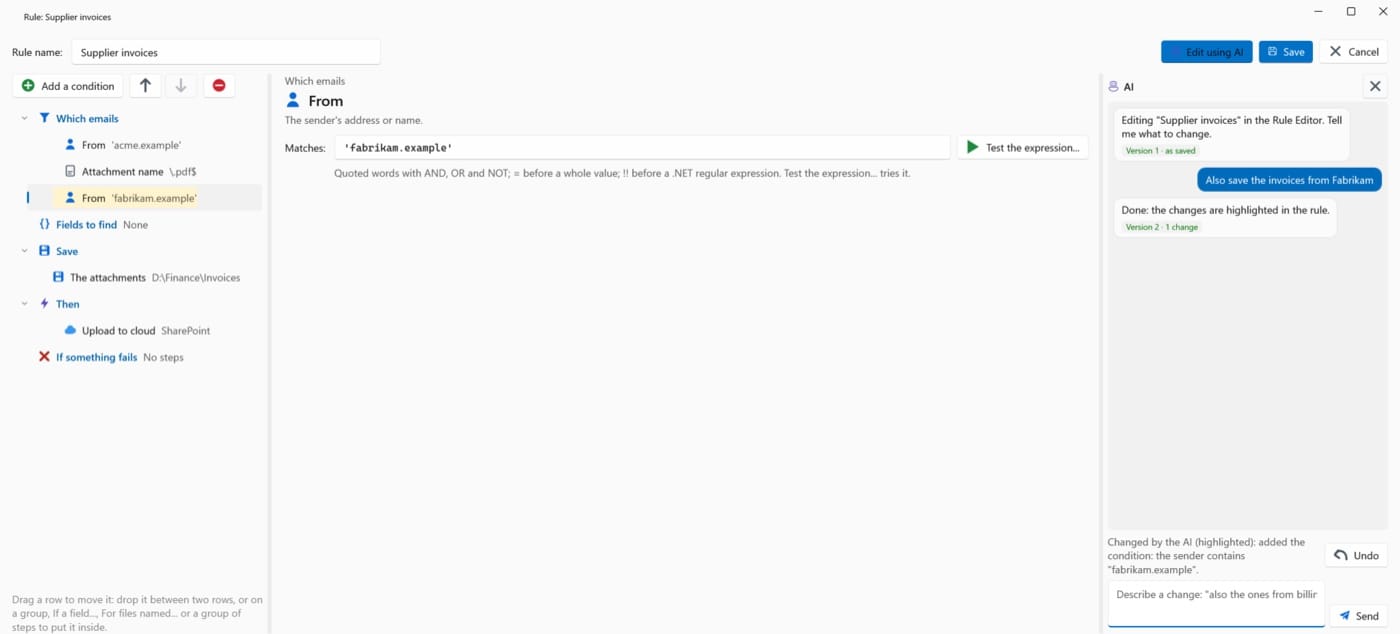
Open a rule from the PRO Rules list (Edit using AI…), from the AI Assistant tab (Open a rule) or with the AI button in the Rule Editor, and say what to change: "only the last 3 months", "also save the email". What the AI changed is highlighted, with Undo.
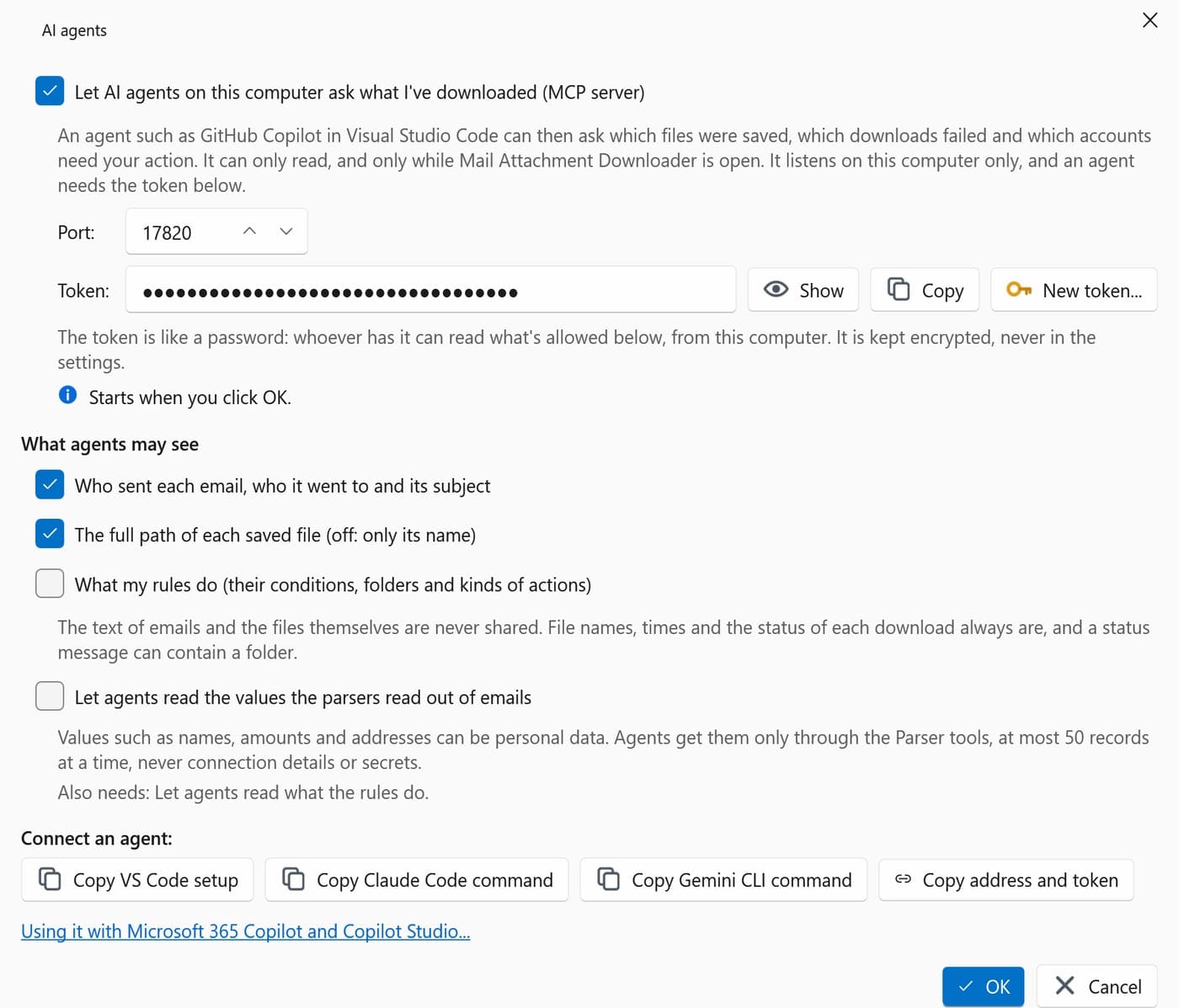
GitHub Copilot in VS Code, Claude Code, Gemini CLI and other MCP agents on the same system can ask what was downloaded, which accounts need action and how your rules did. It is read-only, off until you turn it on in Options › AI agents, reachable only from this computer, and protected by a token.
In PRO editions only. The Windows service doesn't host it, and Microsoft 365 Copilot can't reach it.
AI agents window
With PRO Parser and up, agents can also look at your parsers: their health, what is waiting for review and the results, and test a parser on a piece of text. The values a parser read are hidden from agents unless you switch that on.
The Parser uses AI to read the values out of emails, PDFs, Office files and scans without you writing a pattern. Describe a field in plain words and the AI finds it and highlights where it read it in the document, with a confidence percentage. It can read the rows of a table too, and suggest which fields and tables a sample offers. A pattern handles what it can, and the AI is the backup, so most reads cost nothing. Compare models shows which AI is right most often and what 1,000 emails would cost.
Any PRO Rule can call an AI as one of its steps, so the answer flows into the steps after it. Choose the engine once (the local built-in AI, your own server, OpenAI, Claude, Gemini or Azure OpenAI) and use it in two ways:
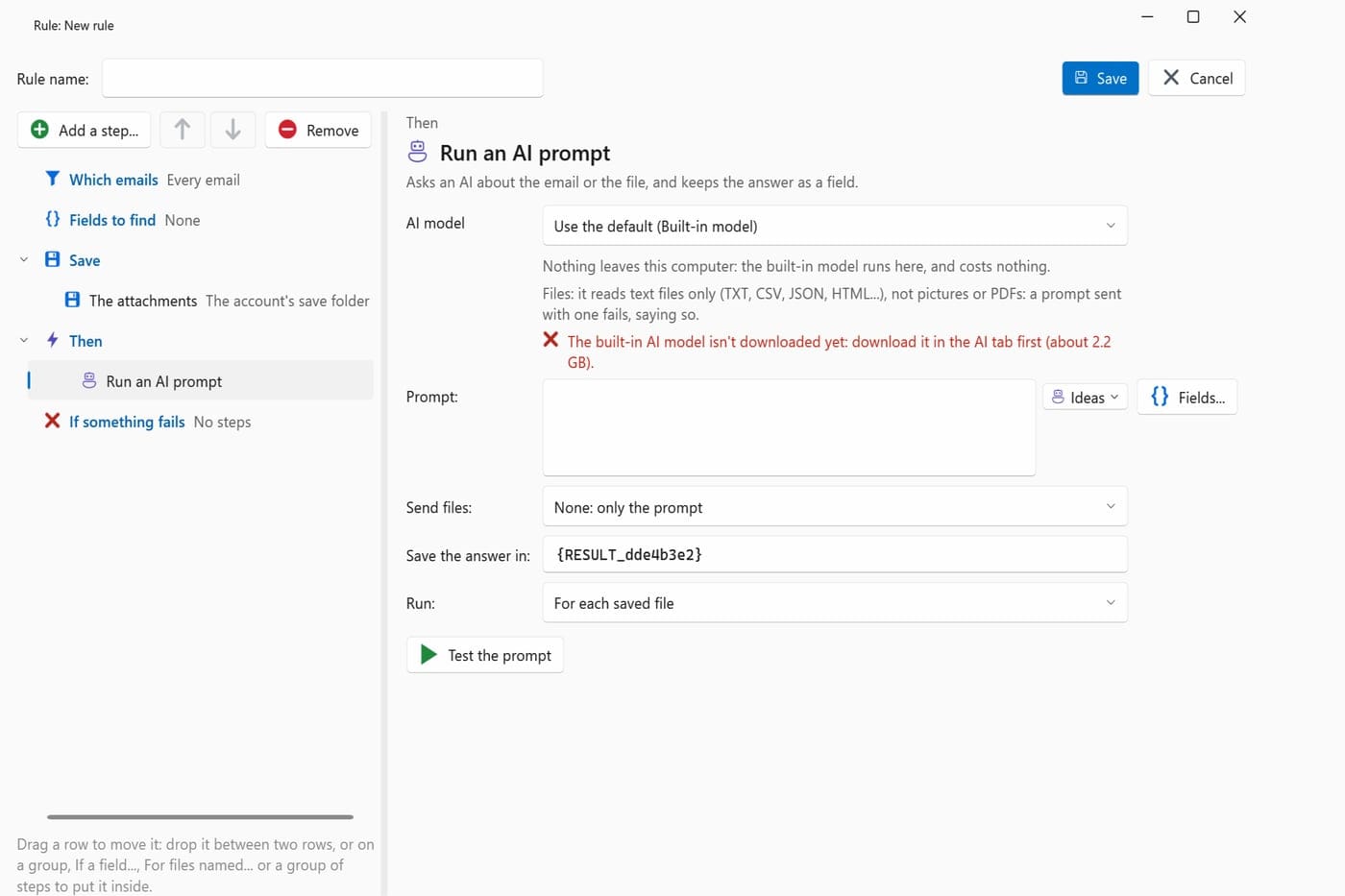
Run an AI prompt
Write a prompt that uses the email, its files and fields you extracted, and use the answer later: summarize, classify, translate, draft a reply, or return fields as JSON. Details. PRO Rules Server.
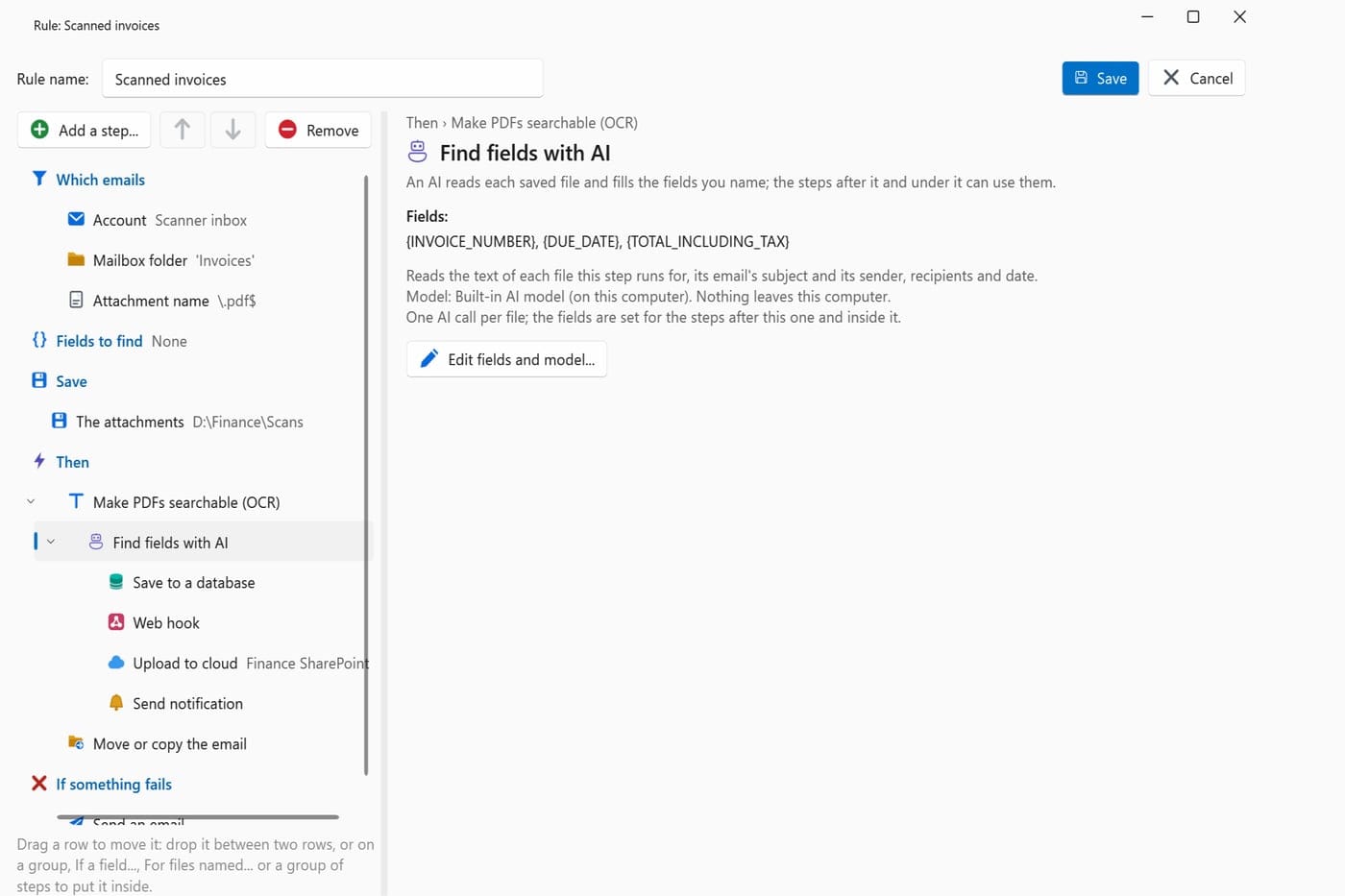
Find fields with AI
Describe the fields in plain words and the AI fills them in for file names, spreadsheets or databases. Details. PRO Rules Client and up.
Edit using AI
Ask the AI to change an existing rule in plain words. Details.
A cloud AI asks first and says what would leave your system. The built-in AI keeps everything on your system.
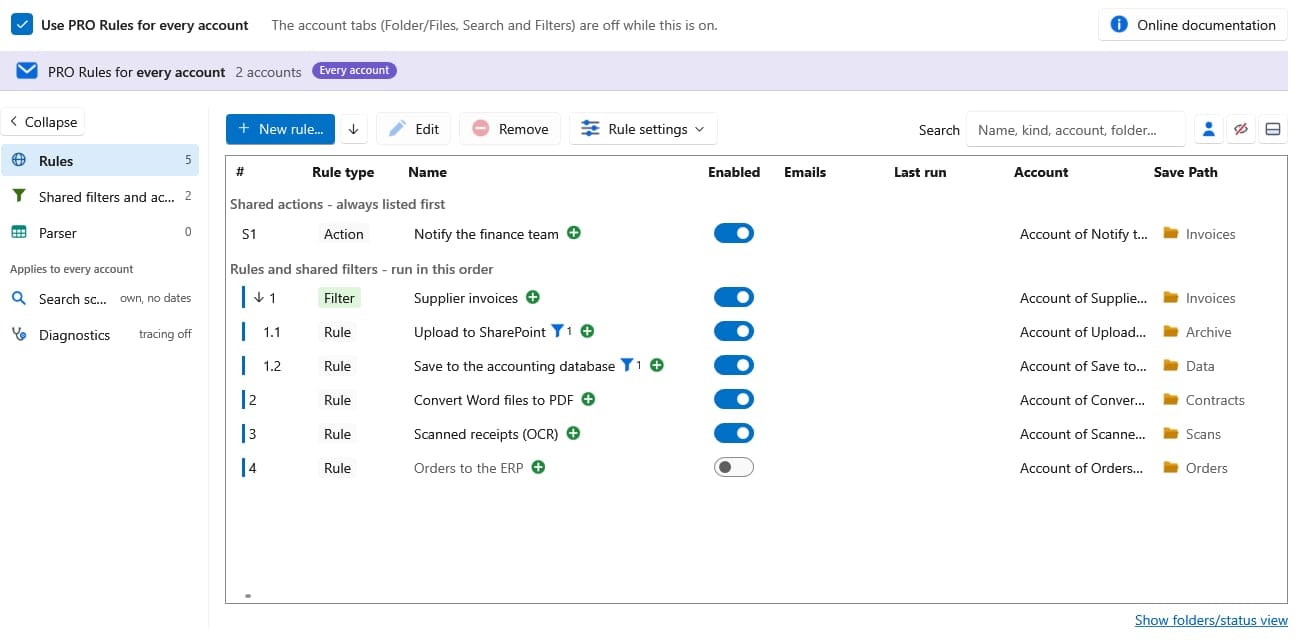
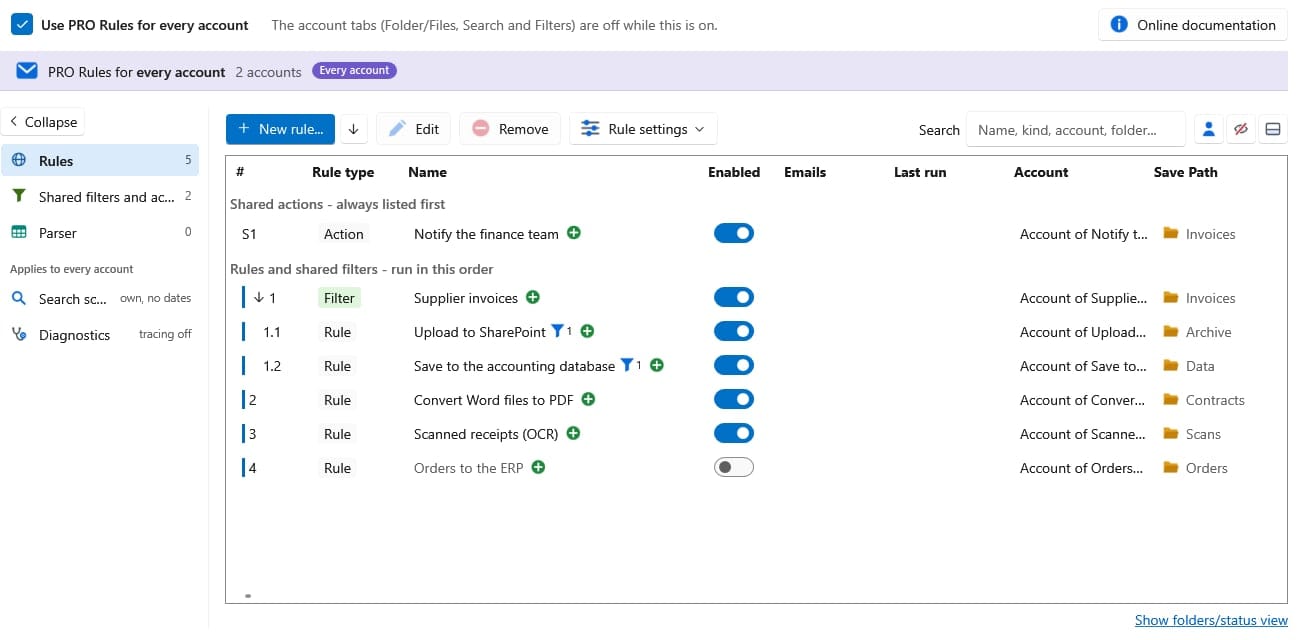
Give each kind of email its own rule: its own conditions, save folder, file names and follow-up steps. Run Test all rules on real emails before they go live, keep drafts while you work, and share filters and actions between rules. Upgrading from Account rules? One click moves them to PRO Rules.
Build each rule from the emails it matches, where and how to save them, the actions to run in order, and what to do if one fails. Add steps from a list, check the order of your rules, and ask the AI to change a rule in plain words.
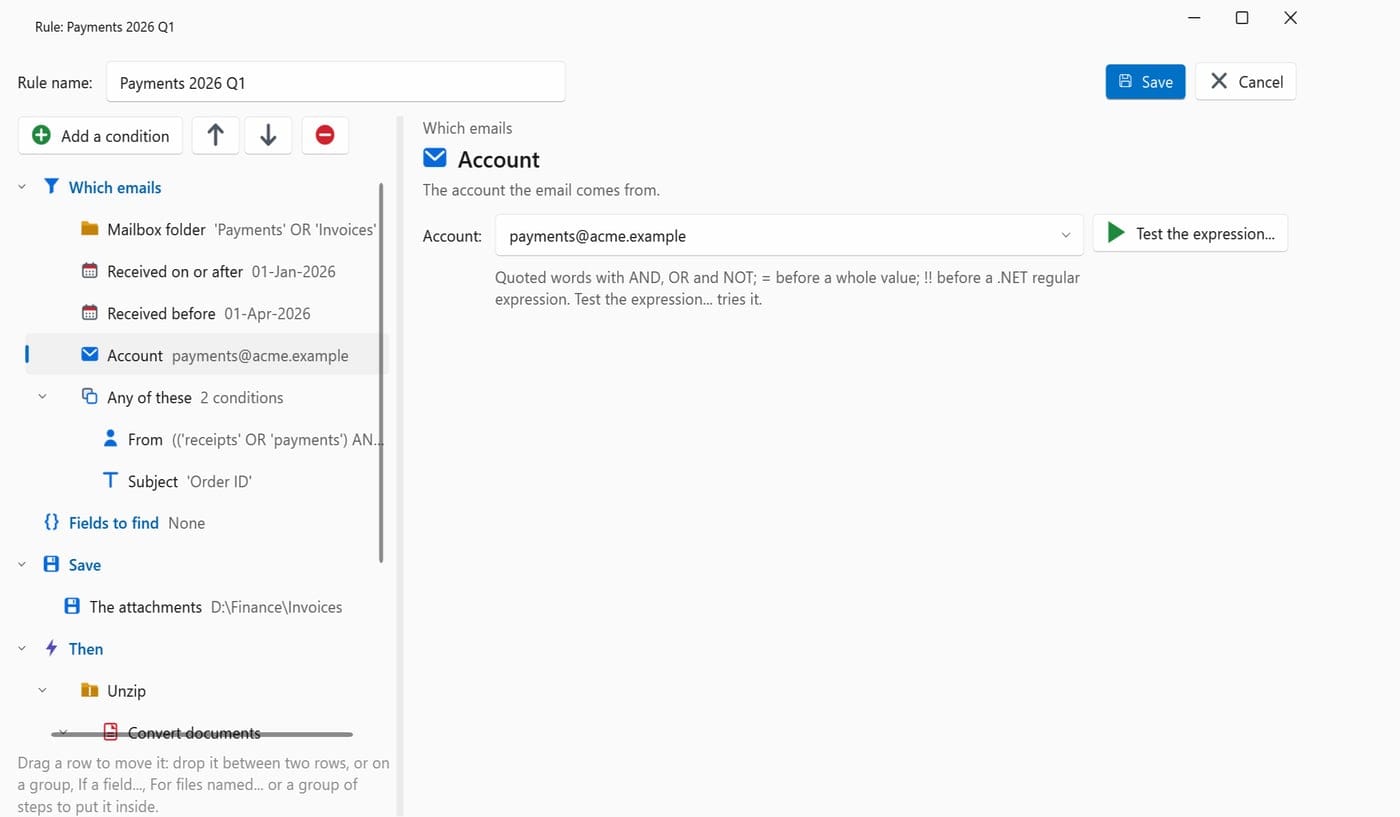
Match on dates, accounts, any email field, attachment names or the number of attachments. You can combine conditions with AND / OR, use regular expressions, and test a filter before you save it.
Rules run top to bottom, and an email goes to the first rule that takes it. Check rule order finds rules that can never save anything because a rule above already takes their files.
Use a sender's SPF, DKIM and DMARC results, or a look-alike domain check, as a rule condition, for example to save invoices only from senders that pass.
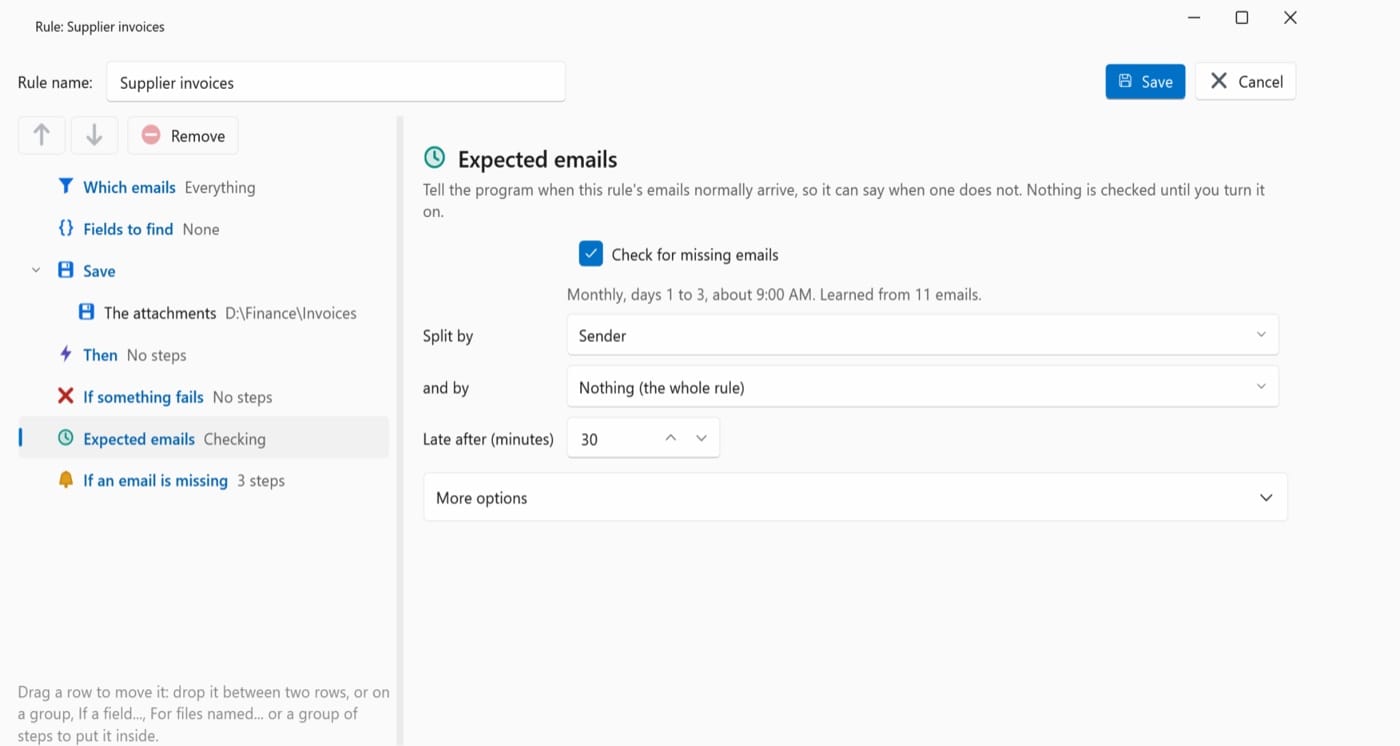
Tell the program which emails you expect, such as a daily report from a supplier, and it notices when one doesn't arrive. Then run actions when it is missing, instead of finding out days later.
Alert your team
Send a notification or an email as soon as an expected email is missing.
Chase it up
Send a reminder to the sender, or call a webhook or run a script that opens a ticket.
Any action you choose
Use the same actions as any rule. Some, such as sending email and running scripts, need PRO Rules Server.
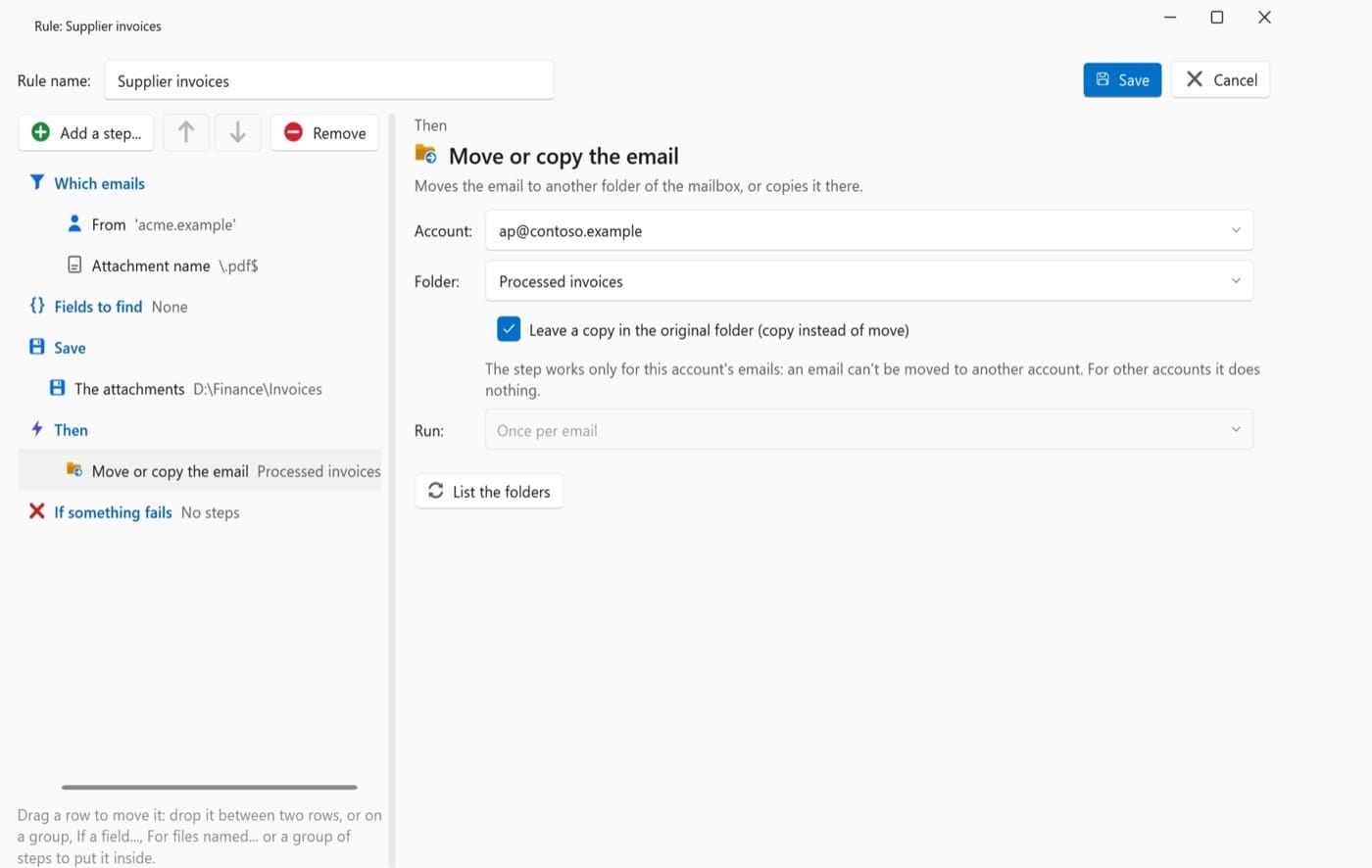
Chain rules together: one rule picks the emails, and other rules that depend on it each do one job with them. Within a rule, run several actions one after another, and nest actions under another one to work on its result.
Chained rules
Within a rule, actions run from the top down. Nest one under another to work on its result, and reorder them with Move Up and Move Down:
Unzip file
Convert each file to PDF
Save to database
Send email with the PDF
Example: a zip of invoices arrives. Each file inside is converted to PDF, recorded in your database, and emailed on. See the nested actions in the Unzip files and Send email screenshots.
Conditions inside a rule: If a field…, For files named…
The best way to get values out of emails and files is a Parser. Highlight the invoice number in a sample, or describe it in plain words and let AI find it, and the Parser reads it from every similar email and file after that. It reads whole tables and line items and checks them against the total, reads e-invoices exactly, falls back to AI when a pattern finds nothing, and sends emails to review when a required value is missing. A parser is saved as a PRO rule, so you can add steps after it.
Describe the fields in plain words, such as an invoice number and a total, and the AI fills them in from each email and its attachments, ready for file names, spreadsheets or databases.
Parser is a better way to extract data. Highlight a value or describe it in plain words, see exactly where the AI read it with a confidence percentage, check tables and totals, and send doubtful emails to review. Use the Parser →
Highlight a value in a sample email, such as an invoice number or total, and the wizard turns it into a field like {INVOICE_NUMBER}. You can then clean it up and use it in file names, database columns and replies.
Extraction wizard
PRO Rules Client includes basic extraction with regular expressions.
Reading values from many similar emails or invoices? The Parser is a better way to extract data: highlight a value or describe it in plain words, read whole tables and e-invoices, and send emails to review when a value is missing. Use this step for a quick one-off field inside a rule.
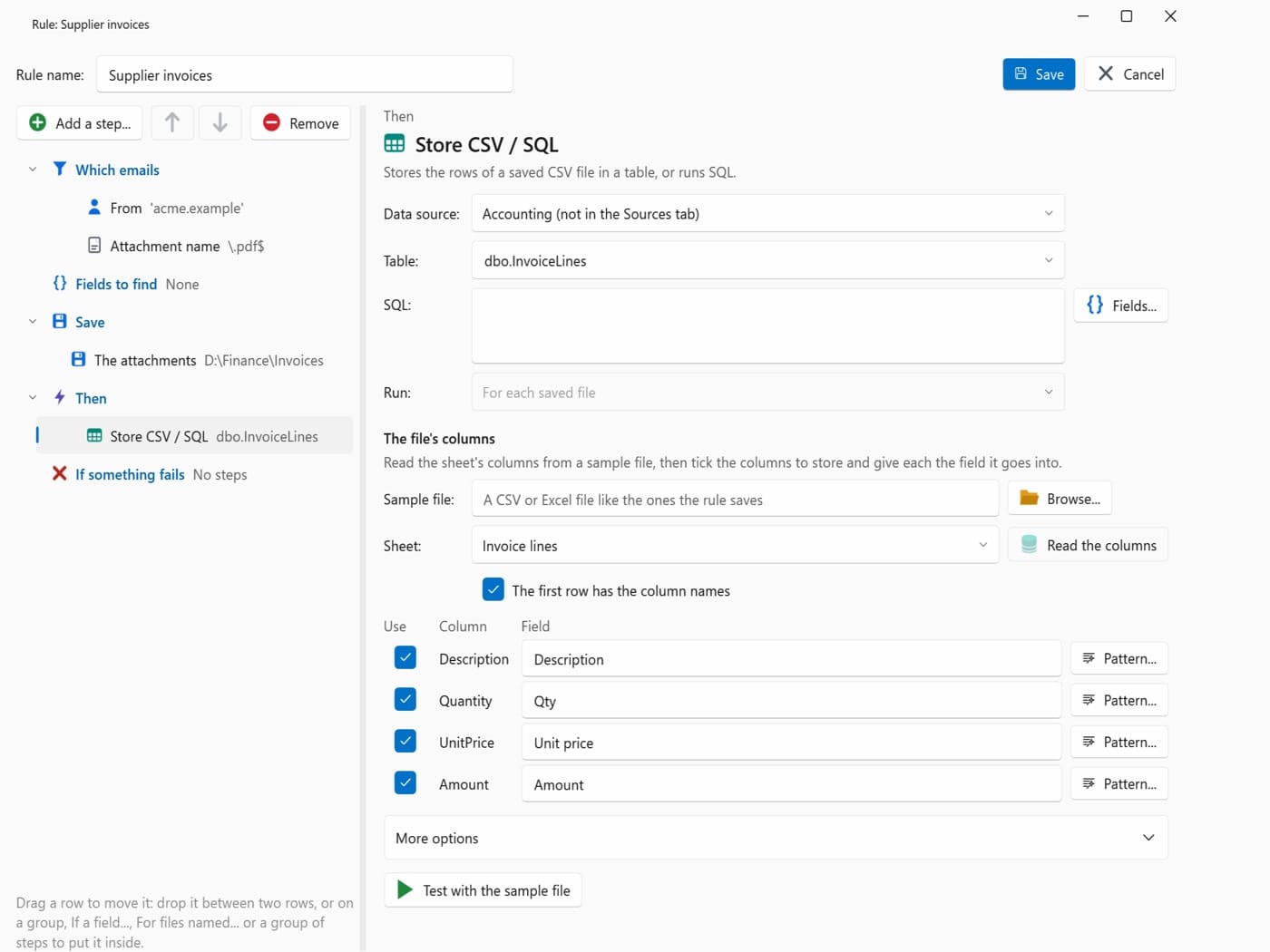
Read the rows of an Excel or CSV report you receive by email, then add them to a database table every time a new report arrives.
Excel and CSV rows
Parser is a better way to extract data. It reads Excel and CSV files, as well as PDFs, emails and scans, shows the values it found on every sample, and sends the rows to CSV, Excel, Google Sheets or a database. Use the Parser →
Save & convert
Choose what to download: attachments, emails, or both
In 3.x, Mail Attachment Downloader saved attachments only. 4.0 lets each account choose: attachments only, emails and attachments, or emails only (every email saved as an .eml file). This works in the Free edition too. PRO Rules Server can also save .msg and combine an email and its files into one PDF.
When an email arrives with another email attached (an .eml or .msg file, as when someone forwards an invoice as an attachment), the Save attachments of attached emails step saves the files inside it too. The steps you put under it then run on each of those files, or every rule can run on them as if they had been attached directly.
Save many emails into many folders, named your way
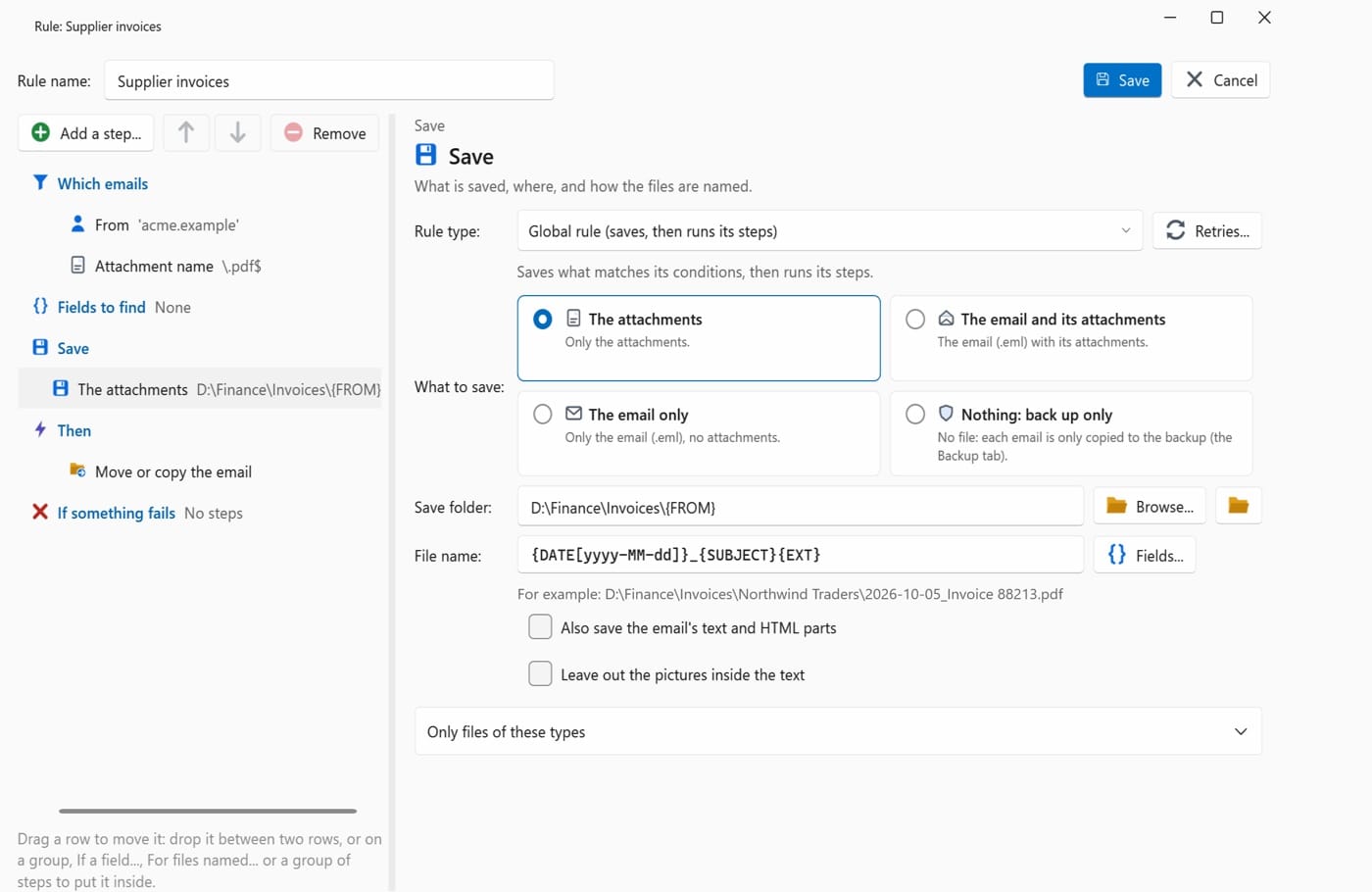
Save many emails into many folders, named your way. Build the folder and the file name from any email field or any value the Parser reads, such as the sender, the date, the subject, a supplier name or an invoice number, for example {SUPPLIER}\{INVOICE_NUMBER}_{FILENAME}{EXT}. Missing folders are created automatically, and it works from PRO Parser up, even if you never send a value to a spreadsheet.
Free and PRO Backup save each account in one format. Every email in the account is saved the same way, in a fixed file format and one folder pattern. PRO Parser saves different kinds of email into different folders, with names built from their contents.
Choose what to save
Attachments, the whole email as an .eml file, both, or back up only.
A folder for each
By supplier, sender, account, month or any value you read.
Values to a file
The values the Parser reads go to CSV, Excel or Google Sheets.
The Prepend text step writes the email's details at the start of each saved .txt or .html file: From, To, CC, Subject and Date to begin with, or any other fields you choose, each on its own line if you like. A file opened on its own then still says which email it came from.
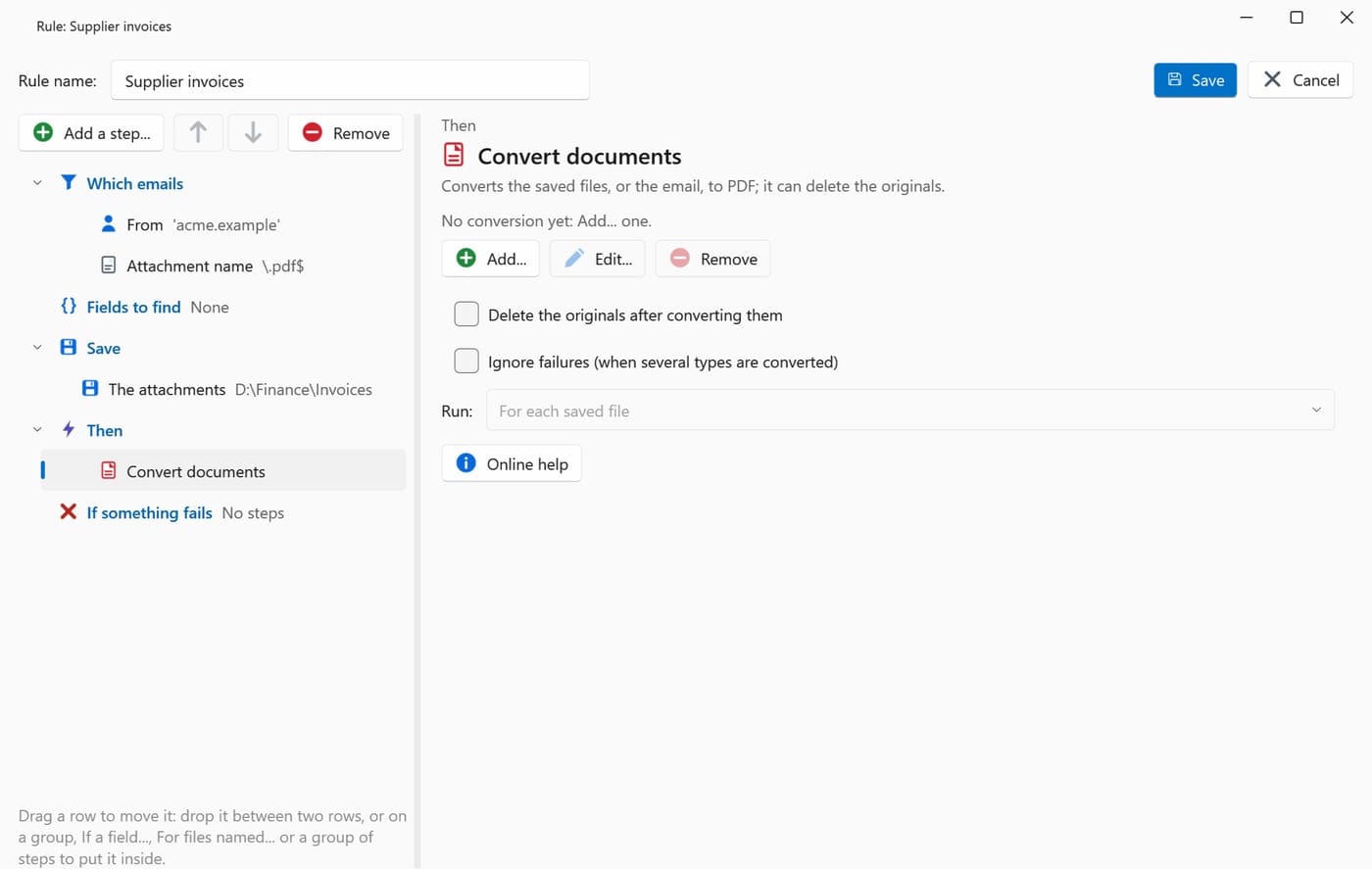
Convert email bodies and attachments to PDF, multi-page TIFF, Word, images and more, then save them or run more actions on the result. Options such as DPI and compression are available for image formats.
Common conversions
From
To
DOCX
PDF, multi-page TIFF, PNG, JPEG, HTML and more
PDF
DOCX, multi-page TIFF, PNG, JPEG, HTML and more
CSV, XLSX
PDF, multi-page TIFF, PNG, JPEG, HTML and more
PPTX
PDF, multi-page TIFF, PNG, JPEG, HTML and more
EML (email)
PDF, multi-page TIFF, DOCX, PNG, JPEG, HTML and more
Combine an email and all its attachments into a single PDF, split out specific pages, add or remove passwords, and make scanned files searchable.
Merge
Merge many PDF files into one. Use the Document conversion action first to turn other formats into PDF, then merge them.
Split
Split a PDF into single pages, or keep only specific pages. Convert other formats to PDF first if needed.
Encrypt / decrypt Client
Protect a saved or converted PDF with a password, or remove the password from an encrypted PDF you receive so it can be saved or converted.
OCR alpha
Turns almost any file into a searchable PDF (via a multi-page TIFF). Lightweight, English characters only, and not meant to replace dedicated OCR products.
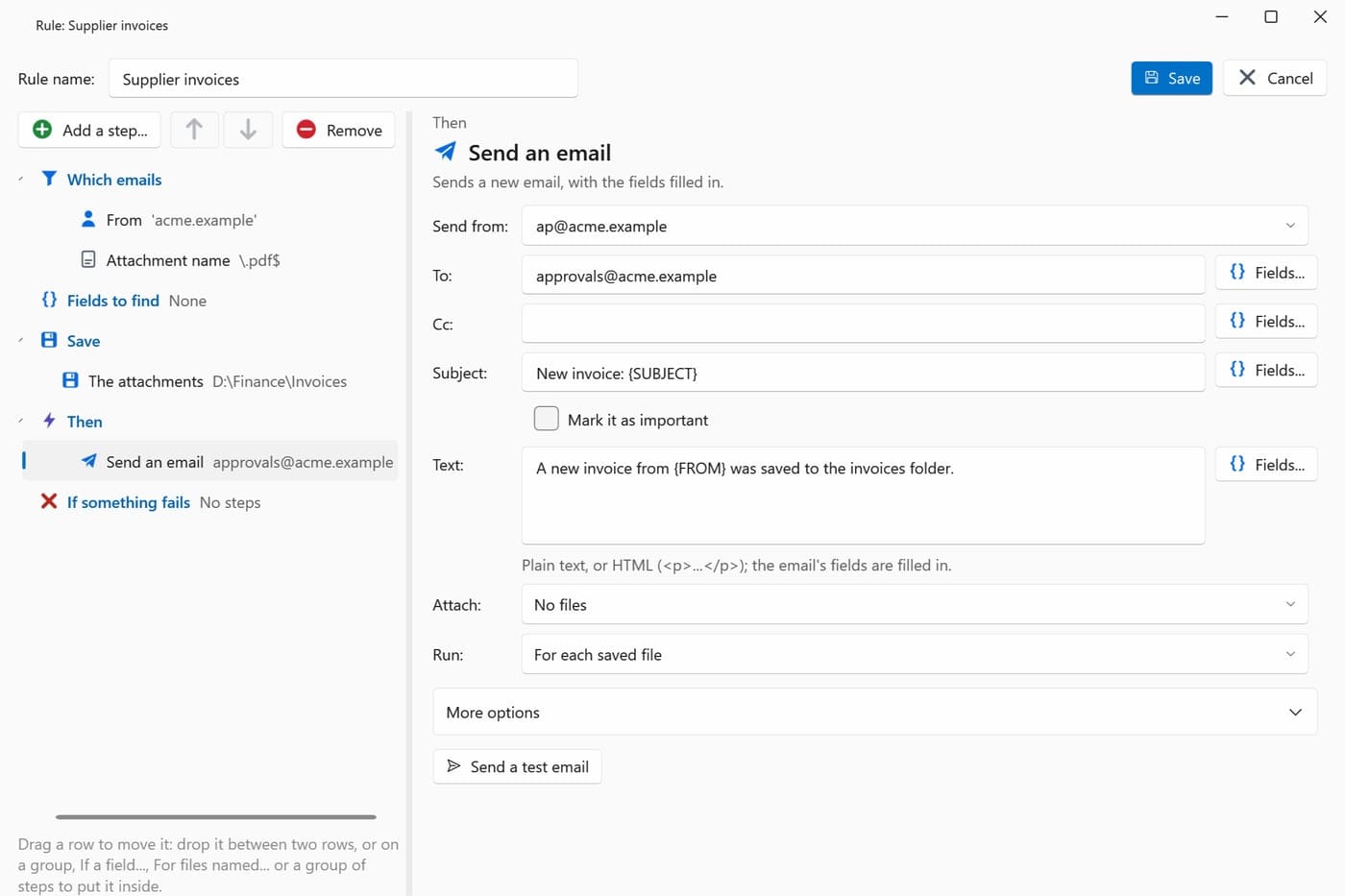
Send an email from any of your accounts using a template filled in with fields, like a mail merge. Optionally attach the files that were just saved. To reply, send it to the sender's address taken from a field.
New in 4.0: Forward the email to other addresses from one of your accounts, with a note on top. Forward it as an .eml attachment, so the original arrives untouched, or quoted in the text like your mail program's Forward, with or without its attachments. The subject is "Fwd:" and the original subject unless you set one.
Send email
Download files from links in emails, even ones that need a login
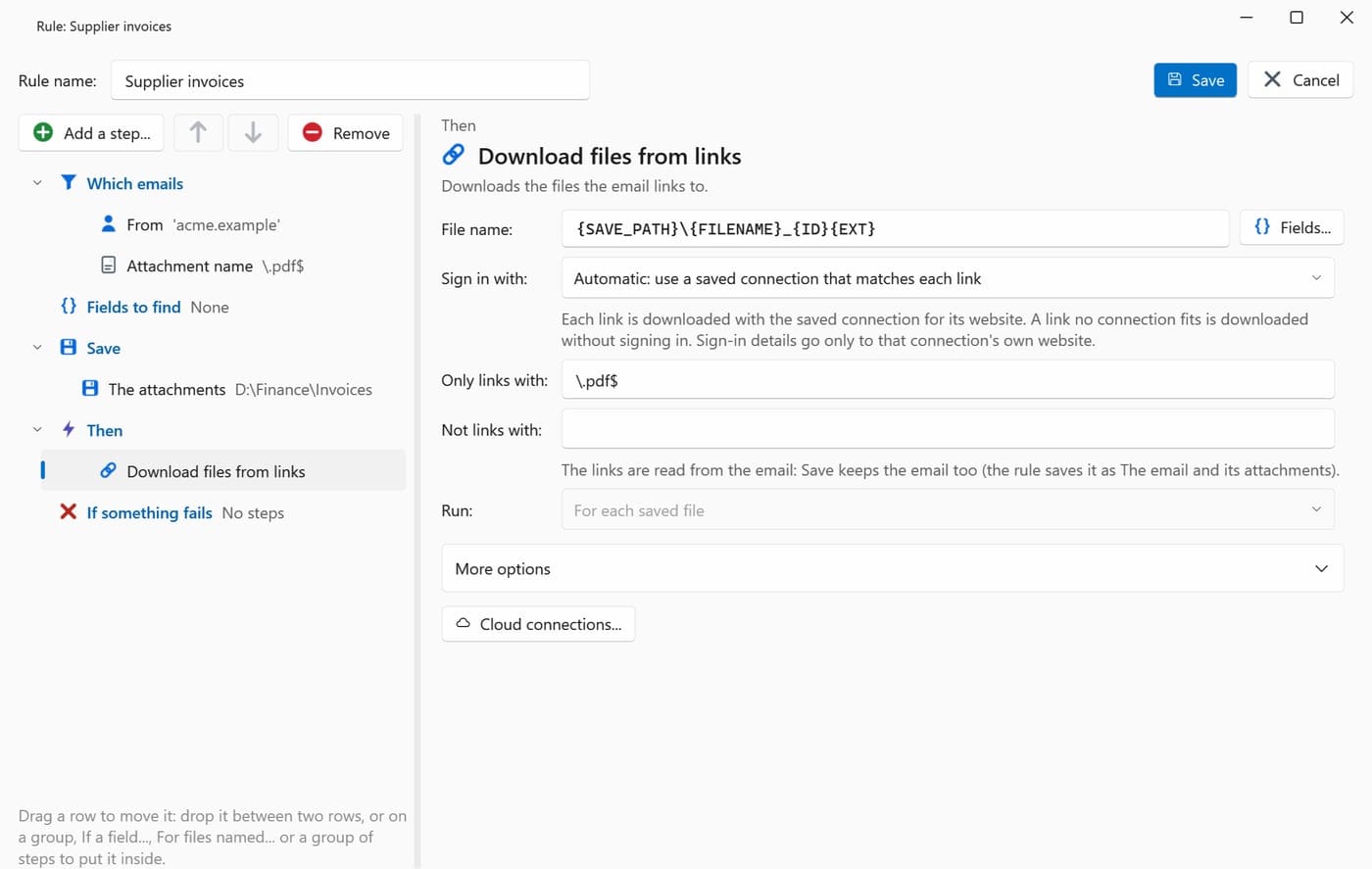
Save the files that are linked in an email, not just attached to it. Download a file from a link takes one link, Download files from links finds every link in the email body, or only the ones that match a pattern. The files are named and checked like attachments, so the steps after them (convert, rename, upload, read with the Parser) work on them as usual.
A link to a private file normally returns a sign-in page instead of the file. In 4.0 the two link steps have a Sign in with choice: pick one of your saved connections, or leave it on Automatic and the step picks the connection that matches each link's website, so one step can handle links from several services in the same email. Your saved password or token is sent only to that connection's own website, over https, and a sign-in that no longer works shows as a clear error in Activity and History.
SharePoint and OneDrive
Share links, with your Microsoft connection.
Google Drive and Dropbox
Shared links, with your Google or Dropbox connection. Google Docs and Slides arrive as PDF, Sheets as Excel.
Amazon S3 and Azure Blob
Object and blob links, signed with your connection. Presigned links work as they are.
WebDAV, SFTP, FTPS and network shares
Links under a connection you have set up.
Any website with a login
A web login with Basic, Bearer or a custom header, sent only to that site.
Links that need a browser sign-in with single sign-on or multi-factor prompts, and links to whole folders, are not supported. Tested against test services; live tries with real accounts are still to come.
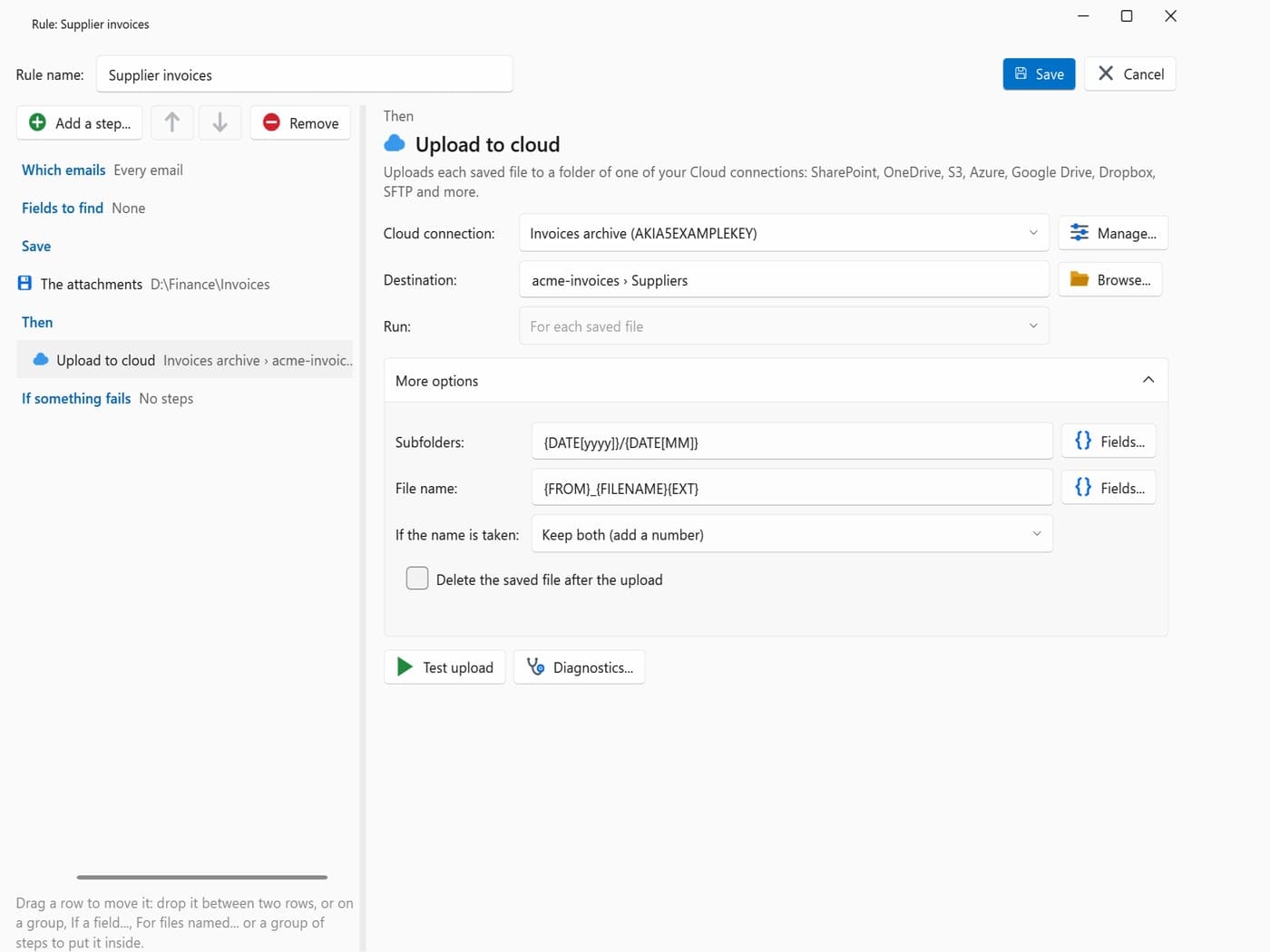
Upload saved or converted files to OneDrive, SharePoint (Online or on-premises), Amazon S3 and S3-compatible storage (Wasabi, Backblaze B2, Cloudflare R2, MinIO, DigitalOcean Spaces, Google Cloud Storage), Azure Blob, WebDAV (Nextcloud, ownCloud, a NAS, pCloud...), SFTP, FTPS, a network share, Google Drive or Dropbox. Build subfolders from fields such as the year, and choose what happens when a file already exists: keep both, replace, skip or fail. SharePoint and OneDrive can also receive the email's details as library columns.
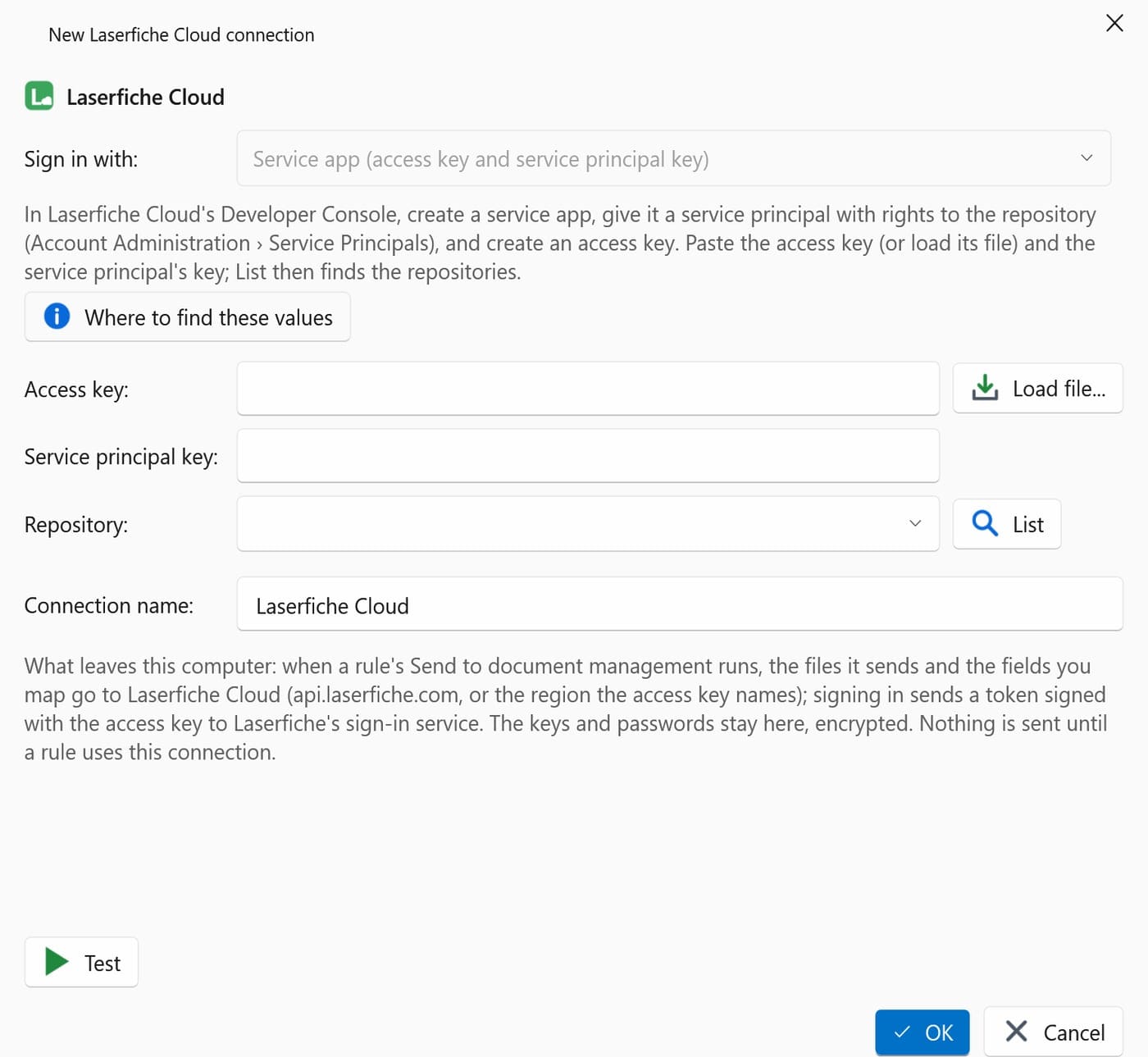
File saved documents straight into your document system as a step in a rule: Laserfiche (Cloud, or self-hosted with Laserfiche 11 or later), M-Files (your vault on a server or in M-Files Cloud) and DocuWare (Cloud or on-premises, into a file cabinet). Fill the template, class or index fields from the email and from values you extracted. The document's ID is remembered, so processing an email again updates the document instead of filing a duplicate. Using a different system, or a scanning tool such as Chronoscan? Save to a folder it watches.
Tested against test servers. Live tries with these services are still to come.
Send the saved files for signature as a step in a rule: one envelope per file, or one for all of the email's files, to signers taken from the email or fixed in the rule, with routing order, signature anchors and DocuSign templates and roles. Leave it as a draft if someone should review it first. Works with the DocuSign production service and its demo sandbox.
Tested against a test DocuSign service. A live try with a real DocuSign account is still to come.
Add one row per email or file to an Excel workbook or a Google Sheet, with the values you extracted. Processing an email again replaces its row instead of adding a second one. The Parser can also add the lines of an invoice table to a sheet, or save them to a database.
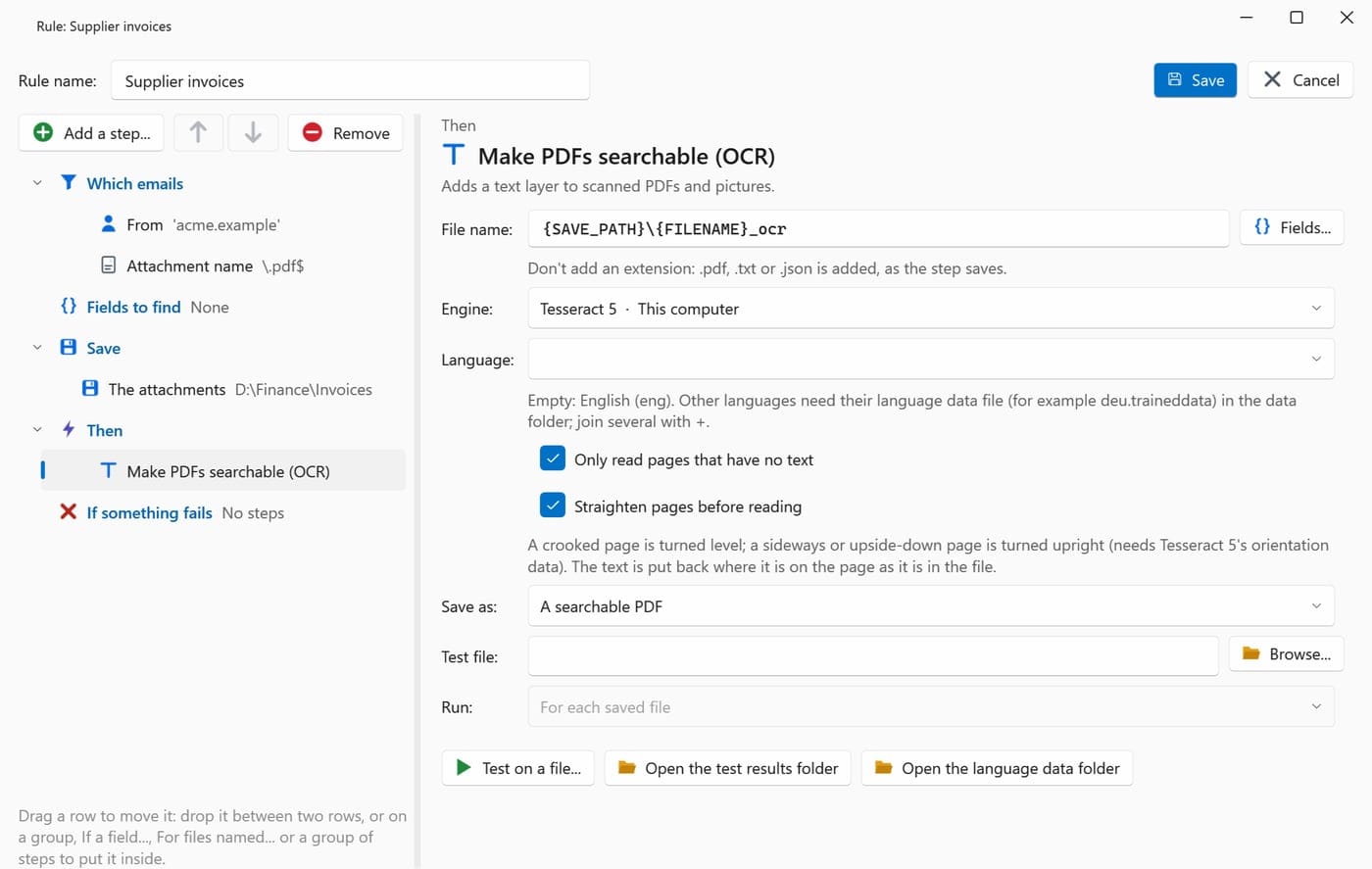
Turn scanned PDFs and pictures into searchable PDFs, plain text or a words file, so the rest of your rule can read, name and file them like any other document. Pick the engine that suits the job:
Tesseract
Runs locally. The classic engine and the newer, more accurate Tesseract 5. English, German, French, Spanish, Italian, Dutch and Polish are included.
Windows OCR
Uses the recognition built into Windows, with the languages you have installed.
Azure AI Document Intelligence
Reads the page in your own Azure account. You add the connection once under Sources.
AI vision
An AI model reads the picture of the page, using the same AI engines as everything else.
Cut a scanned batch into one PDF per document with Split PDF, or merge pages afterwards.
In the Parser. The Parser can run a scan, a phone photo of a receipt or a PDF with no text through OCR before it extracts values, so highlighting, plain words and tables work on scanned documents as they do on digital ones. Crooked scans are straightened first, and the rule the Parser saves puts an OCR step ahead of its reading steps. That OCR step is PRO Rules Server only and is skipped, with a warning, on the other editions: building and checking a parser from scans works in PRO Parser, but running it on scanned files needs PRO Rules Server.
Fill a text or HTML template with the email's fields and the values you extracted, and save the result next to the files, ready for the next step: a cover note, a report, or a message body for another system. Templates use Handlebars (the same {{ }} syntax as Mustache), so you can add conditions and loops, and pick values out of a JSON answer from a web hook or an AI prompt.
Call any web address or API for each email or file. Choose the method, headers and payload from your fields, attach the files, retry on failure, and keep fields from the answer for later steps. Use it to start a workflow in your own system, post to an internal API, or hand a file to another program.
Read the answer. When the other system answers in JSON, a Handlebars template (the same {{ }} syntax as Mustache) picks out the values you need and keeps them as fields for the steps after it. For example, {{order.id}} from the answer becomes a field you can use in a file name, a message or a database row.
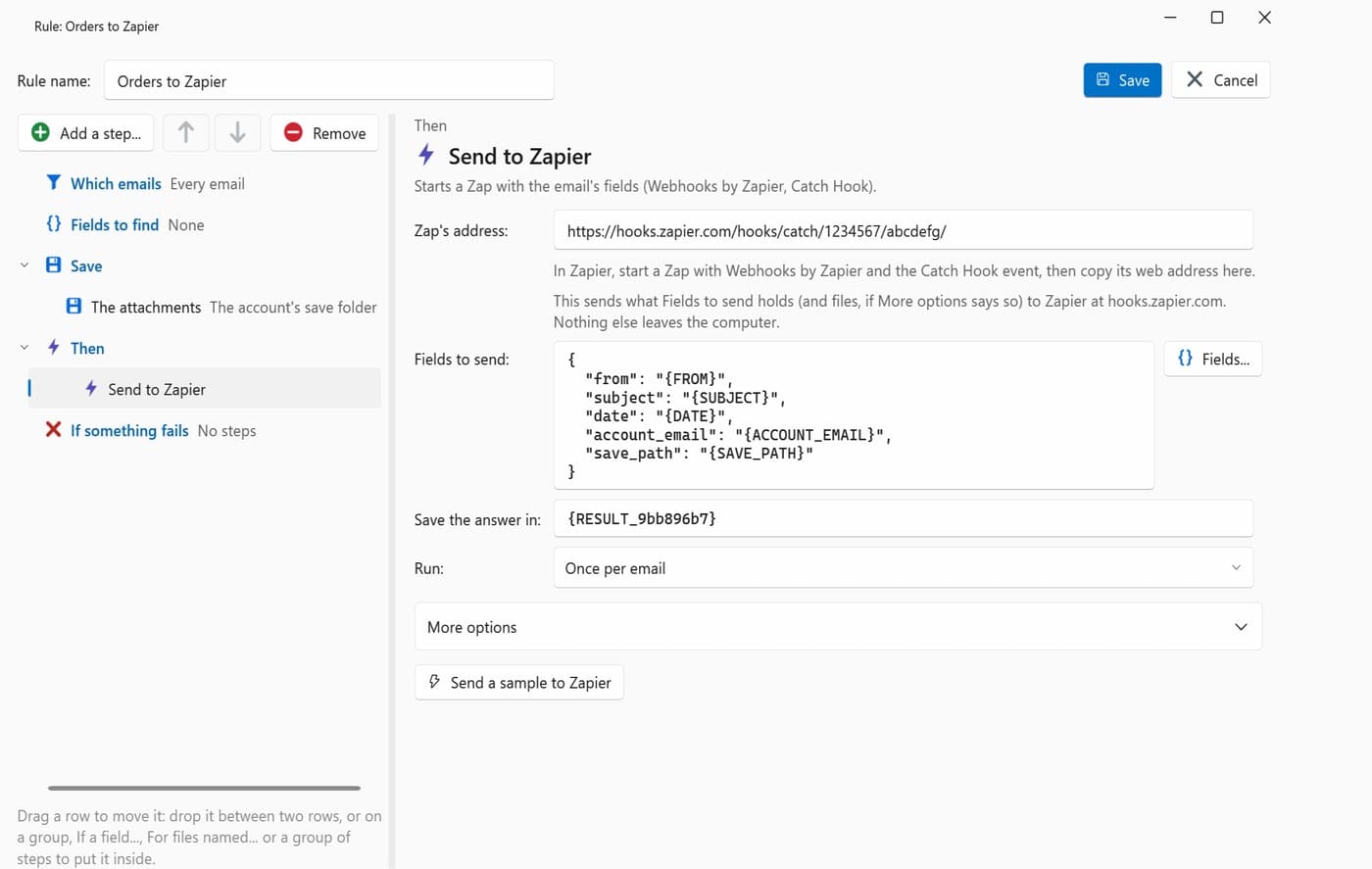
Send to Zapier is a ready-made step for starting a Zap. Paste your Zap's webhook address, choose what to send (the email's details, the values you extracted, the file names), and a Zap runs for each email or file. From there Zapier can pass the data on to the apps it connects to, without you building the call yourself. It is a preset of the web hook step, so it has the same retries and keeps the answer for later steps.
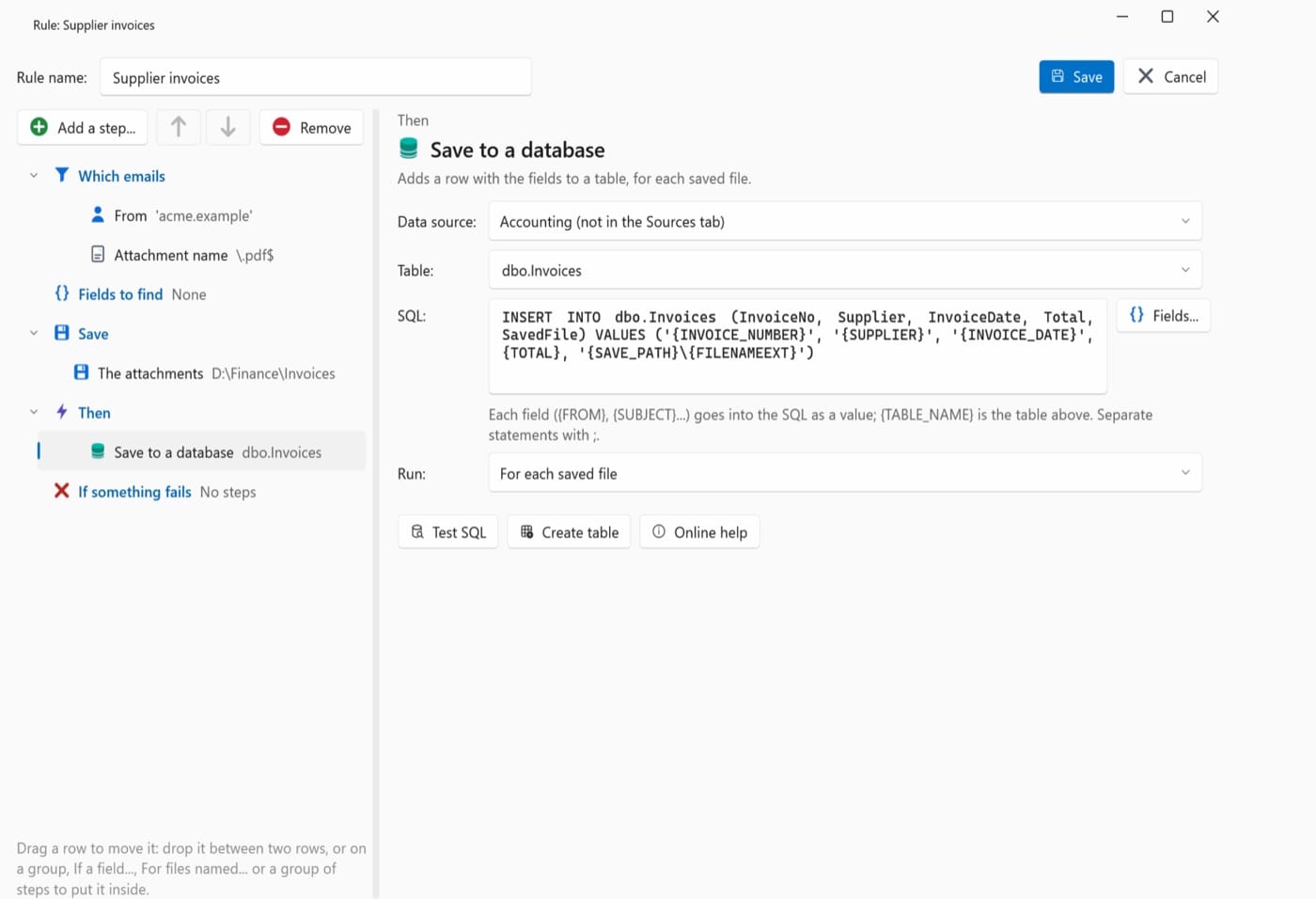
Connect to your database through ODBC: SQL Server, MySQL, PostgreSQL, Access, Oracle and anything with a 64-bit ODBC driver. Save email fields, attachments and extracted values to a table, insert rows from Excel/CSV attachments, or look up a value to use in later actions.
Run a PowerShell script, batch file or program for each email or file, passing in any field. Call a webhook with any field in its address, headers and payload, and turn values from its JSON response into fields like {PROJECT_ID} with a Handlebars template.
Run a prompt on an email, its attachments or extracted values and use the answer in later steps, with the local built-in AI, your own AI server, or OpenAI, Claude, Gemini or Azure OpenAI. The keys are the same ones the AI Assistant uses.
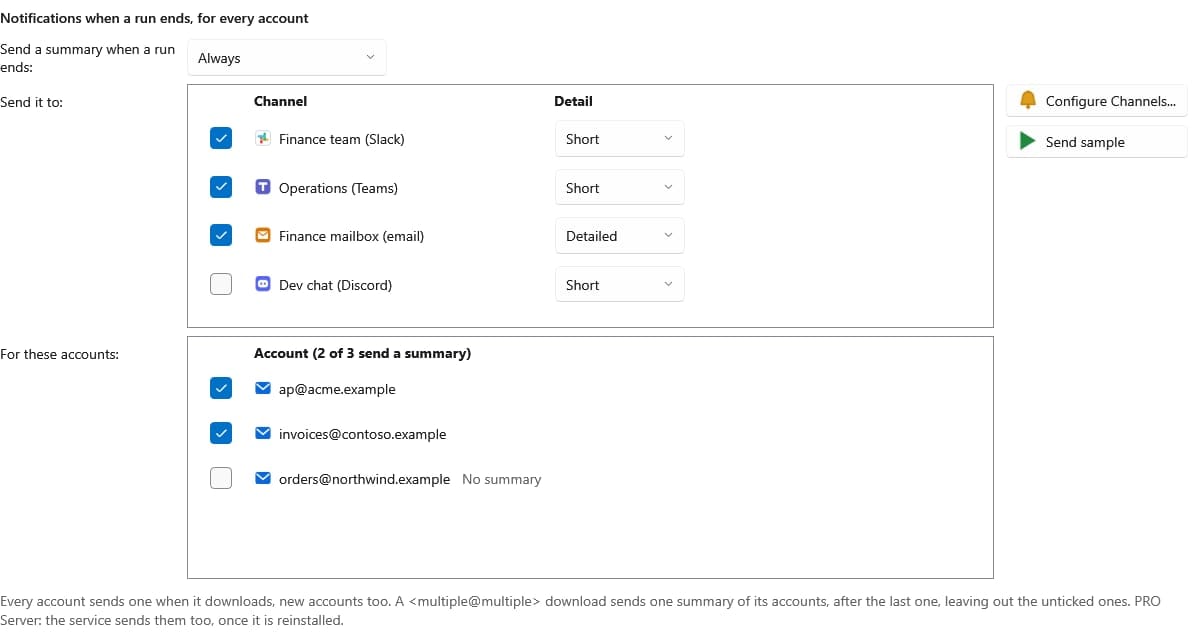
Each account can send a run summary when a download ends: always, when files were saved or something went wrong, or only when something went wrong, short or detailed. A run with several accounts sends one summary.
Run summary
Notifications to Slack, Teams, Telegram, Discord and more
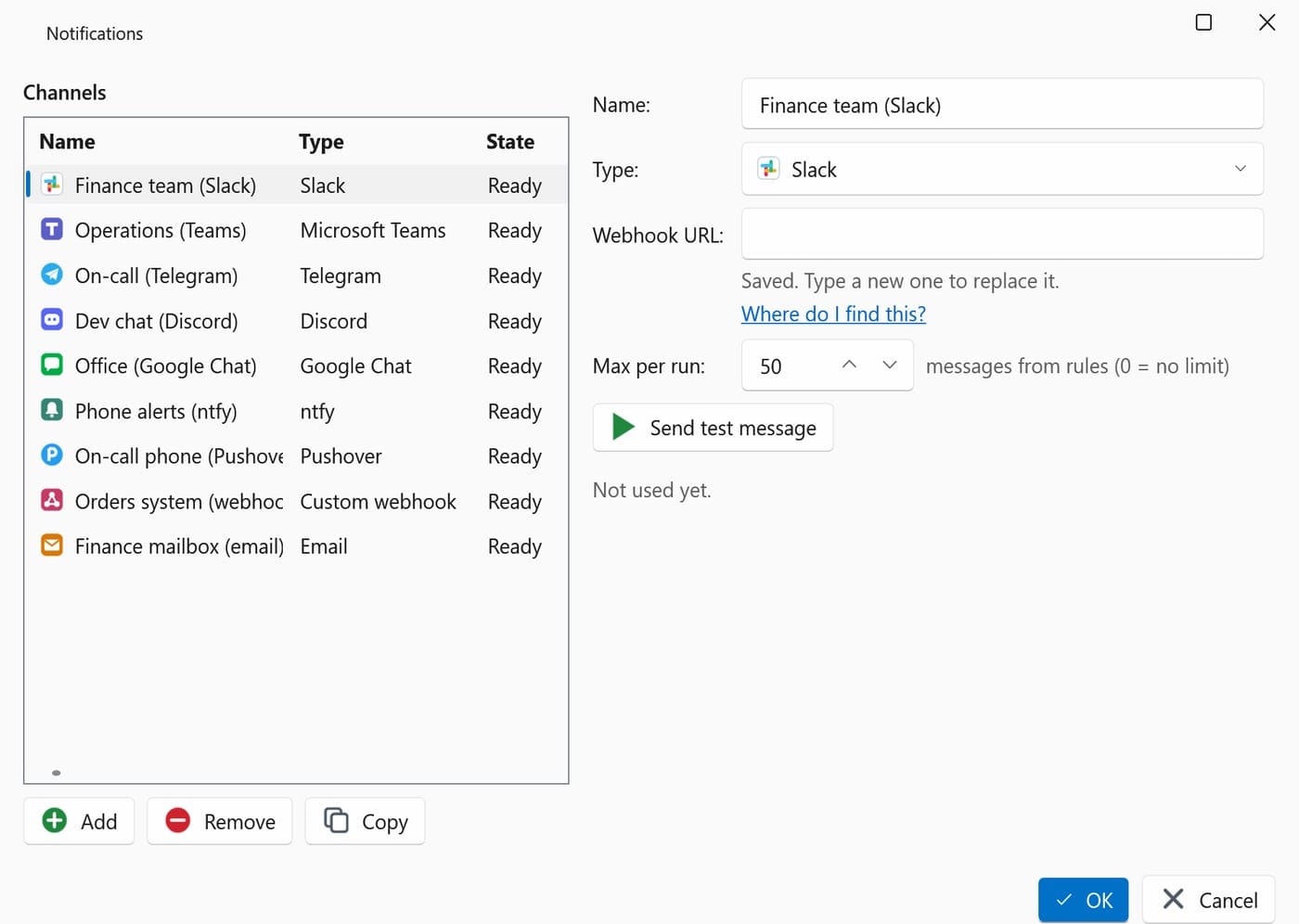
Set up channels once, in Options › Notifications, and use them for run summaries, error alerts, expected-email alerts and the Send notification step. Addresses and tokens are kept encrypted. The Send notification step in a rule needs PRO Rules Server.
Slack
An incoming webhook. Message text with the file names.
Microsoft Teams
A Workflows webhook for a channel.
Discord
A channel webhook. Can attach files up to 10 MB.
Google Chat
A space webhook.
Telegram
Your own bot. Can attach files up to 50 MB.
ntfy
The ntfy.sh topic or your own ntfy server. Files up to 15 MB.
Pushover
Push messages to your phone.
Your own webhook
JSON posted to any address, with an optional authorization header.
Email
A tidy HTML message from one of your own accounts. Attachments up to 18 MB.
Messages are limited to 50 per channel per run, a failed post is retried, and a Test button checks each channel. Tested against test services; live tries are still to come.
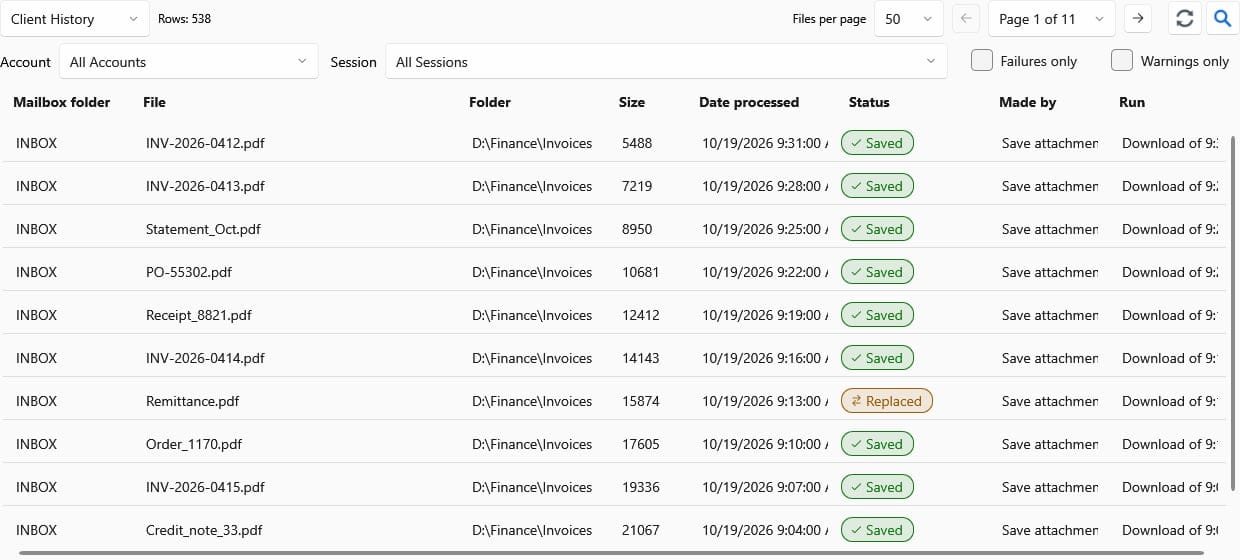
See every email or file, by run or by day, with filter chips, search and pages. Action required lists accounts that can't download, each with a button that fixes it, and every email says why it saved nothing. A Queue pane shows what is waiting, and a Performance window shows where time goes.
Install it as a service that keeps running when nobody is signed in and starts again after a reboot. Choose which Windows user it runs as. With the 3-server pack you can split work across servers or keep one on hot standby.
The first time 4.0 starts, it copies your 3.x accounts, settings and licence once, with a banner saying so. It never changes the 3.x settings, so 3.x keeps working. You can export your settings and import them on another system. Emails you already downloaded aren't downloaded again: History carries on where 3.x stopped.
 Mail Attachment Downloader PRO