Mail Attachment Downloader PRO RulesThe automation between your emails, files and systems.

PRO Rules takes in email and the files that land in folders, shares and cloud storage, decides what each one is, names and files it, and hands it to your document management, cloud storage, database, spreadsheet, signing service or web hook. Run it on a desktop, or around the clock as a Windows service.

From $199.99 per year (PRO Rules Client). 30-day money-back guarantee.

An invoice from email, a folder or another source is backed up, read, run through rules and processed, then handed to any destinationSource: EmailEmailGmail · 365 · IMAPSource: Folders and sharesFolders & shareslocal and networkSource: Cloud filesCloud filesSharePoint · S3Source: DatabasesDatabasesnew table rowsSource: Chat and e-signChat & e-signSlack, Teams, DocuSignWHAT HAPPENS IN BETWEENBack up1Back upFrom PRO BackupEncrypted copy of every email, file, row or messageKept as long as you choose · search, export, restore emailRead and extract2Read & extractFrom PRO ParserParser or AI reads the values:{INVOICE_NO} {TOTAL}Line items, e-invoices (Factur-X, XRechnung…)Unsure ones wait for you to check themMatch and name3Match & nameFrom PRO Rules ClientMatch sender, subject, dates or file names (AND / OR, regex)Name files and folders from any field or valueChain rules: one picks the emails, the next acts on themAct on the files4Act on the filesFrom PRO Rules ClientConvert to 50+ formats · merge, split and OCR PDFsUnzip · rename · copy · printMove, delete or mark the email · send a replyDestination: Document systemsDocument systemsLaserfiche · M-FilesDestination: Cloud storageCloud storageSharePoint · S3 · AzureDestination: DatabasesDatabasesSQL · ODBCDestination: SpreadsheetsSpreadsheetsCSV · Excel · SheetsDestination: Webhooks and APIsWebhooks & APIsERP · your own APIDestination: Scripts and programsScripts & programsPowerShell · EXEDestination: EmailEmailSend · forward · notifyDestination: Chat alertsChat alertsSlack · Teams · DiscordDestination: E-signatureE-signatureDocuSign

Or click any step to see how it works

Email, folders and shares
SharePoint, OneDrive, S3
Laserfiche, M-Files, DocuWare
DocuSign
Excel, Google Sheets, databases
Web hooks and scripts

PRO Rules includes everything in PRO Parser and PRO Backup

Each edition includes the one below it, so you never buy a feature twice. With PRO Rules Client or PRO Rules Server you get all of this, plus the rules and hand-offs on this page.

PRO Parser included

  • The Parser: highlight or describe the values to read, with AI if you like
  • Tables and line items, and e-invoices read exactly
  • Checks, and Needs you review for doubtful reads
  • Results, health and Compare models
  • Custom folder and file names from any field
  • Output to CSV, Excel or Google Sheets, up to 5 accounts in a run
See PRO Parser →

PRO Backup included

  • Encrypted, searchable copy of every account, with retention
  • Copies to a share, S3 or Azure Blob, with a recovery key
  • Export to EML, MBOX, MSG, PST, PDF and ZIP
  • Import, restore, and move mail between account types
  • Every schedule, and new email as it arrives
  • Run summaries and notification channels, read-only AI agents
See PRO Backup →
PRO Rules features

What PRO Rules adds

Search, or click a card to see how it works on the features page, already filtered to your edition. PRO Rules also includes every PRO Parser and PRO Backup feature.

In PRO Rules Client

PRO Rules Client and upNew in 4.0

More sources than email: files, cloud, DocuSign, databases and chat

Run rules on new files in folders and network shares, SharePoint, OneDrive and S3, on completed DocuSign envelopes, and with PRO Rules Server on database tables and Slack and Teams channels, as well as on email.

See details →
PRO Rules Client and up

Automatic folder selection

Pick mailbox folders with a pattern instead of ticking them one by one. New folders that match are included automatically.

See details →
PRO Rules Client and upNew in 4.0

Folders and network shares

Watch a local folder or a network share, such as the one a scanner or another program drops files into. New files go through your rules like attachments do: read, renamed, converted, handed off.

See details →
PRO Rules Client and upNew in 4.0

SharePoint, OneDrive and S3

Watch a SharePoint library, OneDrive or an Amazon S3 (or S3-compatible) bucket, and process new files as they arrive. Handy for taking documents out of one system, reading them, and handing them to another.

See details →
PRO Rules Client and upNew in 4.0

DocuSign: completed envelopes

Take completed DocuSign envelopes as input: the signed PDF (combined, or one per document) and optionally the certificate of completion go through your rules, so signed contracts can be filed, renamed and…

See details →
PRO Rules Client and upNew in 4.0

Change any saved rule with AI

Open a rule from the PRO Rules list (Edit using AI…), from the AI Assistant tab (Open a rule) or with the AI button in the Rule Editor, and say what to change: "only the last 3 months", "also save the email".

See details →
PRO Rules Client and up✦ AINew in 4.0

Use AI as a step in a PRO Rule

Call an AI from any PRO Rule: run a prompt on the email and its files and use the answer in later steps, or let the AI fill in fields. Choose the local built-in AI, your own server, or a cloud service.

See details →
PRO Rules Client and up

PRO Rules: rules with their own actions

Give each kind of email its own rule: its own conditions, save folder, file names and follow-up steps.

See details →
PRO Rules Client and upNew in 4.0

Rule Editor: build and change rules

Build each rule from the emails it matches, where and how to save them, the actions to run in order, and what to do if one fails.

See details →
PRO Rules Client and up

Flexible filters

Match on dates, accounts, any email field, attachment names or the number of attachments. You can combine conditions with AND / OR, use regular expressions, and test a filter before you save it.

See details →
PRO Rules Client and upNew in 4.0

Check rule order

Rules run top to bottom, and an email goes to the first rule that takes it. Check rule order finds rules that can never save anything because a rule above already takes their files.

See details →
PRO Rules Client and upNew in 4.0

Email security conditions

Use a sender's SPF, DKIM and DMARC results, or a look-alike domain check, as a rule condition, for example to save invoices only from senders that pass.

See details →
PRO Rules Client and upNew in 4.0

Expected emails

Tell the program which emails you expect, such as a daily report from a supplier, and it notices when one doesn't arrive. Then run actions when it is missing, instead of finding out days later.

See details →
PRO Rules Client and up

Chained rules and actions

Chain rules together: one rule picks the emails, and other rules that depend on it each do one job with them.

See details →
PRO Rules Client and up

Conditions inside a rule: If a field…, For files named…

Put steps under a condition, so they run only when a field is empty, not empty or matches a pattern, or only for the files whose names match, while the rest of the rule goes on as usual.

See details →
PRO Rules Client and upNew in 4.0

Field extraction with AI

Describe the fields in plain words, such as an invoice number and a total, and the AI fills them in from each email and its attachments, ready for file names, spreadsheets or databases.

See details →
PRO Rules Client and up

Save the attachments of attached emails

When an email arrives with another email attached (an .eml or .msg file), save the files inside it too, and run your steps on them as on any attachment.

See details →
PRO Rules Client and up

Save email details to CSV

Write sender, subject, dates and extracted values to a CSV file. Create one file per email, or add a row to a running log.

See details →
PRO Rules Client and up

Add the email's details to the top of text files

Write From, To, CC, Subject and Date, or any fields you choose, at the start of each saved .txt or .html file, so a file opened on its own still says which email it came from.

See details →
PRO Rules Client and up

Move, copy, delete or mark emails as read

Tidy up the mailbox once an email has been processed. If anything went wrong, the email stays where it is.

See details →
PRO Rules Client and upNew in 4.0

Download files from links in emails, even ones that need a login

Save the files linked in an email body, one link or every link, named and checked like attachments. Links that need a login sign in with a connection you have saved (SharePoint, OneDrive, Google Drive, Dropbox, S3, Azure Blob, WebDAV, SFTP, FTPS, network shares or a web login), picked automatically by each link's website.

See details →
PRO Rules Client and up

Copy or rename files

Copy each saved file to another folder or a network share, for example as a backup, or rename it. You can also delete files you don't need.

See details →
PRO Rules Client and up

Print automatically

Print the email or its attachments automatically as soon as they're saved, for example invoices that need a paper copy.

See details →
PRO Rules Client and upNew in 4.0

Upload to cloud storage

Upload saved or converted files to OneDrive, SharePoint, Amazon S3 and S3-compatible storage, Azure Blob, WebDAV (Nextcloud, ownCloud, a NAS...), SFTP and FTPS servers, a network share, Google Drive or Dropbox.

See details →
PRO Rules Client and upNew in 4.0

Send to your document management system

File saved documents straight into your document system as a step in a rule: Laserfiche (Cloud, or self-hosted with Laserfiche 11 or later), M-Files (your vault on a server or in M-Files Cloud) and DocuWare…

See details →
PRO Rules Client and upNew in 4.0

Send for signature with DocuSign

Send the saved files for signature as a step in a rule: one envelope per file, or one for all of the email's files, to signers taken from the email or fixed in the rule, with routing order, signature anchors…

See details →
PRO Rules Client and upNew in 4.0

Add a row to Excel or Google Sheets

Add one row per email or file to an Excel workbook or a Google Sheet, with the values you extracted. Processing an email again replaces its row instead of adding a second one.

See details →

In PRO Rules Server

Key featurePRO Rules Server

Run 24×7 as a Windows service

Install it as a service that keeps running when nobody is signed in and starts again after a reboot. Choose which Windows user it runs as.

See details →
Key featurePRO Rules ServerNew in 4.0

Make scanned PDFs searchable (OCR)

Turn scanned PDFs and pictures into searchable PDFs, plain text or a words file, with Tesseract, Windows OCR, Azure AI Document Intelligence or an AI that reads the page. The Parser can also run scans through OCR before it extracts values.

See details →
Key featurePRO Rules Server

Databases

Connect to any ODBC database. Save email fields, attachments and extracted values to a table, insert rows from Excel/CSV attachments, or look up a value to use in later actions.

See details →
PRO Rules ServerNew in 4.0

Database tables

Treat new rows in a database table as the things to process: each one goes through your rules, so a record can be turned into a file, a message or a call to another system. A PRO Rules Server source.

See details →
PRO Rules ServerNew in 4.0

Slack and Teams

Read messages from a Slack or Microsoft Teams channel as input, for example to act on a request or an alert posted there. A PRO Rules Server source.

See details →
PRO Rules Server

Extraction wizard

Highlight a value in a sample email, such as an invoice number or total, and the wizard turns it into a field like {INVOICE_NUMBER}.

See details →
PRO Rules Server

Read Excel and CSV attachments

Read the rows of an Excel or CSV report you receive by email, then add them to a database table every time a new report arrives.

See details →
PRO Rules Server

Convert to 50+ formats

Convert email bodies and attachments to PDF, multi-page TIFF, Word, images and more, then save them or run more actions on the result. Options such as DPI and compression are available for image formats.

See details →
PRO Rules Server

PDF tools

Combine an email and all its attachments into a single PDF, split out specific pages, add or remove passwords, and make scanned files searchable.

See details →
PRO Rules Server

Send, reply to or forward email

Send an email from any of your accounts using a template filled in with fields, like a mail merge, or forward the email itself, as an attachment or quoted in the text, with a note on top.

See details →
PRO Rules Server

Unzip files

Unzip zip attachments automatically, then run more actions on the files inside, such as converting them or saving them to a database.

See details →
PRO Rules Server

Call webhooks and APIs

Call any web address or API for each email or file: choose the method, headers and payload from your fields, attach the files, retry on failure, and keep fields from the answer for later steps. A Handlebars (Mustache-style) template turns a JSON answer into fields.

See details →
PRO Rules Server

Fill a template

Fill a text or HTML template with the email's fields and the values you extracted, and save the result next to the files, ready for the next step: a cover note, a report, or a message body for another system. Uses Handlebars (Mustache-style) templates, with conditions and loops, and can pick values out of a JSON answer.

See details →
PRO Rules Server

Scripts and webhooks

Run a PowerShell script, batch file or program for each email or file, passing in any field.

See details →
PRO Rules ServerNew in 4.0

Run an AI prompt

Run a prompt on an email, its attachments or extracted values and use the answer in later steps, with the local built-in AI, your own AI server, or OpenAI, Claude, Gemini or Azure OpenAI.

See details →
PRO Rules Server

Error actions

Decide per rule what happens when a save or conversion fails, for example move the email to a "Needs attention" folder and email your team.

See details →
PRO Rules ServerNew in 4.0

Send to Zapier

A ready-made step for starting a Zap: paste your Zap address, choose what to send, and a Zap runs for each email or file.

See details →
PRO Rules Client and Server

Each rule has its own conditions, folders, names and steps

A rule says which emails (or files) it applies to, where and how to save them, and what to do next. Different suppliers, accounts and document types get different rules, all in one list that runs in the order you set.

Many rules, one list

  • Rules with their own conditions, save folder, file names and steps
  • Shared filters and shared actions, with rules chained under them, so a condition is written once
  • You decide the order the rules run in, and any rule can be switched off
  • Conditions on From, To, Subject, Body, dates, attachment name, CC/BCC, mailbox folder, account, size and attachment counts, with AND/OR groups
  • Conditions inside a rule: steps under If a field… or For files named… run only when they apply
  • Unlimited accounts per run from PRO Rules Client
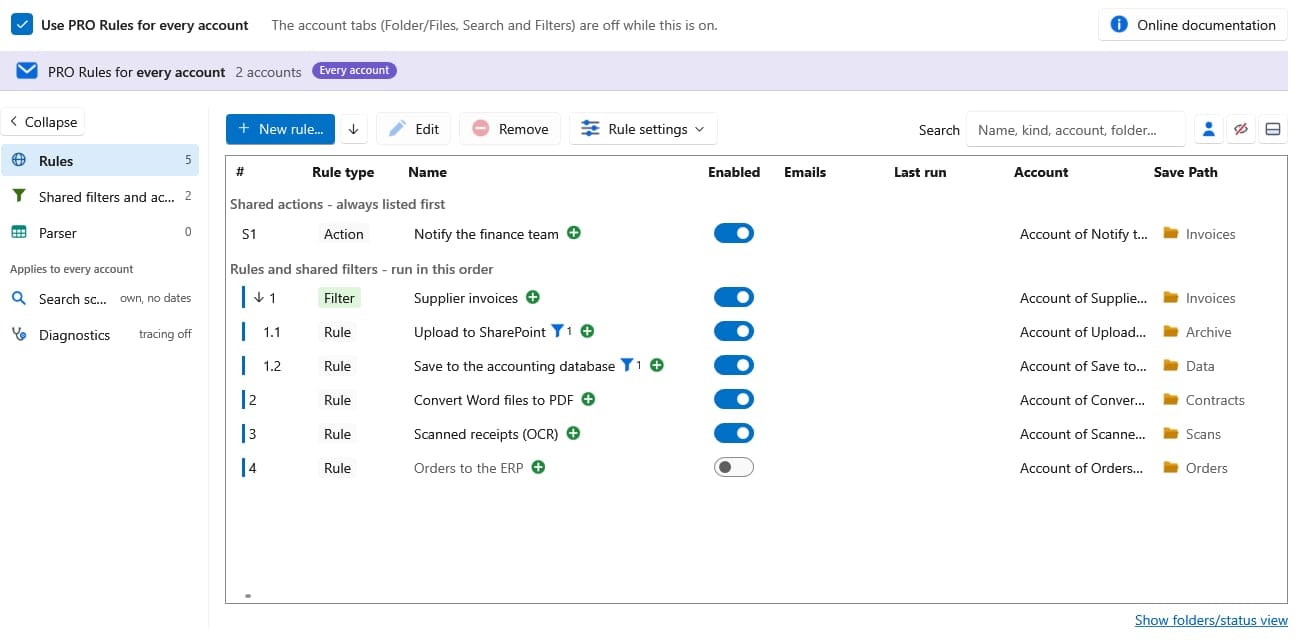
The PRO Rules tab: a shared action, a shared filter with two chained rules, further rules and one rule switched off
The PRO Rules tab: a shared action, a shared filter with two rules chained under it, and a rule that is switched off.

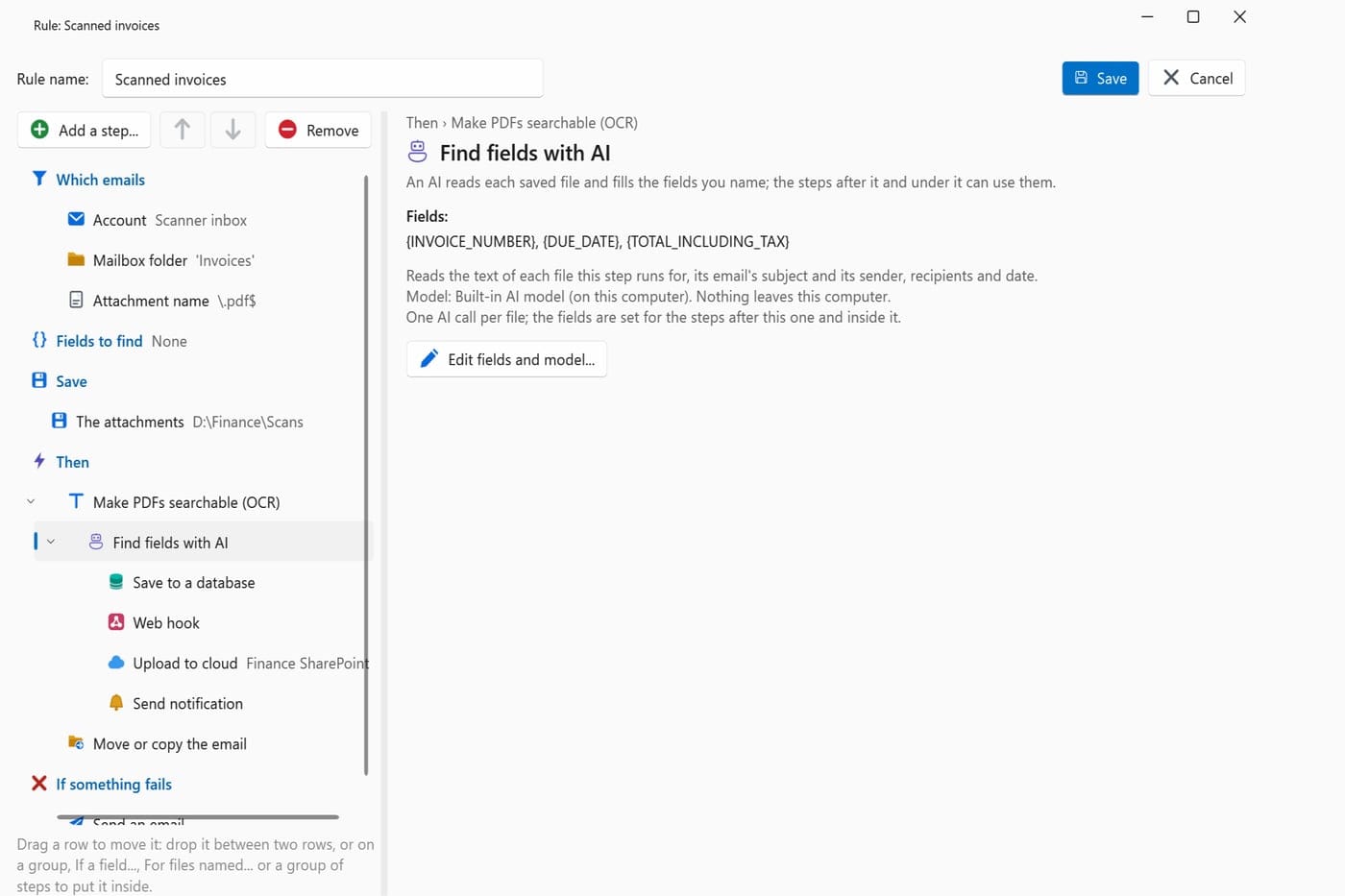
The Rule Editor

One window per rule: which emails, the fields to find, what to save, the steps that follow, and what to do if something fails.

  • Filters with a built-in tester, so you see what an expression matches before you save it
  • Test this rule on an .eml or .msg file before it touches real mail
  • Name folders and files from the sender, the date, the subject or a value found in the document (file name format)
The Rule Editor for a scanned-invoices rule: filters, Save, Then steps and If something fails
A rule with its filters, what it saves, the steps that follow and what happens if something fails.
Rules in plain words

Describe a rule, or a change to one

The AI Assistant writes a rule from your words and shows it as a tree you can read, test and save. Inside the Rule Editor, Edit using AI changes the rule you have open, highlights what it changed and has an Undo.

What goes in

Email, and the files that arrive outside email

A watch sends each new or changed file through your rules, the way an email attachment goes through them. A new watch takes only what arrives after it was added, unless you tick "also take the files already there". Watches check about every 60 seconds, and folders also react at once to Windows file events.

📬

Email

Gmail and Google Workspace, Microsoft 365 and Outlook.com, Exchange (EWS), and any IMAP or POP3 mailbox, with ready-made setups for 150+ other providers and company mail servers such as Zimbra, Kerio and MDaemon.

📁

Folders and shares

Watch a local folder or a network share (UNC path), for example the one your scanner saves to.

The Windows service cannot see mapped drives: use \\server\share.

☁️

Cloud folders

SharePoint, OneDrive, Amazon S3 and S3-compatible storage, and network shares, watched like a folder.

🗄️

Database tables Server

A table watch through ODBC turns each new row into a .json file for your rules.

💬

Slack and Microsoft Teams Server

Watch a channel for messages and files and process them like any other input.

Not watchable yet: Azure Blob, WebDAV, SFTP, FTPS, Google Drive and Dropbox (they work as upload targets). There are no web hook or push triggers.

When nothing arrives

Know when the email you expect does not come

Expected emails learns when a rule's emails normally arrive and tells you when one is late or missing.

  • Split by sender, so each supplier is watched on its own
  • "If an email is missing" runs the steps you choose: alert your team, chase the sender, call a web hook or run a script (sending email and scripts need PRO Rules Server)
  • Nothing is checked until you turn it on for a rule

Email security as a condition

A rule can look at the SPF, DKIM and DMARC results of a message and at look-alike sender domains, so a file from a spoofed address is not filed with the real ones.

What comes out

Hand each file to the system that needs it

Steps run after a rule saves a file. Add as many as you need, in order, from the step picker.

☁️

Cloud storage

Upload to cloud: OneDrive, SharePoint (Online and on-premises), Amazon S3 and S3-compatible storage, Azure Blob, WebDAV, SFTP, FTPS, a network share, and Google Drive and Dropbox through your own app. Subfolder and file name templates; if a name is taken, keep both is the default.

🗂️

Document management

Send to Laserfiche Cloud, self-hosted Laserfiche (11 and later), M-Files or DocuWare, with fields filled from the email and the extracted values. The document ID is kept, so reprocessing updates the document instead of duplicating it.

📊

Excel and Google Sheets

Add a row to a workbook or a sheet from the email and the values found. Processing again replaces the row, not adds a second one.

📥

The mailbox and the files

Move, copy, delete or mark as read on the mail server (IMAP, EWS, Graph). Copy files, print each saved file, and convert to PDF. Save the attachments of attached emails, and add the email's details to the top of saved text files.

🔗

Files linked in the email

Download the files an email links to, when the document is a link instead of an attachment.

Using ChronoScan or another capture tool? Save to the folder it watches: there is no direct connector. The direct connections to DocuSign, SharePoint, S3, Laserfiche, M-Files and DocuWare have so far been tried against test services and test servers only. Try them with your own system before you rely on them.

PRO Rules Server

Databases, scripts, web hooks and more

These steps are added in PRO Rules Server, which also runs rules around the clock as a Windows service.

🗄️

Databases

Save a row, load CSV or Excel rows, or look a value up, through ODBC: SQL Server, MySQL, PostgreSQL, Access, Oracle and anything with a 64-bit ODBC driver.

⌨️

Scripts and command lines

Run a script or a command line and pass it the file name and the values found, or run another rule.

✉️

Send and forward email

Send an email or forward the email, with attachments, from one of your accounts. To reply, send to the sender's address taken from a field.

📄

PDF tools, OCR and zip files

Merge or split PDFs, make scans searchable with OCR (Tesseract, Windows OCR, Azure AI Document Intelligence or AI vision), and unzip archives.

🧩

Templates and conversion

Fill a template (text or HTML, Handlebars) from the email and values, and convert documents to formats other than PDF.

Tell your team

Run summaries and alerts where your team already works

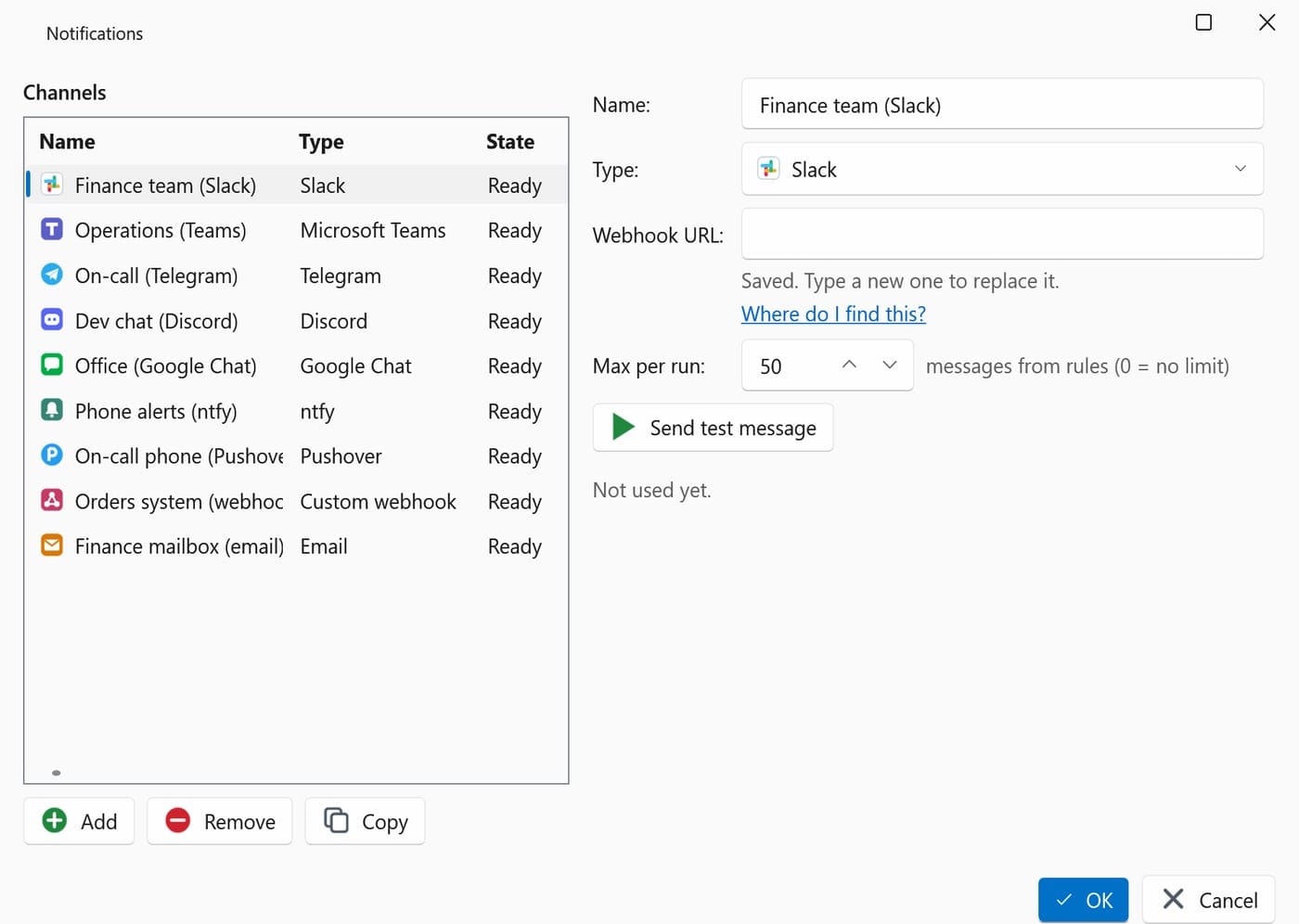
Nine channels: Slack, Microsoft Teams, Discord, Google Chat, Telegram, ntfy, Pushover, a custom web hook and email. They carry run summaries, error alerts and Expected-emails alerts. In PRO Rules Server the Send notification step posts your own message from a rule.

The Notifications window listing the nine channel kinds, with Slack selected
The Notifications window lists all nine channel kinds.
  • Choose per channel: never, always, files saved or problems, or only problems; short or detailed
  • Files can go along, within each service's limit (Discord 10 MB, ntfy 15 MB, email 18 MB, Telegram 50 MB)
  • At most 50 messages per channel per run, with retries, and it honours "slow down" replies
  • Notifications and error handling: give each rule an "If something fails" path

No SMS, WhatsApp or PagerDuty. The channels have been tried against test services only.

AI inside a rule

Use AI as a step when the document needs reading

Pull values out of a file with AI, or send a prompt about it, and use the answer later in the same rule: in a file name, a database row, a document field or a web hook.

  • Find fields with AI (PRO Rules Client and up): describe the values you want in words, with AI extraction as a field in the rule
  • Run an AI prompt (PRO Rules Server): ask a question about the email or a file and keep the answer as a field, for example to classify a document or summarise it
  • You choose the engine: the local built-in AI, your own AI server, or a cloud service you add. Cloud AI is never used without asking.

AI has so far been tried against test services only. Check its answers on your own documents, and use a rule's tests and checks before you rely on them.

Everything below it, included

PRO Rules includes PRO Parser and PRO Backup

Each edition includes the one before it, so you do not buy them separately. If you need only part of this, start smaller.

Start with PRO Backup if you only need...

An encrypted, searchable copy of your mailboxes with retention, export (EML, MBOX, MSG, PST, PDF, ZIP), import and restore.

PRO Backup, $49.99 per year

Start with PRO Parser if you only need...

Values read out of emails and files, such as invoice numbers, totals and line items, written to CSV, SQL, Excel or Google Sheets, with a review queue.

PRO Parser, $99.99 per year

The Parser's values can feed a rule's file names, folders and hand-offs. A PRO program with no licence works as Free.

Choose your edition

PRO Rules Client or PRO Rules Server

Both have rules. Choose Server when the automation must run on its own, around the clock, on a Windows computer that no one is logged into, or when you need the databases, scripts, web hooks and AI prompts.

What you getPRO Rules Client
$199.99 per year
PRO Rules Server
$299.99 per year
Included in both
PRO Backup and PRO Parser✓✓
PRO Rules, Rule Editor, Test this rule, chained rules✓✓
AI Assistant and Edit using AI✓✓
Expected emails with "if missing" actions, Email security condition✓✓
Unlimited accounts per run✓✓
Watches: folders, network shares, SharePoint, OneDrive, S3, completed DocuSign envelopes✓✓
Upload to cloud, send to document management, send for signature (DocuSign)✓✓
Add a row to Excel or Google Sheets✓✓
Move, copy, delete, mark as read; print; copy file; download files from links; convert to PDF✓✓
Find fields in files (pattern or AI)✓✓
Added in PRO Rules Server
Windows service and Windows Server: runs 24x7 with no one logged in-✓
Watches of database tables, Slack channels and Microsoft Teams channels-✓
Send an email, Forward the email, Send notification-✓
Unzip, OCR, Merge PDFs, Split PDF-✓
Database steps: save to a database, store CSV or SQL, look up from a database-✓
Run a script, run a command line-✓
Run an AI prompt-✓
Web hook and Send to Zapier-✓
Fill a template, convert documents to non-PDF formats-✓
See it at work

Worked examples

How PRO Rules is put together for common jobs.

What has been tested. The connections to DocuSign, Slack, Microsoft Teams, SharePoint, Amazon S3, Laserfiche, M-Files, DocuWare, AI services and the notification channels have so far been tried against test services and test servers. Try each one with your own system during the 30-day trial before you rely on it, and tell us if something does not work for you.
Questions

Frequently asked questions

What is the difference between PRO Rules Client and PRO Rules Server?

Both give you PRO Rules, the Rule Editor, the AI Assistant, Expected emails, the Email security condition, unlimited accounts, watches of folders, shares, SharePoint, OneDrive, S3 and DocuSign, and the hand-offs to cloud storage, document management, DocuSign and spreadsheets. PRO Rules Server adds the Windows service, database, Slack and Teams watches, and the steps for email, notifications, unzip, OCR, PDF merge and split, databases, scripts, command lines, AI prompts, web hooks, templates and non-PDF conversion. The table above lists each one.

Can I run it as a service, with no one logged in?

Yes, in PRO Rules Server. It runs as a Windows service on Windows or Windows Server, 24x7. The service cannot see mapped drives, so point rules at \\server\share paths. PRO Rules Client runs on a desktop.

Does anything go to the cloud?

The program runs on your own Windows system (a PC, a server or a cloud VM) and connects directly to your mail servers, folders and the systems you set up. There is no Gearmage cloud in between. Data goes only where you send it: a cloud storage upload, a web hook or a cloud AI service you add. The built-in AI runs on your own system and nothing leaves it, and cloud AI is never used without asking.

Which document-management systems can it send to?

Laserfiche Cloud, self-hosted Laserfiche (11 and later), M-Files (a vault on a server or M-Files Cloud) and DocuWare (Cloud or on-premises). Fields and classes are filled from the email and the values found, and the document ID is kept so reprocessing updates instead of duplicating. These connections have been tried against test servers only. For a capture tool such as Chronoscan, save to the folder it watches.

How do I test a rule before it runs on real mail?

Use Test this rule on an .eml or .msg file, and the expression tester inside the Rule Editor to see what a condition matches. Rules can be switched off, and History shows what each run did, with Redo to run a message again.

What does it cost?

PRO Rules Client is $199.99 per year and PRO Rules Server is $299.99 per year. Both include PRO Parser and PRO Backup, and there is a 30-day money-back guarantee. See pricing.

How is it licensed?

As an annual licence per edition. A PRO program with no licence works as Free, with its previews of Backup, Parser and Rules. For other licence terms, such as several computers or one-time options, contact us.

I use version 3.x. Can I upgrade?

Version 3.x and 4.0 install side by side, and only one runs at a time, so you can try 4.0 without removing 3.x. For upgrade terms for your 3.x licence, contact us and we will tell you.

Put an automation between your emails, files and systems

Try PRO Rules for 30 days, with a money-back guarantee. From $199.99 per year. Windows 10 or later, 64-bit.