Mail Attachment Downloader PRO

Every PRO feature, explained

What each feature does, which plan includes it, and what it looks like in the app.

At a glance

Mail Attachment Downloader PRO automates your email on Windows, with no cloud service in between, no extra email client or plugins, and no limit on how many emails or attachments it processes.

Multiple account downloadsDownload from several Gmail, Office 365, Exchange or IMAP mailboxes in one run, shared mailboxes included: up to 15 accounts with Pro Client, unlimited with Pro Server.
Save whole emailsKeep the email itself, not just its attachments, even emails with no attachments at all: .eml with either plan, .msg with Pro Server, or just its text and HTML.
Rules & filtersRules match emails on any field, date or attachment name, and each rule has its own actions. Chain rules so one picks the emails and others act on them.
Extract dataPro ServerPull values such as invoice numbers and totals out of emails, and read the rows of Excel and CSV attachments.
Save in custom formatsName files and folders from any email field or extracted value, with missing folders created automatically, and log details to a CSV file.
SharePoint uploadPro ServerUpload downloaded or converted files to SharePoint Online or on-premises SharePoint, for example after unzipping them or converting them to PDF.
Convert to 50+ formatsPro ServerTurn email bodies and attachments into PDF, multi-page TIFF, Word, images and more, then save them or run more actions on the result.
PDF toolsPro ServerCombine an email and all its attachments into a single PDF, split out pages, add or remove passwords, and make scanned files searchable.
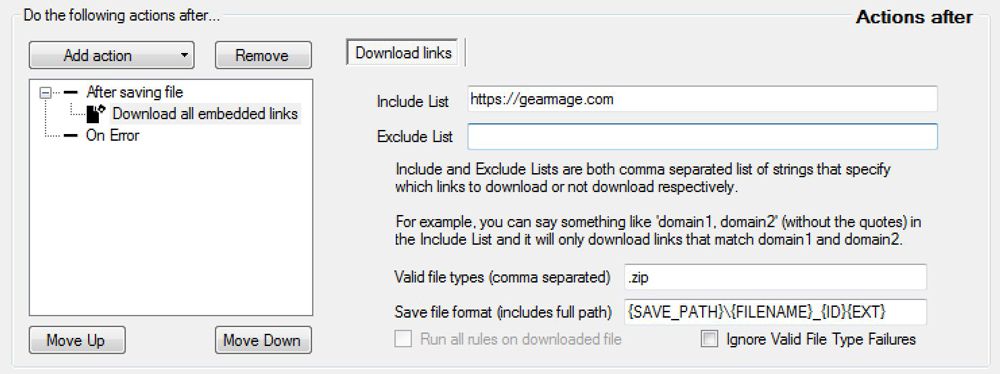
Act on emailsMove, copy or delete emails, or mark them as read, once they've been processed. Pro Server adds replies and notifications from a template, and downloads files linked in the email.
Act on filesCopy saved files to another folder or a network share, rename them, or print them as soon as they're saved. Pro Server adds unzipping, then acts on the files inside.
Integrate with DB, scripts and morePro ServerSave to and look up values in databases, run scripts and webhooks, use ChatGPT or Claude, or plug in your own code with the SDK.
24×7 Windows servicePro ServerKeeps running when nobody is signed in and starts again after a reboot. With the 3-server pack, split the work across servers or keep one on standby.

Connect & capture

Multiple email accounts

Pro Client · up to 15Pro Server · unlimited#

Download from several mailboxes in one run, whether they're Gmail, Office 365, Exchange or IMAP. Each rule can apply to every account or just one.
Select accounts
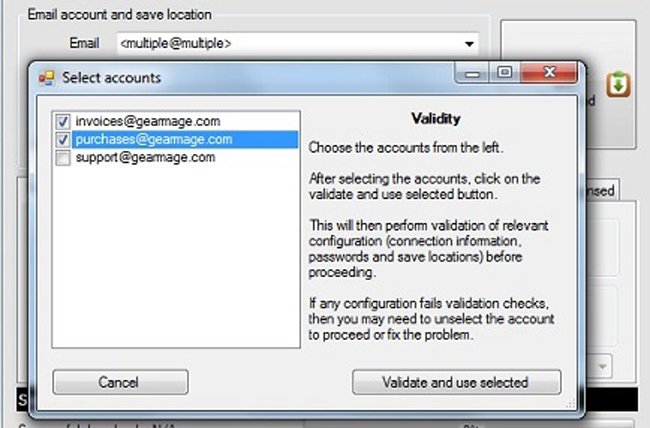
Select accounts window with invoices@gearmage.com and purchases@gearmage.com ticked, over the main window whose Email box shows multiple@multiple 1 2 3
  1. 1Tick the accounts to include in this download session.
  2. 2Validate and use selected checks every account before it's used.
  3. 3The Email box then shows <multiple@multiple>, and one run downloads from all of them.
Office 365 & Exchange, including shared mailboxes

Pro ClientPro Server#

Connect natively through Microsoft Graph or Exchange, with modern sign-in. Shared mailboxes and groups appear in the folder list next to your own Inbox.

Folders
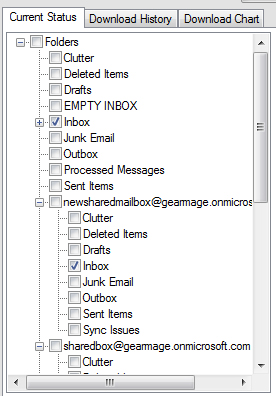
Folder list with the account's own folders and two shared mailboxes, each with its own folders 1 2
  1. 1Your own mailbox's folders. Tick the ones to download from.
  2. 2Shared mailboxes and groups appear below, each with its own folders to tick.

The free edition has basic Office 365 / Exchange support.

Automatic folder selection

Pro ClientPro Server#

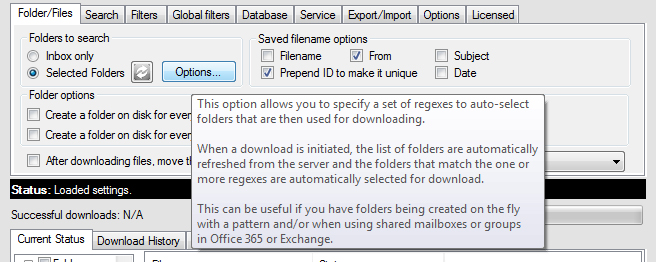
Pick mailbox folders with a pattern instead of ticking them one by one. New folders that match are included automatically.

Options › Folders
Folder options for automatically selecting mailbox folders with regular expressions

Save whole emails

Pro Client · .emlPro Server · .eml or .msg#

Save the email itself as well as its attachments, even emails that have no attachments at all. Keep the full message as .eml or .msg, or just its text and HTML.

Rule › Save options
Save email body action that saves the email itself, with or without attachments
How to set it up
  1. In the account's Search tab, tick Inline content so emails without attachments are included.
  2. In the rule, tick Save as .eml to save the full email, or Save txt/html to save only the text and HTML parts.
  3. To put the email and its attachments in one PDF, add a Merge PDF action (Pro Server).

With Save txt/html, other attachments are still saved as separate files. Add a Downloaded attachment filename filter, such as NOT '.pdf', to skip types you don't want.

Rules & filters

Rules, each with their own actions

Pro ClientPro Server#

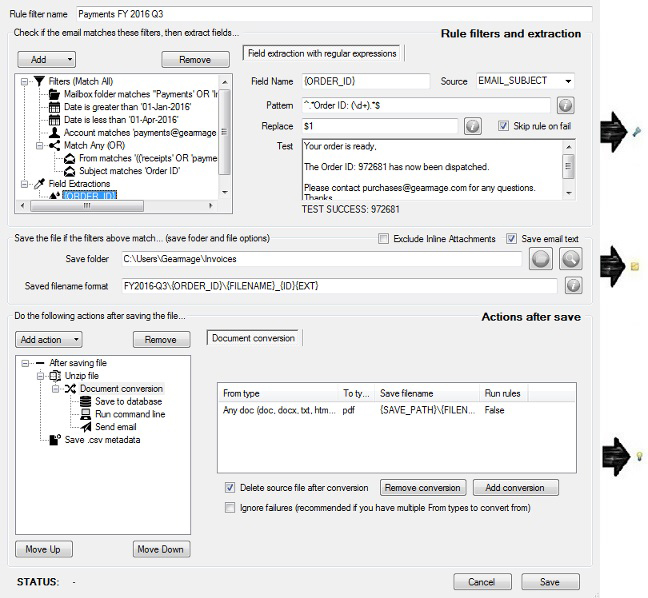
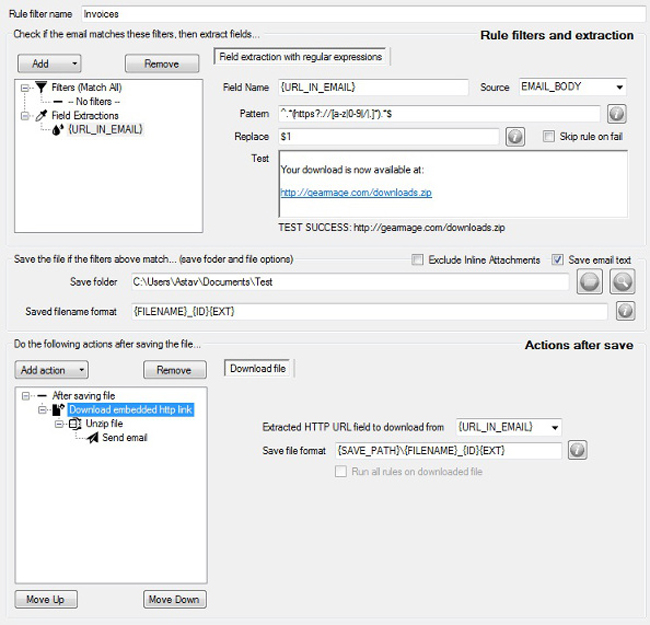
Each rule says which emails to match, what to extract, where to save the files and what to do next. Rules run from top to bottom and can be reordered by dragging. A catch-all rule at the bottom handles anything the other rules miss.

Rule editor: "Payments FY 2016 Q3"
Rule editor with filters, data extraction and actions after save 1 2 3 4
  1. 1Filters: which emails this rule matches, using AND / OR groups.
  2. 2Extraction: pull values like {ORDER_ID} out of the email.
  3. 3Save to: folder and file name, which can use extracted values.
  4. 4Actions after save: unzip, convert, save to a database, send email…
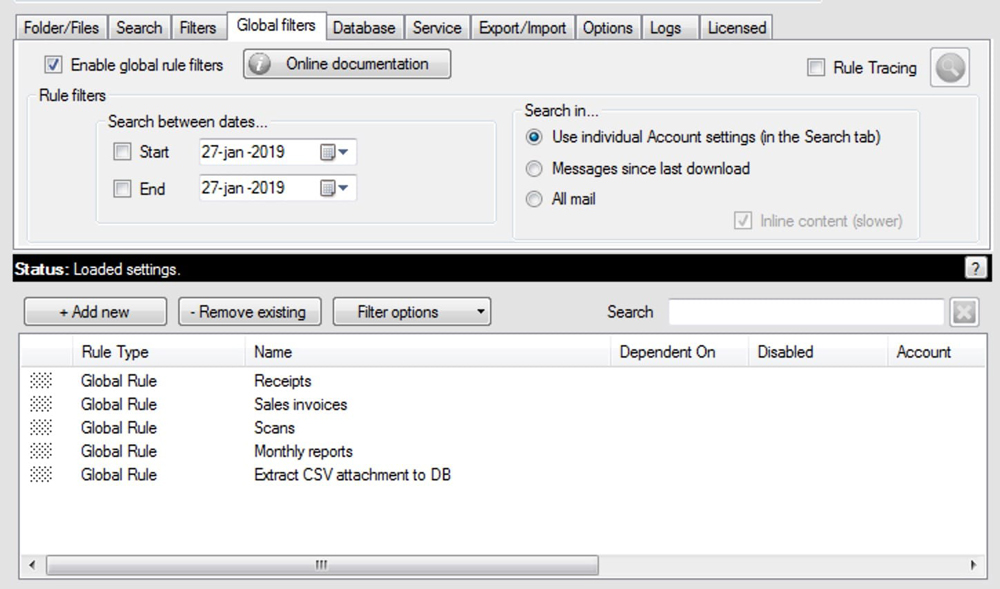
Global filters
Global filters tab listing rules for receipts, sales invoices, scans, monthly reports and a CSV-to-database rule
All your rules in one list on the Global filters tab, for example Receipts, Sales invoices and Monthly reports. Add, remove and reorder them here.

Flexible filters

Pro ClientPro Server#

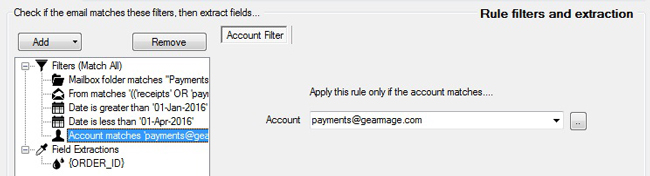
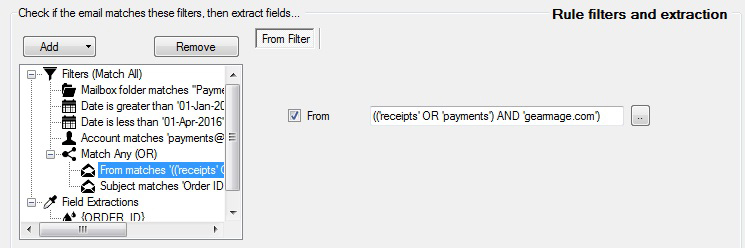
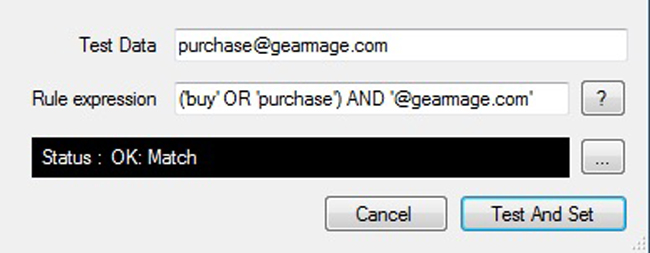
Match on dates, accounts, any email field, attachment names or the number of attachments. You can combine conditions with AND / OR, use regular expressions, and test a filter before you save it.

Filters
Rule filter limited to a date range and a specific email account

Chained rules and actions

Pro ClientPro Server#

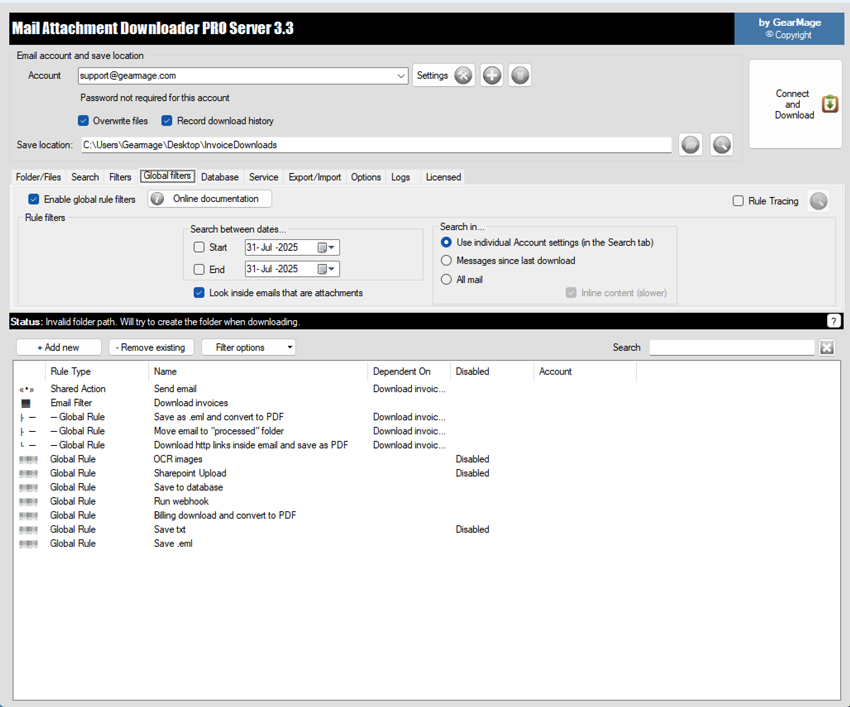
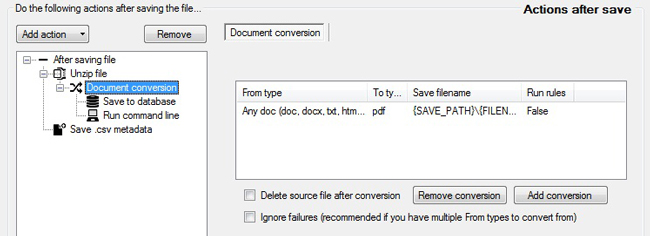
Chain rules together: one rule picks the emails, and other rules that depend on it each do one job with them. Within a rule, run several actions one after another, and nest actions under another one to work on its result.

Global filters: rules that depend on another rule
Global filters list: an Email Filter rule called Download invoices, three Global Rules and a Shared Action Send email that depend on it, and other independent rules 1 2
  1. 1An Email filter rule, Download invoices, picks the emails. The rules shown under it each do one job with them: save as .eml and convert to PDF, move the email to a "processed" folder, and download linked files as PDF. A Shared action, Send email, is chained to it too.
  2. 2Dependent On shows which rule each one is chained to.

Within a rule, actions run from the top down. Nest one under another to work on its result, and reorder them with Move Up and Move Down:

  1. Unzip file
  2. Convert each file to PDF
  3. Save to database
  4. Send email with the PDF

Example: a zip of invoices arrives. Each file inside is converted to PDF, recorded in your database, and emailed on. See the nested actions in the Unzip files and Send email screenshots.

Extract data

Extraction wizard

Pro Server#

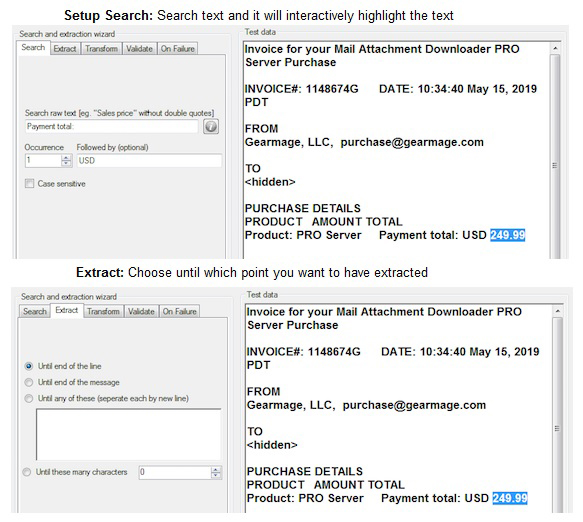
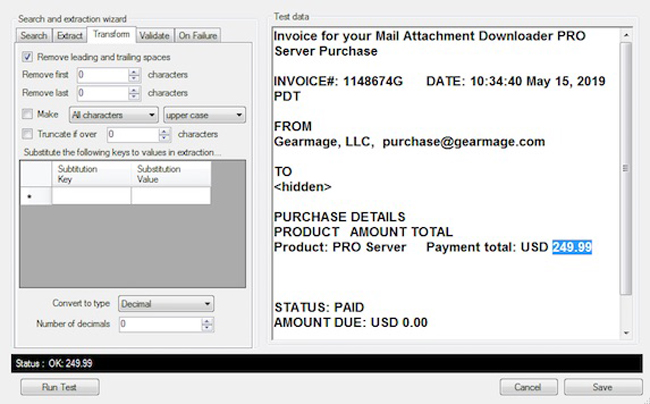
Highlight a value in a sample email, such as an invoice number or total, and the wizard turns it into a field like {INVOICE_NUMBER}. You can then clean it up and use it in file names, database columns and replies.

Extraction wizard
Extraction wizard highlighting the text to extract from an invoice email

Pro Client includes basic extraction with regular expressions.

Read Excel and CSV attachments

Pro Server#

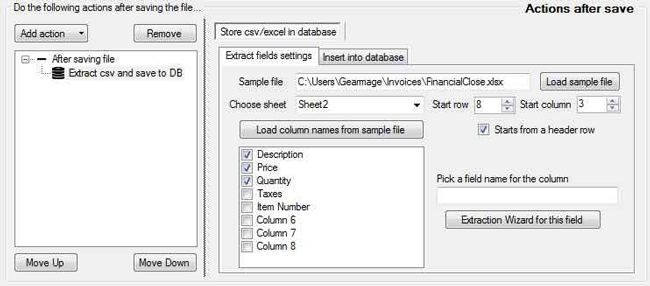
Read the rows of an Excel or CSV report you receive by email, then add them to a database table every time a new report arrives.

Extract from CSV / Excel
Settings for reading columns from an Excel or CSV attachment

Save & convert

Custom folders and file names

Pro ClientPro Server#

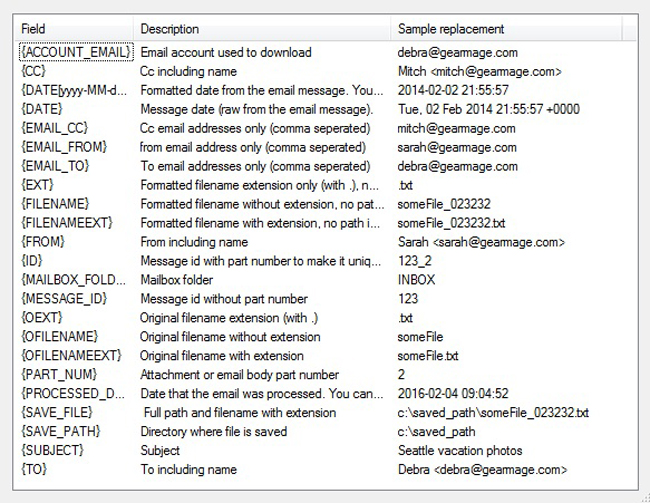
Build the save path from any email field or extracted value. Missing folders are created automatically.

Fields for folder and file names
List of fields for folder and file names, such as {FROM}, {SUBJECT}, {FILENAME} and {DATE}, with a description and a sample value for each 1 2
  1. 1Fields you can use in a rule's Save folder and Saved filename format, such as {FROM}\{SUBJECT}\{FILENAME}{EXT}. Fields you extract yourself work too.
  2. 2What each field becomes for a sample email. Folders that don't exist yet are created automatically.

Save email details to CSV

Pro ClientPro Server#

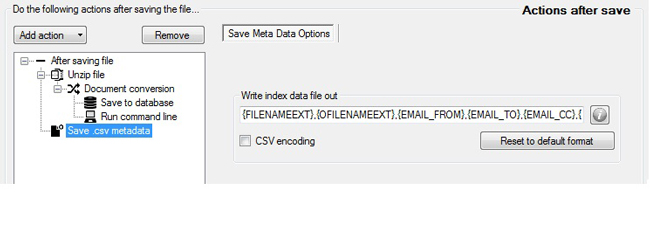
Write sender, subject, dates and extracted values to a CSV file. Create one file per email, or add a row to a running log.

Action › Save .csv metadata
Action that saves email header fields to a CSV file

Convert to 50+ formats

Pro Server#

Convert email bodies and attachments to PDF, multi-page TIFF, Word, images and more, then save them or run more actions on the result. Options such as DPI and compression are available for image formats.

Common conversions

FromTo
DOCXPDF, multi-page TIFF, PNG, JPEG, HTML and more
PDFDOCX, multi-page TIFF, PNG, JPEG, HTML and more
CSV, XLSXPDF, multi-page TIFF, PNG, JPEG, HTML and more
PPTXPDF, multi-page TIFF, PNG, JPEG, HTML and more
EML (email)PDF, multi-page TIFF, DOCX, PNG, JPEG, HTML and more
JPEG, BMP, TIFF and other imagesPDF, DOCX, HTML and more

All 59 supported formats

Documents

docdocmdocxdotdotmdotxodtottrtftextwordmlflatopcflatopcmacroenabledflatopctemplateflatopctemplatemacroenabledtex

Spreadsheets

csvdifexcelodsspreadsheetmltabdelimitedxlamxlsbxlsmxlsxxltmxltx

Presentations

odppotmpotxppsppsmppsxpptpptmpptx

PDF and print

pdfpdfnotesxpsopenxpspshtmlfixedxamlfixed

Images

bmpemfjpegpngsvgtifftiffnotesswf

Web, e-books and other

htmlmhtmlxmlxamlflowxamlflowpackepubmobixml
Action › Document conversion
Document conversion action that converts Word, Excel and other files to PDF

Pro Client can convert to PDF only.

PDF tools

Pro Server#

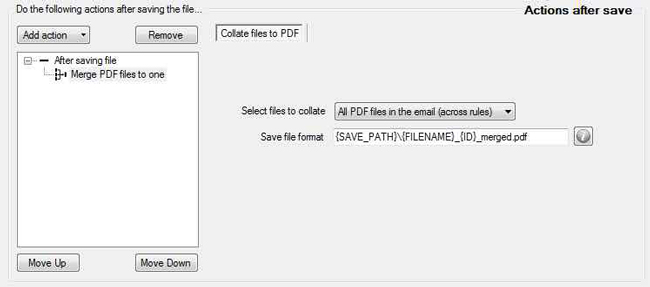
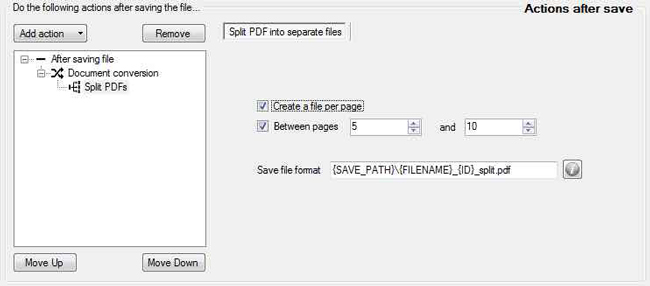
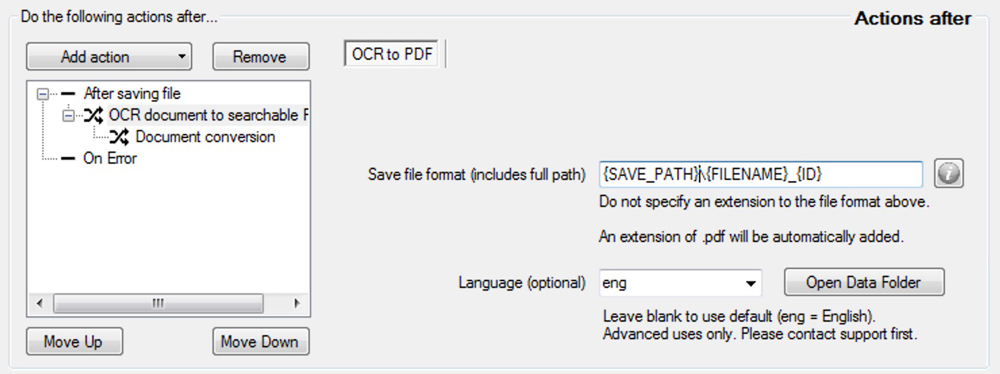
Combine an email and all its attachments into a single PDF, split out specific pages, add or remove passwords, and make scanned files searchable.

Merge PDFs: what happens
Email bodyPDFinvoice.pdfDOCXterms.docxconvert + mergePDF3 pages97261.pdf
Merge: the email body and its attachments, converted to PDF where needed, end up in one file.

Merge

Merge many PDF files into one. Use the Document conversion action first to turn other formats into PDF, then merge them.

Split

Split a PDF into single pages, or keep only specific pages. Convert other formats to PDF first if needed.

Encrypt / decrypt Client

Protect a saved or converted PDF with a password, or remove the password from an encrypted PDF you receive so it can be saved or converted.

OCR alpha

Turns almost any file into a searchable PDF (via a multi-page TIFF). Lightweight, English characters only, and not meant to replace dedicated OCR products.

PDF actions
Action that merges several PDF files from an email into one
Click a screenshot to enlarge it.

Act on emails & files

Move, copy, delete or mark emails as read

Pro ClientPro Server#

Tidy up the mailbox once an email has been processed. If anything went wrong, the email stays where it is.

Email actions
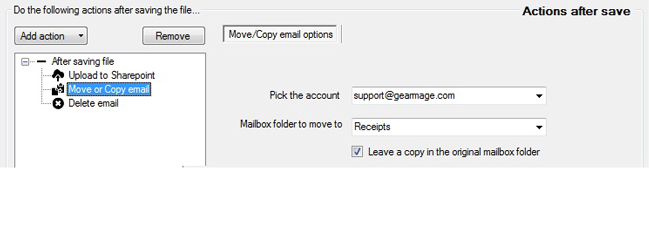
Move or Copy email action with the account support@gearmage.com, the folder Receipts and Leave a copy in the original mailbox folder ticked 1 2 3
  1. 1Add Move or Copy email to a rule's actions after saving. It can sit next to other actions, such as a SharePoint upload.
  2. 2Pick the account and the mailbox folder, for example Receipts.
  3. 3Tick Leave a copy to copy the email instead of moving it.

You don't need to move, delete or mark emails as read for the app to spot new ones. It remembers what it has already processed.

Send replies and notifications

Pro Server#

Send an email from any of your accounts using a template filled in with fields, like a mail merge. Optionally attach the files that were just saved.

Action › Send email
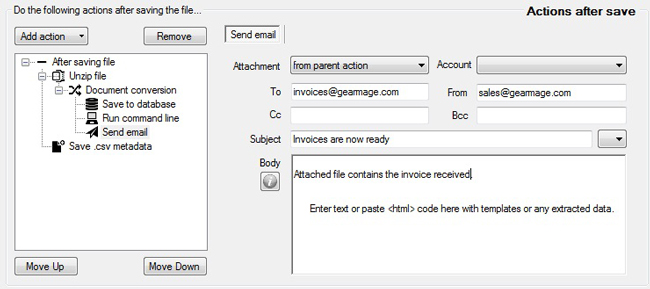
Send email action nested under Unzip file and Document conversion, with Attachment from parent action, To invoices@gearmage.com, From sales@gearmage.com, Subject and Body 1 2 3 4
  1. 1Send email can run after other actions, here after unzipping and converting the file.
  2. 2Attachment: attach the file from the action above it.
  3. 3Who it goes to and from, and the subject.
  4. 4The body: plain text or HTML, with templates and extracted data.

Unzip files

Pro Server#

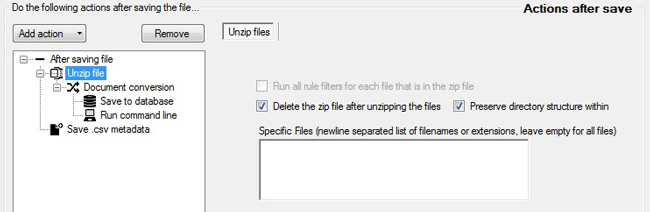
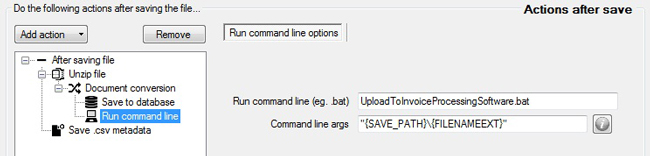
Unzip zip attachments automatically, then run more actions on the files inside, such as converting them or saving them to a database.

Action › Unzip files
Unzip file action with Document conversion, Save to database and Run command line nested under it, and options to delete the zip file and preserve the directory structure 1 2 3
  1. 1Actions nested under Unzip file run on each file inside the zip.
  2. 2Delete the zip file afterwards, and keep the folder structure from inside the zip.
  3. 3Unzip only specific files or extensions, or leave the list empty for all files.

Copy or rename files

Pro ClientPro Server#

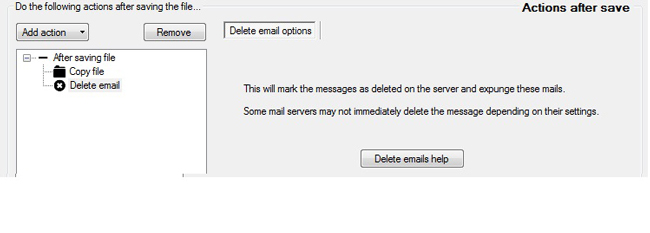
Copy each saved file to another folder or a network share, for example as a backup, or rename it. You can also delete files you don't need.

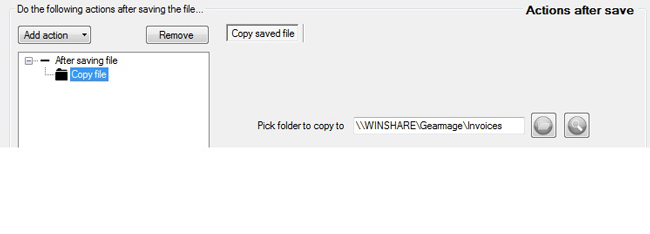
Action › Copy file
Copy file action that copies the saved file to the network share \\WINSHARE\Gearmage\Invoices 1 2
  1. 1Add Copy file to a rule's actions after saving.
  2. 2Pick the folder to copy to. A network share such as \\WINSHARE\Invoices works too.

Print automatically

Pro ClientPro Server#

Print the email or its attachments automatically as soon as they're saved, for example invoices that need a paper copy.

Upload to SharePoint

Pro Server#

Upload downloaded or converted files to SharePoint Online or on-premises SharePoint, for example after unzipping or converting them to PDF.

Integrate

Databases

Pro Server#

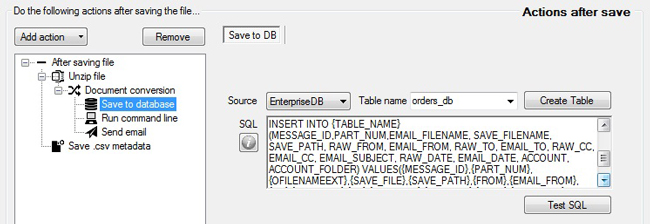
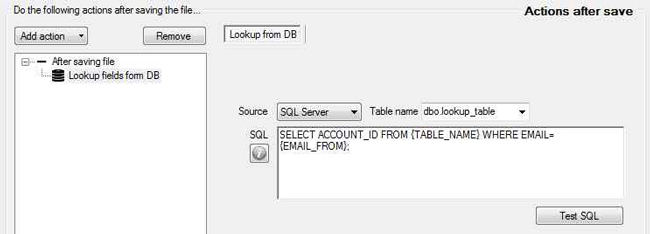
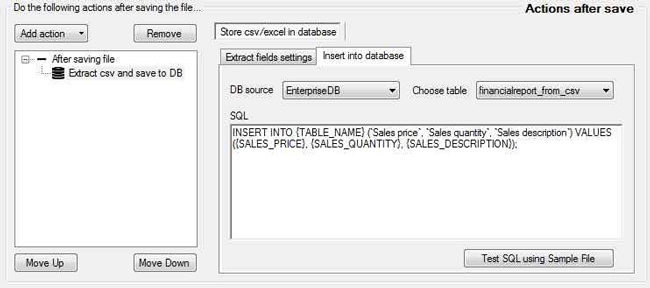
Connect to any ODBC database. Save email fields, attachments and extracted values to a table, insert rows from Excel/CSV attachments, or look up a value to use in later actions.

Database actions
Action that saves email fields to a database table

Scripts and webhooks

Pro Server#

Run a PowerShell script, batch file or program for each email or file, passing in any field. Call a webhook and turn values from its JSON response into fields like {PROJECT_ID}.

Action › Run program
Action that runs a command line program or batch file after saving

ChatGPT and Claude

Pro Server#

Run a ChatGPT or Claude prompt on an email, its attachments or extracted values, and use the answer in later actions. Azure Document Intelligence is coming soon.

AI prompt: what happens
How the AI prompt action worksAn invoice email, its PDF attachment and an extracted invoice number go into a prompt. ChatGPT or Claude runs the prompt and returns an answer, for example a one-line summary with the supplier, total and due date.WHAT GOES INEmailInvoice #97261 from AcmePDFAttachmentinv-97261.pdfExtracted field{INVOICE_NO} = 97261PROMPTSummarize invoice{INVOICE_NO}from the attachment:the supplier, the totaland the due date.ChatGPTorClaudeANSWER (EXAMPLE)Acme Corp,invoice 97261:$1,240.00due 15 Oct.
Illustration of the AI prompt action with example values, not a screenshot of the program.

Developer SDK

Pro Server 3-pack#

Plug your own code into every stage, from filtering and extraction to downloading and the actions that follow. Recommended over scripts for deeper integrations.

Run & monitor

Run 24×7 as a Windows service

Pro Server#

Install it as a service that keeps running when nobody is signed in and starts again after a reboot. Choose which Windows user it runs as. With the 3-server pack you can split work across servers or keep one on hot standby.

Service tab
The Service tab with service type, schedule, auto start, and service status
Reused from the new PRO Server service guide, which explains each numbered item.

History and charts

Pro ClientPro Server#

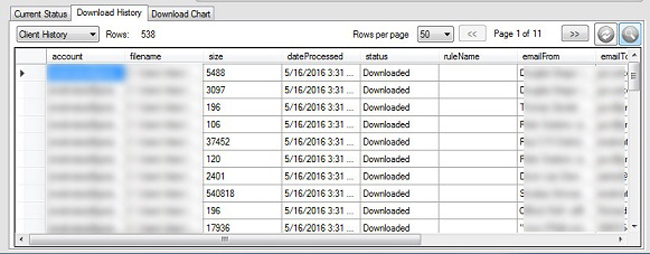
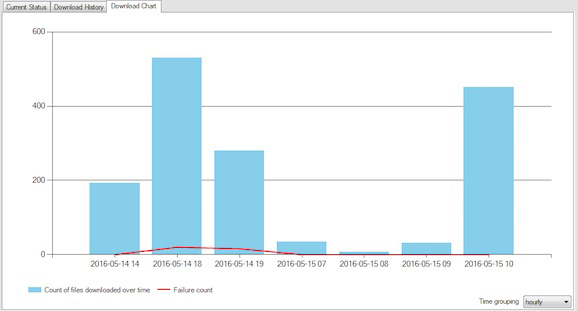
See what was processed, by which rule and when, and whether anything failed. Search past downloads by date.

History
Download history listing processed attachments

Error actions

Pro Server#

Decide per rule what happens when a save or conversion fails, for example move the email to a "Needs attention" folder and email your team.

Back up and move settings

Pro ClientPro Server#

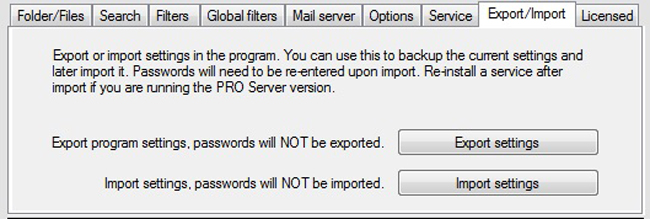
Export your rules and settings and import them on another machine.

Export / Import
Export and import of rules and settings

System requirements

#
Windows desktopWindows 10 or later (Pro Client and Pro Server)
Windows ServerWindows Server 2016 or later (Pro Server only)
32 / 64-bitPro Server: both · Pro Client: 32-bit
CloudAny Windows cloud VM, such as Azure
No features match. Clear the search

Ready to automate your inbox?

Every purchase comes with a 30-day money-back guarantee.

Try the free versionSee pricing