๐Ÿ‘ฅ Mail Attachment Downloader 4.0

Extract email addresses from your mailbox into a contact list.

Years of email already show who your customers, suppliers and partners are. Mail Attachment Downloader 4.0 lists the people in a Gmail, Microsoft 365, Exchange or IMAP mailbox, each one once, with their name, their domain and the dates of the first and last email. You get a CSV file that Excel opens and that mailing tools and CRMs can import. The list stays up to date after every backup, and capture rules can read phone numbers and other details from new emails as they arrive.

5 PlacesFrom, To, Cc, Reply-To & the text
Each OnceOne row per email address
Up to DateAfter each backup run
On Your PCNo cloud service in between
Gmail & Google Workspace
Microsoft 365 & Outlook.com
Exchange
Any IMAP mailbox
CSV for Excel
Google Sheets
Use Case 1

Build a contact list from the emails you already have

The Backup tab's Extract data page reads the backup of an account and writes one row per email address: the people you have emailed and who have emailed you, each once.

๐Ÿ“– See the feature

From a mailbox to a CSV in four choices

  1. Back up the account on the Backup tab. Gmail, Microsoft 365, Exchange and IMAP accounts all work.
  2. On Extract data, choose which emails: the whole backup, those received between two dates, or some folders, such as Sent Items or a Customers folder.
  3. Choose One row per email address and where the addresses come from: From, To, Cc, Reply-To, and addresses written in the text of the emails.
  4. Pick the columns and the CSV file, then click Extract now. Tick After each backup run to keep the file current.

The account's own addresses and no-reply addresses (noreply@, mailer-daemon@ and the like) are left out unless you choose to keep them.

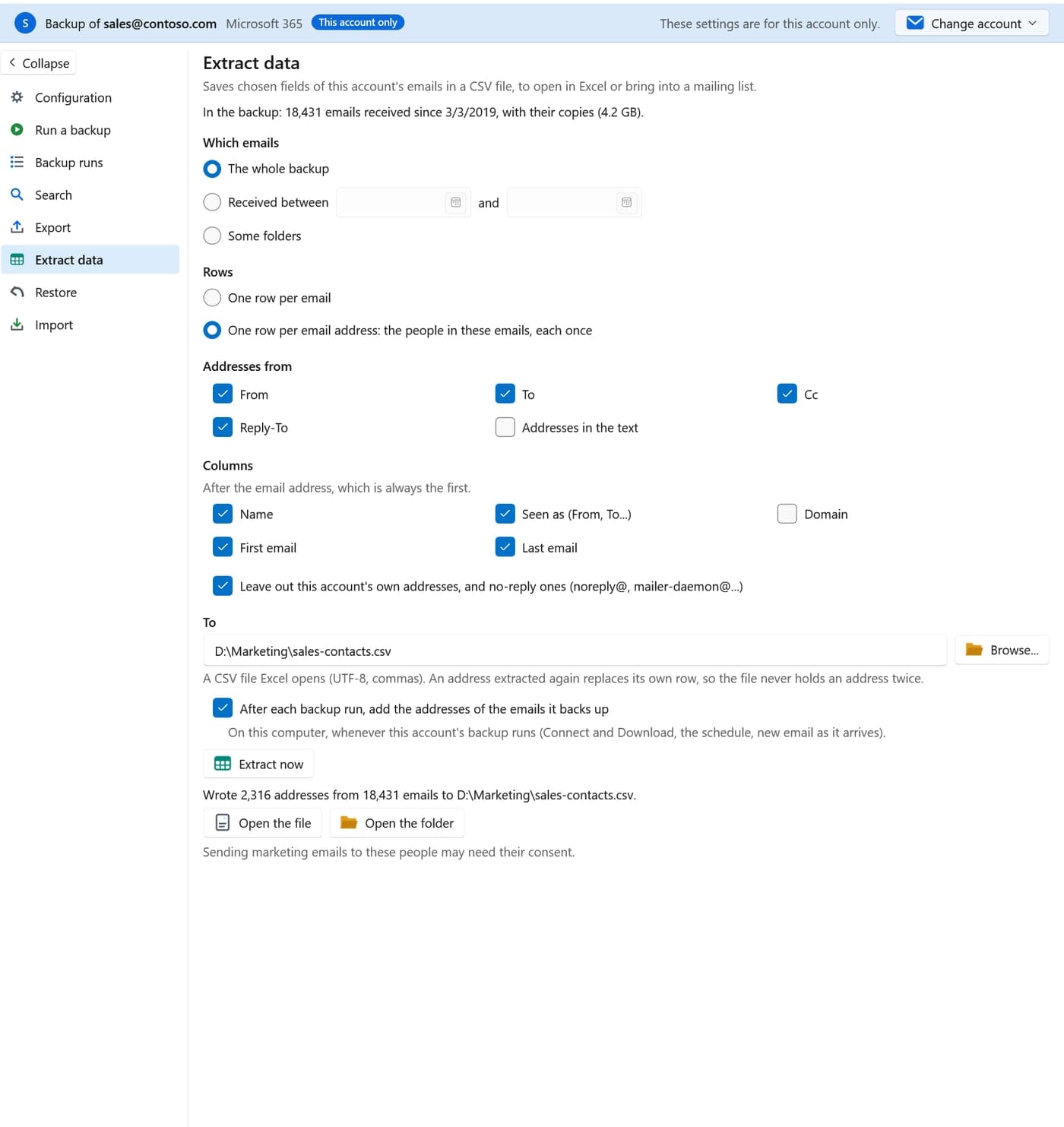
The Extract data page set to one row per email address, with addresses from From, To, Cc and Reply-To, the Name, Seen as, First email and Last email columns, and 2,316 addresses written from 18,431 emails

Extract data: 2,316 people from 18,431 emails, written to one CSV file.

๐Ÿชช

Name and address

Each address once, in lower case, with the name it was last seen with, so a person who changed how their name shows up still gets the newest one.

๐Ÿ”Ž

Seen as

Whether a person wrote to you (From), was written to (To, Cc), asked for replies elsewhere (Reply-To) or was only mentioned in the text. Sort by it to find people you deal with directly.

๐Ÿ“…

First and last email

When each relationship started and when you last heard from or wrote to each other. Customers you haven't emailed in a year are one filter away.

โ™ป๏ธ

Never twice

An address extracted again updates its own row (its name, Seen as, and first and last email), so the file never holds the same address twice, however often it runs.

๐Ÿงพ

Or one row per email

Need a log instead of a list? One row per email gives received, from, to, cc, reply-to, subject, folder, attachments and size.

Use Case 2

Capture contact details from new emails as they arrive

Web-form notifications, enquiries and introductions carry more than an address: a phone number, a company, a job title. Have a rule read them from each new email and add them to a sheet or send them to your CRM.

๐Ÿ“– See the Parser

Read the details, then send them where you work

  1. Pick the emails: for example, From your website's form, or Subject contains "New enquiry".
  2. Tell the Parser which values to read. Highlight them in a sample email, or describe them in plain words, such as phone number, company or job title from the signature, and let the AI find them.
  3. Send each email's values on: a row in Excel or a Google Sheet, a CSV file, or a web hook into your CRM.
  4. Turn it on. From then on, each matching email adds its row on its own.

The built-in AI runs on your own computer, so the emails never leave it. A cloud AI such as OpenAI, Claude or Gemini is used only if you choose one.

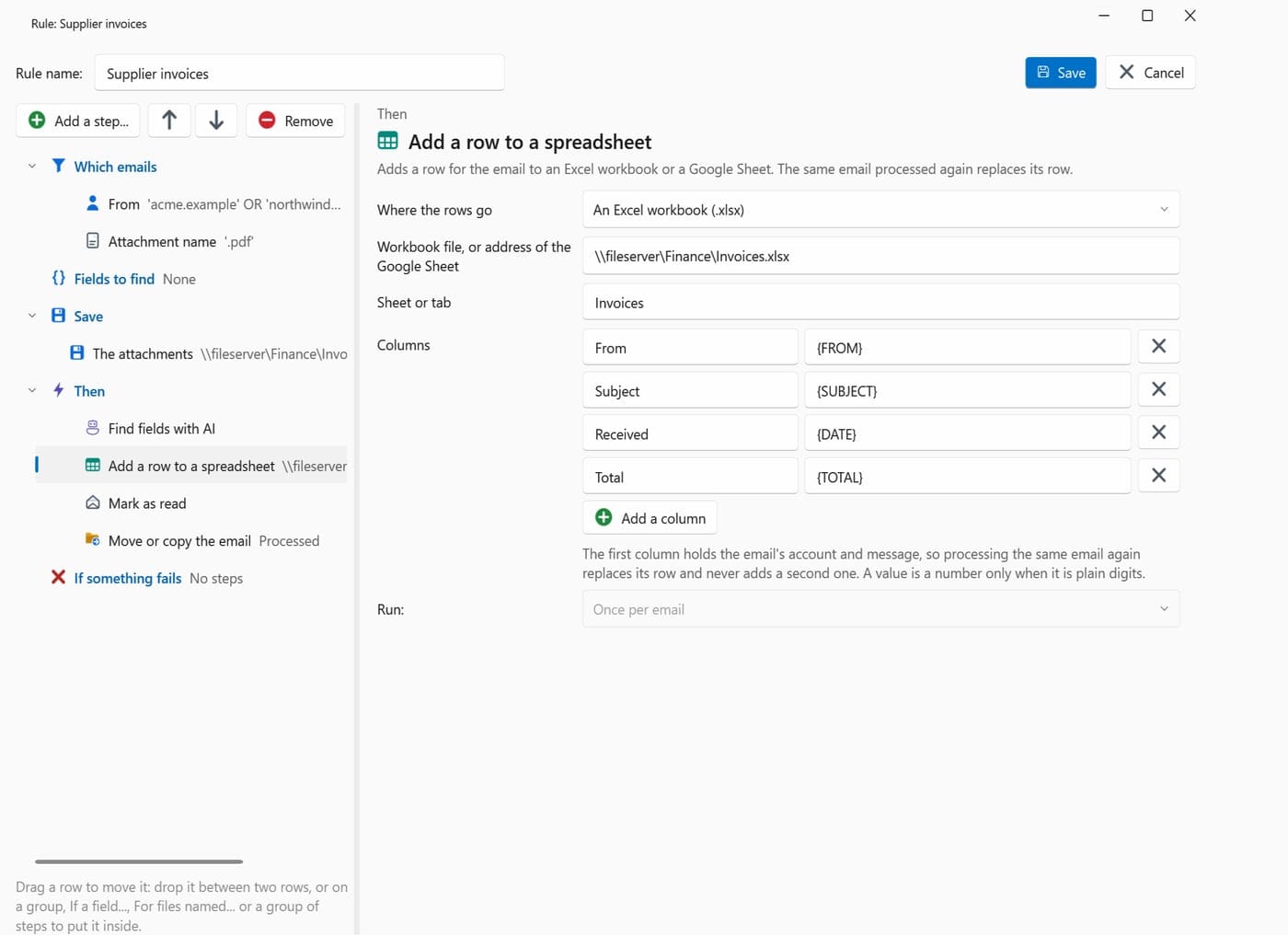
The Add a row to a spreadsheet step in the Rule Editor: an Excel workbook, the sheet name and a column for each value, after a Find fields with AI step

Add a row to a spreadsheet: one row per email, with a column for each value read.

๐Ÿ“

Web-form and enquiry emails

Contact forms send the same layout every time: Name, Email, Phone, Message. Highlight each value once in a sample and the Parser reads it from every new form email.

  • A doubtful email waits for a quick review instead of landing in your list wrong
  • The sender's name and address are there too, ready for a column
๐Ÿ”—

Into your CRM or mailing tool

No CRM is built in, and none is needed. Import the CSV into Mailchimp, HubSpot or Salesforce, or post each new contact straight away:

๐Ÿ“—

Straight into a shared sheet

The Add a row to a spreadsheet step and the Parser's outputs write to an Excel workbook or a Google Sheet your team already uses. Processing an email again replaces its row instead of adding a second one.

Use Case 3

Find the addresses that bounced

When a newsletter or an announcement goes out, the failures come back as bounce messages, and each one has the address that failed in its text. Collect them in one go instead of opening each one.

๐Ÿงฒ

2. Extract the addresses in the text

On Extract data, choose Some folders and that folder, then only Addresses in the text. Your own and no-reply addresses are left out on their own.

๐Ÿงน

3. Clean your list

Compare the CSV with your mailing list and remove the addresses that keep failing. Check the list first: a bounce can mention other addresses too.

How it fits together

Your history once, then each new email

Extract data builds the list from the mail you already have. Rules keep adding to it as new mail arrives.

1

Back up the mailbox

Gmail, Microsoft 365, Exchange or IMAP

2

Extract the people

One row per address, with name, Seen as, domain and dates

3

Read the details

Phone, company and title from forms and signatures, with the Parser

4

Keep it current

After each backup run, and on each new matching email

Before you send marketing email: having someone's address doesn't always mean you may send them marketing. Depending on where you and they are, you may need their consent first (for example under the GDPR in Europe or CASL in Canada). The Seen as and First email columns help you show how each address came to be on your list.
How it stacks up

PRO vs. the usual ways people build a contact list from email

An address book only has the people someone saved. Your mail has everyone you have actually dealt with.

CapabilityMail Attachment
Downloader PRO
Copying addresses
by hand
Exporting the
address book
Cloud email
parsers
Everyone you have emailed or heard from, not only saved contactsโœ“Slow, error-proneโœ—Usually new mail only
Each address once, with first and last email datesโœ“โœ—โœ—Varies
Addresses written in the text, not only in the headersโœ“If you spot themโœ—Varies
Phone, company and title from forms and signaturesโœ“Slow, error-proneIf someone typed them inโœ“
Stays up to date on its ownโœ“โœ—โœ—โœ“
Mail stays on your own system, with a local AI optionโœ“โœ“โœ“Cloud-hosted
What you get

Which edition does what

Each edition includes everything in the ones before it: Free, PRO Backup, PRO Parser, PRO Rules Client, PRO Rules Server.

โœ“ Try it free

The Free edition runs Extract data on up to 25 emails of the last day, so you can see the file before you buy.

โœ“ Extract data

The whole backup, dates or folders; one row per address or per email; Reply-To and addresses in the text. PRO Backup and up.

โœ“ After each backup run

New emails' addresses are added to the file as the backup runs, on a schedule or as mail arrives. PRO Backup and up.

โœ“ Several mailboxes

Run up to 3 accounts together in PRO Backup, 5 in PRO Parser, unlimited from PRO Rules Client. Each account has its own list.

โœ“ Parser

Read phone numbers, companies and titles with AI field extraction, alone or with patterns, or by highlighting, with review of doubtful emails. PRO Parser and up.

โœ“ Parser outputs

CSV, Excel, Google Sheets and web hooks with the columns you choose. PRO Parser and up.

โœ“ Your choice of AI

Built-in AI on your own computer, your own AI server, or OpenAI, Claude, Gemini or Azure OpenAI.

โœ“ Add a row to a spreadsheet

A rule step for any value: one row per email in Excel or a Google Sheet. PRO Rules Client and up.

โœ“ Zapier and the Windows service

Send to Zapier, and run around the clock with no one signed in. PRO Rules Server.

Your inbox already knows who your contacts are

Start the 30-day trial, list every person in your mailbox in minutes, and keep the list current after every backup.