


Mail Attachment Downloader signs in to Microsoft 365, Outlook.com, Exchange Online and Gmail with modern authentication (OAuth 2.0). You sign in on Microsoft’s or Google’s own page, and the app never sees your password.
New since 2020 (v3.3 and v3.4, up to build 1036)
- Microsoft 365 through Microsoft Graph, with shared mailboxes (PRO) and sending email. Use it instead of EWS, which Microsoft is retiring.
- Clearer sign-in: the app shows which permissions were granted, with a Copy for IT button for your administrator.
- Your own app registration for Microsoft 365 and Google Workspace (PRO). See For IT administrators.
- Setup guides for 23 providers that need app passwords, such as Yahoo, AOL and iCloud.
- Connection Diagnostics shows each step of a sign-in and where it failed.
Which settings should I pick?
| Your email | Server type | Mail server | How you sign in |
|---|---|---|---|
| Microsoft 365 (work or school) | Microsoft 365 (Microsoft Graph) | – | Microsoft, in your browser |
| Outlook.com, Hotmail, Live | IMAP | Outlook/Live | Microsoft, in your browser |
| Gmail, Google Workspace | IMAP | Gmail | Google, in your browser |
| Exchange on your own server | Exchange (Exchange Web Services), with On-prem ONLY ticked | – | Your Windows or Exchange password |
| Yahoo, AOL, iCloud and others | IMAP | Yahoo Mail, AOL, or Other | App password: click Set up… |
Microsoft 365 accounts set up with Exchange (EWS) keep working for now. Microsoft starts turning off EWS in Exchange Online in October 2026 and removes it in April 2027 (Microsoft), so switch them to Microsoft Graph.
On your own domain, just type the address: the app looks up its mail records and offers the Microsoft 365 or Gmail settings.
Signing in with your browser
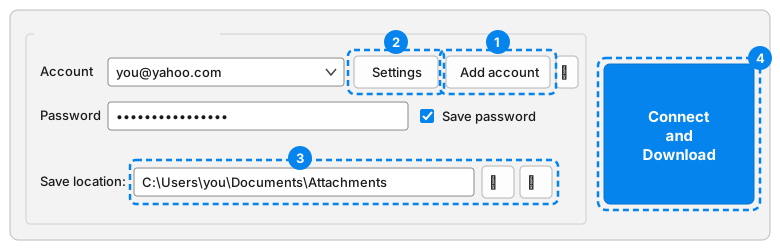
- Click Add account (1). The mail server settings open.
- Type your email address in Account and check the Server type against the table above. Leave Use OAuth2 (modern auth) ticked: there is no password box.
- Click Test Connection. In the Authorization required window, click Launch browser to authorize.
- Sign in as the same account and allow every permission. On Google, tick every checkbox.
- Go back to the app, click Continue, then Save.
The 2020 trick of typing a wrong password is no longer needed: these accounts always sign in with Microsoft or Google. The account’s Permissions tab shows what was granted.
Yahoo, iCloud and other providers
These providers need an app password, not your regular password. Type your address, click Set up <provider>… in the amber notice, and follow the guide.
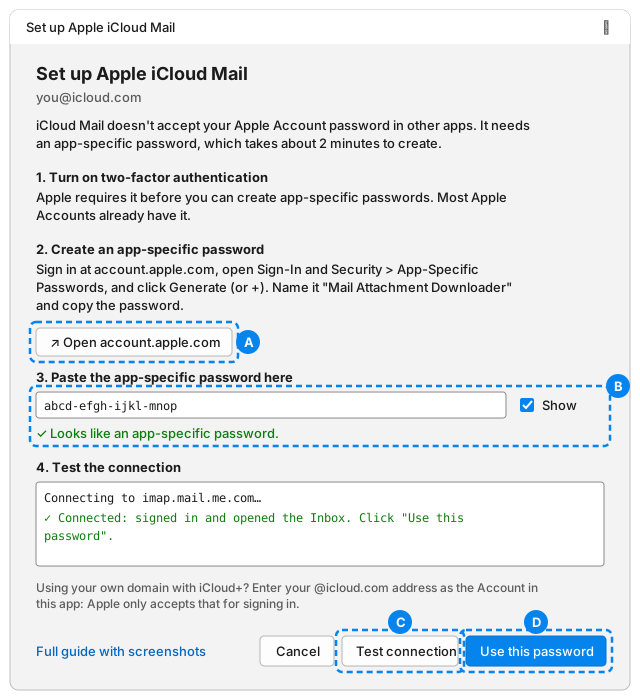
Open the provider’s page to create the app password (A), paste it (B), click Test connection (C), then Use this password (D) and Save. See what each provider needs.
For IT administrators
Most organizations only need to grant admin consent once; users then sign in themselves. Organizations that block third-party apps, or want a service that never asks to sign in again, can use their own app registration (PRO).
| Article | Use it when |
|---|---|
| Microsoft 365: How IT can grant permissions to grant access | Users see “Need admin approval” or 403 Forbidden, often on shared mailboxes |
| Granting necessary permissions to the app | The app says “Some permissions weren’t granted” |
| Custom app registration in Microsoft 365 / Entra | You want your own Entra app, or app-only access |
| Custom app registration in Google Workspace | Your Workspace blocks third-party apps |
Built-in Microsoft app: Mail Attachment Downloader, client ID 327a7151-62e7-4ab6-af0a-55120ca90505. It is a multi-tenant desktop app with delegated permissions only, and no client secret.
| Permission | Used for |
|---|---|
Mail.ReadWrite, Mail.Send |
Microsoft Graph: reading, moving and marking email, and rules that send email |
Mail.ReadWrite.Shared, Mail.Send.Shared |
Shared mailboxes only (PRO) |
IMAP.AccessAsUser.All, SMTP.Send |
Microsoft 365 and Outlook.com over IMAP |
EWS.AccessAsUser.All |
Exchange (EWS) only |
https://mail.google.com/ |
Gmail over IMAP. Google has no narrower IMAP permission. |
offline_access |
Staying signed in for scheduled downloads |
Files.ReadWrite.All, Sites.ReadWrite.All |
PRO rules that upload to SharePoint or OneDrive |
Copy for IT in the Authorization required window copies the account, the client ID and the permissions requested. Connection Diagnostics shows which app registration an account uses. Neither includes passwords, tokens or secrets.
Connection or sign-in problems?
Start with 🩺 Connection Diagnostics in the mail server settings. It shows each step of the latest sign-in, with timings and the error.
| What you see | What to do |
|---|---|
| “Some permissions weren’t granted” | Sign in again and allow every permission. See Granting necessary permissions. |
| “Need admin approval” or 403 Forbidden | Send your IT team the Copy for IT text and this article. |
| The browser didn’t open | Click Browser didn’t open? in the Authorization required window. |
| “Signed in as …, not …” | Pick the right account on Microsoft’s or Google’s account page, or sign out of the other one first. |
| An Exchange (EWS) account stopped connecting | Change the Server type to Microsoft 365 (Microsoft Graph) and sign in again. |
| Asked to sign in again | Your password changed, the sign-in expired, or your organization changed its policies. Sign in again. |
Still stuck? Click 🐞 Submit a bug report… on the Logs tab, or email support@gearmage.com. Reports leave out passwords and tokens.
Free and PRO
Microsoft and Google sign-in, the setup guides and Connection Diagnostics are in the Free edition too. PRO adds:
- Shared mailboxes with Microsoft Graph
- Your own app registration for Microsoft 365 and Google Workspace
- Rules that upload attachments to SharePoint or OneDrive
Helpful resources
- Mail Attachment Downloader How To: first download, every account type, FAQ
- Security and privacy: how passwords and tokens are stored
- Latest PRO Client and PRO Server builds
- Download the Free edition
Feedback on sign-in? Email support@gearmage.com.