- Smart Email and Attachment Saving
Save emails (including the body) or attachments from multiple accounts to customizable folders or shares based on rule filters with specific criteria (such as matching email subject or email from and more) with ease. - Custom File Names and Folder Structures
Include any part of the email or header in the filename or a custom directory hierarchy. Completely customizable save format and folder structure. Build your own custom auto-created directory structure from data extracted from the email or the attachment. - Automated Multi-Step Actions
Run multiple actions after download or even chain or nest actions such as unzipping an email attachment, printing it or converting to different formats as required.
Mark emails as read, delete email, move email to different folders after downloading the email or attachments. Extract any data from emails or attachments and transform it into fields that can then be used in save locations or filenames or in a database and more. Also auto-respond or send emails after downloading emails or attachments with a template and use information from the email or other actions. - Advanced File Conversion and PDF Tools
Convert emails or attachments into over 50+ formats and save to specific folders or take further actions after conversion.
Powerful PDF functionality lets you do pretty much anything with emails and PDF. You can even encrypt or decrypt PDF files and also merge or split PDF files giving great power. Merge the email body along with the converted attachments into a single PDF! - Database Integration
Need to integrate emails with a database? PRO Server can do just that. You can lookup information from a database based on email contents or extracted fields or save emails to a database and then take further actions based on that information.
You can extract contents of the email or headers and append it to a daily CSV file. Extract and save CSV or Excel attachments and add them into a database table! - Custom Scripts and SDK Support
Do you need to do something custom after downloading emails? You can use PRO Server SDK (recommended) or run custom scripts or programs after download to send emails or attachments to a back-end system by passing fields from the email or those that were extracted as arguments. - 24/7 Background Operation
Need to run the workflow 24x7 unattended? Configure your rules and then install the program as a Windows Service on a Windows Server. You can also easily backup and restore program settings from one system to another to ensure your workflows are always running.
Save from multiple accounts to multiple folders
Save emails or attachments from multiple email accounts to specific folders or shares based on rule filters with specific criteria (such as matching email subject or email from and more) with ease.
Multiple rules each with different actions
The FREE version did not let you save to more than one folder, nor does it allow you to run a single download session across multiple accounts. The PRO versions lets you do both with the help of support of multiple Global rule filters.
Set one rule to search for emails from one email address, save it to one location and then setup another completely different rule to search for emails from a different email and save to a completely different save location.
Each rule can be setup to run multiple distinct download actions (like converting to PDF, copy/move/delete email, sending email auto-responses, saving to a database and many many more).
Flexible filters
Filters can be based on date, any field in the email (like FROM, TO, SUBJECT etc.) with partial match or full match capability including regular expressions and conditional logic (like 'email1' OR 'email2'). Filters can also check for number of attachments in the email and many more.
Format of the file or directory path.
The format of the file and directory path to save in is completely customizable. If you extracted data like the invoice number from the email, then you can use that data within the filename or path format. The program will automatically create those directories for you if they don't exist.
Catch-all rule
If no attachments or filters match, you can add a 'catch-all' rule. Rules are ordered top-down and can be reordered by dragging and dropping. By placing all your rules that are specific to emails or attachments above the catch-all run you will ensure the catch-all runs last and can take necessary action (like sending an email to the sender saying the attachment doesn't exist).
PDF? No problem!
PDF: Save the entire email along with the attachments as a SINGLE PDF or save each attachment or body separately as a PDF.
Copy, move, delete or mark as read emails to another mailbox folder
After the email attachments are downloaded, you can add an action to copy emails, move emails to another email folder or delete emails from your email account or mark an email as read after download.
The program detects whether the email was processed successfully and then performs the copy, move or email. If it encounters an error the email is not moved.
You can also chain actions so you can copy, move or delete emails and then run subsequent actions
Processing new emails only
It is important to note that copying or moving or deleting emails is NOT needed for the program to detect new incoming emails. The program keeps its own state across download sessions and remembers when the downloads were successful.
Extract emails
Extract any data from emails or attachments and transform it into fields that can then be used in save locations or filenames or in a database and more.
Extract from many fields in the email
You can extract data from any of the email fields like the FROM, TO, SUBJECT and also the email BODY. There are two ways to extract data -- you can either use the extraction wizard which simplifies extraction or use regular expression option to extract data.
Extract data from attachments
You can extract data from inside the attachments and then use those fields in other actions.
Extract data from CSV or Excel data
You can also extract data from CSV or Excel and save them in a database.
Use extracted data in the filename format
When you extract the data, they get stored into fields within braces like so: {INVOICE_NUMBER} where INVOICE_NUMBER is the custom name you provided when setting up the extraction.
You can then use this extracted field in the filename format (either a directory or the file path) inside a rule.
Use extracted data in actions
You can use the extracted data in any of the actions. For example, save the extracted data into a database field or send an automated email response containing the extracted field.
Convert email body or attachments to over 50+ formats
Convert the email body or email attachments into over 50+ formats (PRO Server ONLY) and save to specific folders or take further actions after conversion.
Convert from popular formats below TO other formats
- DOCX to PDF, multi-page TIFF, PNG, JPEG, HTML and more
- PDF to DOCX, multi-page TIFF, PNG, JPEG, HTML and more
- CSV, XLSX to PDF, multi-page TIFF, PNG, JPEG, HTML and more
- PPTX to PDF, multi-page TIFF, PNG, JPEG, HTML and more
- EML to PDF, multi-page TIFF, DOCX, PNG, JPEG, HTML and more
- JPEG, BMP, TIFF, images to PDF, DOCX, HTML and more
For certain conversions, like the image conversion, you can specify other options such as DPI or compression.
Supported formats
bmp, csv, dif, doc, docm, docx, dot, dotm, dotx, emf, epub, excel, flatopc, flatopcmacroenabled, flatopctemplate, flatopctemplatemacroenabled, html, htmlfixed, jpeg, mhtml, mobixml, odp, ods, odt, openxps, ott, pdf, pdfnotes, png, potm, potx, pps, ppsm, ppsx, ppt, pptm, pptx, ps, rtf, spreadsheetml, svg, swf, tabdelimited, tex, text, tiff, tiffnotes, wordml, xamlfixed, xamlflow, xamlflowpack, xlam, xlsb, xlsm, xlsx, xltm, xltx, xml, xps
See our BLOG for morePowerful database functionality
Need to integrate emails with a database? No problem. You can lookup information from a database based on email contents or extracted fields or save emails to a database and then take further actions based on that information.
Save email body, email from and other fields to a database
The program can connect to many popular ODBC compatible databases and automatically create a table in the database of your choosing with default fields to add into. You can optionally choose to store the attachment in a BLOB field if you need to. Also, if you extracted certain text from the email, you can save these to new columns that you can create as the SQL is completely customizable.
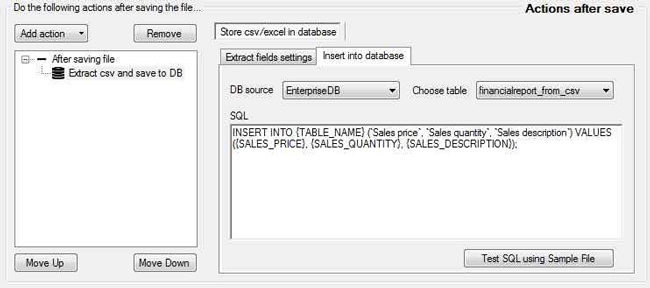
Save CSV or Excel files you receive to a database
Do you receive a lot of tabular data via automated reports via email? Wish you could just archive those for later use? Look no further, with powerful CSV/Excel capability, the program can extract this data from the email attachment and then provides you a function to save this off to a database table. It will append rows to that table every time you get an attachment.
Lookup information in a DB and use it in subsequent actions
You can lookup database information by using the email data as a filter (for example, lookup the USER_ID for the EMAIL_FROM). The data from the lookup will become fields (within braces) that you can then use in subsequent download actions for that email or attachment.
Send email responses or forward emails automatically
Auto-respond or send emails after downloading emails or attachments with a template and use information from the email or other actions.
You can also use extracted fields in the email from field or to/cc field or subject or the email body. Functionality similar to mail merge where you define a template and then the program can fill in the fields (specified within braces {}).
Optionally include attachments in email.
Check here for more information about sending emails
Download all links or some links in the body to files
Do you receive emails with embedded file links from Google drive, Dropbox etc. in the email body that you would like saved?
You can do so by adding the Download all embedded links post-download action inside a rule and choose which URL's to download or not download. You can also customize the filenames of the files. Run more actions on that downloaded file if needed.
Or use regexes to extract links and then download
Alternatively you can exract links that match a certain regex to a field and then run a HTTP Download action on that file URL to save the file locally. Run more actions on that downloaded file if needed.
Powerful PDF actions
The program offers best of class support for PDF conversions and will do the best possible conversion in terms of document content and quality. In addition, you have the following powerful PDF capabilities.
Encrypt PDF documents
If you have an email or an attachment in PDF or if you converted an email or attachment to PDF, you can add an action to encrypt the PDF using a password if needed.
Decrypt PDF files
If you receive an encrypted PDF file that you need to have saved or converted, you can optionally choose to decrypt the file if required.
Merge PDF files
If you have an email or an attachment in PDF or if you converted an email or attachment to PDF, you can merge these PDF files into a single PDF.
Split PDF file
You can also split PDF files and extract certain page numbers into another single PDF file or choose to split pages into separate PDF files each with a custom name.
Extract data from CSV or Excel attachments
Do you receive a lot of tabular data via automated reports via email?
Wish you could just add those CSV or Excel rows into a database?
Look no further, with powerful CSV/Excel capability, the program can extract this data from the email attachment and then provides you a function to save this off to a database table.
It will append rows to that table every time you get an attachment. And you don't have to hire a software programmer to do that.
You can chain or nest multiple actions and other actions...
Nest actions
You can run many actions for each email or attachment and also nest actions. For example, you can unzip files, decrypt the PDF and then save the contents to a database.
The kind of actions you want to nest is entirely up to you and can be easily configured using global rules in the program.
More actions...
More actions not listed here are supported such as...
- Unzip files after download, then run other actions after unzipping
- Copy or move or rename file
- Automatically print email or file attachment
- Save .csv metadata file along with the file with customizable fields
- Auto selection of folders based on regular expressions
- Support for Exchange Shared mailboxes
Error Actions
If you encounter errors in actions or saving a file, you can take further actions such as sending an email. This is now configurable on a per-rule basis.
Versatility at your fingertips
We have many companies using our product as the glue between email and other products. When you are short on timelines, what better way than to have a product that will be flexible to meet your automation needs in a secure way. Get started today by going PRO.
PRO Server built for Windows Server
Need to run the workflow 24x7 unattended? Configure your rules and then install the program as a Windows Service on a Windows Server. You can also easily backup and restore program settings from one system to another to ensure your workflows are always running.
Run as a service
When running as a service, the program will stay on even when no user is logged on. When the server is rebooted, the service automatically starts up giving you piece of mind. What's more? You can monitor progress with the advanced history and charting as well as get taskbar notificatinos when the service starts downloading files.
Run service on both client and server OSes
Windows Server 2016 and greater on the server side or Windows 10 and greater on the client side are both supported. You can run as a Windows service on either OSes.
Independent of other logins
The service runs under its own account independent of other users. The service will copy settings and ensure the service is always running even when no users are logged on 24x7.
Run service as a specific user
You can also choose in what user the service needs to run on.
Better scale and failure support (3 server pack)
When you choose the 3 server pack, you can scale better by partitioning your workloads. You also have the option of running the server as a hot-standby and schedule periodic backups of settings and state. Setting up a hot-standby will require some amount of scripting that we can provide guidance.
Error handling
PRO Server built for Windows Server
Easily test and keep a track of which emails were processed by the program with the advanced history and charting offered right within the program! You can even do a historical search for attachments that were processed by the program within dates, find out which rules were executed for which attachments and also see if any errors occurred.
Error handling
Do actions when an error occurs
If an error occurs when saving the file or performing a conversion, in a given rule specify what needs to happen.
For example, you can request that the email be moved to a different folder and trigger sending an email to a notification list so someone could intervene and fix the issue.
Use our powerful SDK or run custom scripts
Do you need to do something custom after downloading emails? You have a few options.
Powerful SDK support
You can use our PRO Server SDK (recommended) to perform any integrations you want. The SDK allows you to plugin to the program at every stage of processing an email or attachment -- from filtering, to extraction, to downloading the attachment or after downloading the attachment. The SDK provides hooks so you can modify the program's behavior.
Run custom scripts
Alternatively, you can also run custom scripts or programs after download to send emails or attachments to a back-end system by passing fields from the email or those that were extracted as arguments.
Post download actions - Automate mail attachment processing
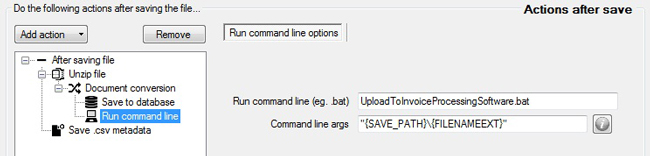
Run a custom command or program after download
You can use this to automate processing of attachments by running a script and passing the location of the file that was downloaded and any other meta information as arguments (the arguments are completely configurable). For example, to copy a file automatically after download is complete, specify Run Command as copy and Command line actions as "{SAVE_PATH}\{FILENAMEEXT}" C:\TEMP.
Download history and charting
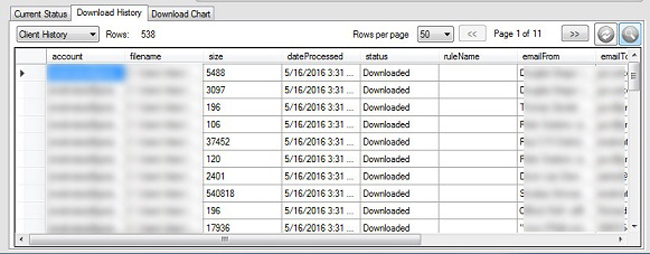
You can now search through downloaded file history by date and by any text. For example, if you wondered if a certain file from someone was downloaded by the program a few months back, you can provide a date and the from detail as search to see when it was processed.
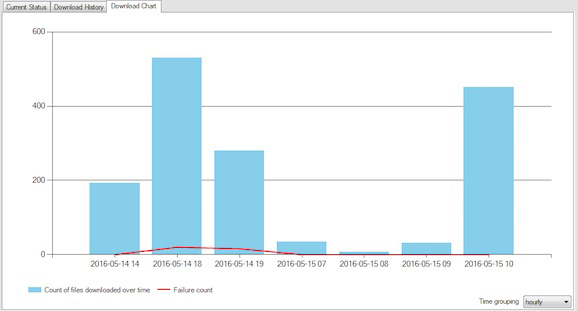
Furthermore, the charting capability provides a birds eye view of the number of files that were processed and the number of errors if there were any over time. When you issue a search as part of the Download History tab, it is also reflected in the chart. So if you were looking for all downloads for a certain email account, you can display a historical chart for that account by entering that account in the download history search box.
By default the history displayed is for the client program only. If you are running a service (PRO Server) you can switch the view for both the download history and download chart's to the service account by changing the pull down in the top left of the Download History tab from 'Client history' to 'Service history'. That would now show all the files that were downloaded by the service.
NOTE: The FREE version has limited history (stops recording after a certain time period) and limited data (from/to/subject/date are not saved). The PRO Client and PRO Server enables full history and charting capabilities.
Run as a Windows service - 24x7 unattended
With the PRO Server version you will now be able to easily run Mail Attachment Downloader as a Windows Service on both Windows Server1 and Windows Client2 operating systems.
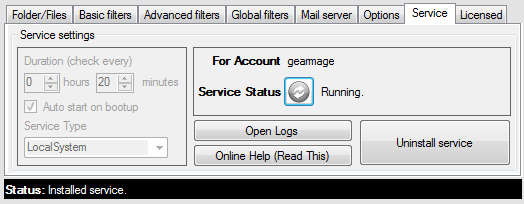
Install and uninstalling a service is now as simple as clicking on the Install or the Uninstall buttons.
When the service is installed all configurations are copied over to the Windows Service account. Any changes you make locally as a user will not take effect unless the service is uninstalled and re-installed.
Before starting the service you can choose to run the service as the Windows System account or under a specific User account. You can also enable the functionality to automatically start the Service when the system starts and check mail in the background without a user being logged in.
1Supported Windows Server operating system versions are Windows Server 2016 or greater.
2Supported Windows Client operating system versions are Windows Client 7+ or greater.
Migrate rules and settings
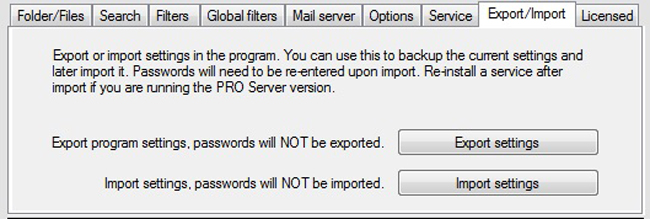
Export and/or import allows all Mail Attachment Downloader settings and/or rules to be migrated from one system to another.
Note that doing so will not copy passwords or the option of saving passwords. Once restored, passwords will need to be typed in manually.
Post download actions - Extract from csv and save
Extract data form excel or csv and add all rows to a database table
You can use this to save contents of an Excel or a CSV attachment to a SQL database like MySQL or SqlServer and more.
You have complete flexibility on which fields you want to store and how you want to store it in the database. You can also use the extraction wizard to transform fields (or prune them as necessary) and convert fields to a specific type that is compatible with the database.
More info from our blog...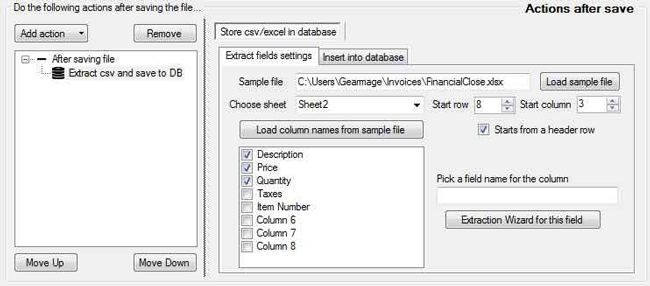
Convert emails, documents, excels, presentations, pdf's and images
Convert emails, documents, excels, presentations, pdf's and images from one format to another. PRO versions support conversions to PDF and PRO Server supports over 50+ formats (including exporting to various document, excels, presentations and image formats). Offers great conversion quality and parity with source formats.
Just pick the source format (from either a document, spreadsheet, presentation and more) and then pick the destination format. Specify the name and extension you want for the converted file. That's all it takes to now download and convert attachments. You can also add many conversions for the same attachment into many formats if needed.
You can run other actions under this action, for example, you can merge all PDF's downloaded/converted/extracted from the email into one large PDF if need be.
More info from our blog...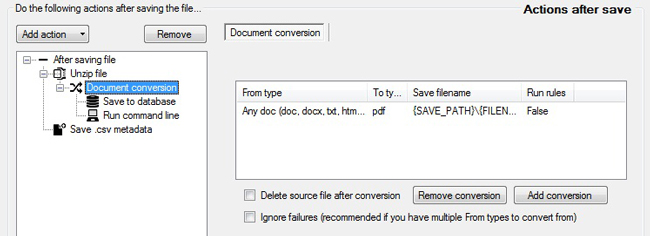
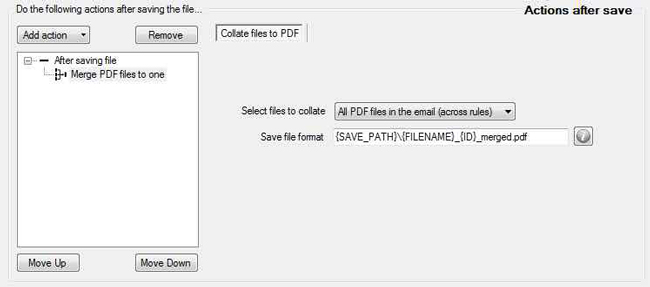
Post download actions - Merge many PDF files from the email into one
Merge PDF files into one
Merge many PDF files into one file. You can use the document conversion action to convert many different formats first into PDF as part of a rule and then merge these PDF's into one by using this rule.
Post download actions - Split PDFs into many or specific pages
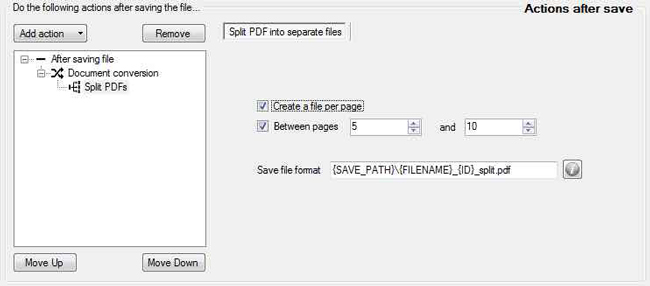
Split PDF files into many
Split a PDF file into individual pages or filter down to choose specific pages. If the document isn't in PDF format, you can use the document conversion action first to convert many different formats first into PDF as part of a rule and then split the PDFs as needed.
Post download actions - Download all embedded linked files in the body
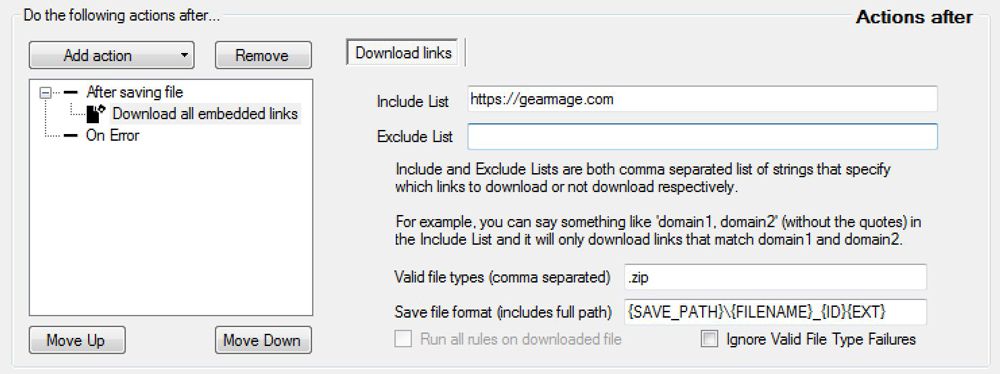
Download all embedded link
As shown, you can download some or all of the http links in the body of the email to files.
You can also filter down on what type of files needs to be downloaded and cutomize the filename they will be saved as.
Optionally you can use a regex based download if needed as shown below
Post download actions - Download HTTP links matching regexes
If you have already checked the simpler link download option above and need more flexibility this may be an option for you.
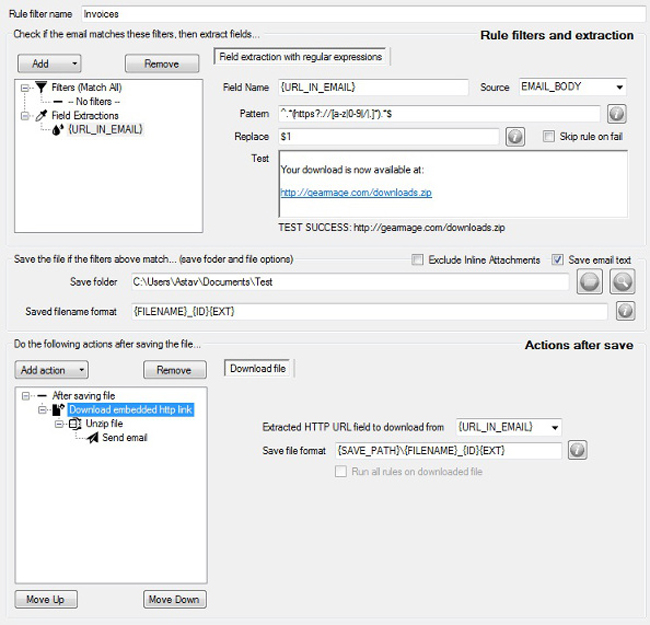
Download embedded links with regexes
You can customize the Pattern to look or extract the HTTP url that you want and if there are many, you can extract many URL's by defining separate fields to extract.
Once the fields are extracted, create a download action in 'Actions after save' to save the downloaded file.
The filename will automatically be chosen based on the end of the url (example https://gearmage.com/test-receipts.zip) would yield test-receipts.zip as the filename. You have flexibility to custom name this file as shown.
Once the file has been downloaded, you can run further actions on the downloaded file as shown that includes an unzip action and then send mail action (PRO Server required).
Post download actions - Send email with a template using any account
Send email
Send email after an action is complete and choose to include or not include attachments that have been downloaded in previous actions. For example, in the screenshot we have downloaded a file from an embedded link in the body of the message, unzipped it and then sent an email with the contents of the unzipped file.
All fields like From, To, Subject, Body can be customized with fields such as {FROM}, {TO} or also include extracted user-defined fields like {URL_IN_EMAIL}.
More info from our blog...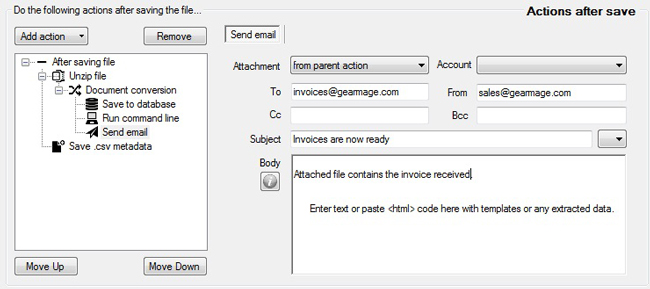
Post download actions - Lookup data from a database
Lookup fields from a DB
Have a need to lookup data from a database based on email contents? You can do so by adding the Lookup from database action. You can provide a SQL that takes in any email content or extracted field and perform a SQL query.
The results of the SQL query are then stored within fields with the format: {COLUMN_NAME} where COLUMN_NAME is the column that was used in the SQL query. You can then use these fields in further actions like copying the attachment or saved email to a location with the {COLUMN_NAME} value.
In the example above, the lookup is happening based on the EMAIL_FROM. The field will be named {ACCOUNT_ID} after the ACCOUNT_ID lookup. You can use that in any further actions as mentioned earlier.
More info from our blog...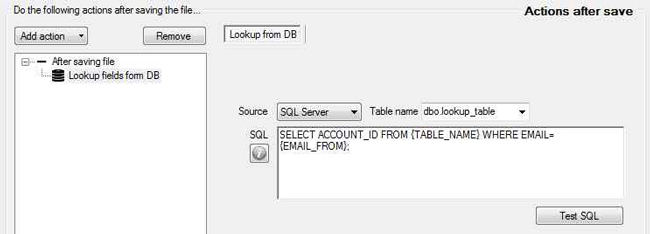
Post download actions - Save contents to a database
Save to DB
You can use this to save contents of the email and optionally the attachment to a database. You can save any fields in the email, any extracted field and optionally the actual contents of the attachment in a blob. Although blob's are supported, this may require enough storage on the database and may also require further tuning. Alternatively, you can store the location of the files saved (for example, if you save it on a share) and store that location in stead of the actual attachment in the database.
You have complete flexibility on which fields you want to store and how you want to store it in the database.
More info from our blog...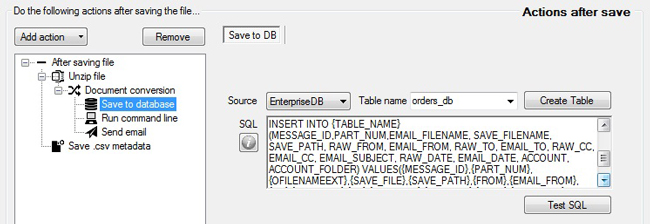
Post download actions - Extract from csv and save
Extract data form excel or csv and add all rows to a database table
You can use this to save contents of an Excel or a CSV attachment to a SQL database like MySQL or SqlServer and more.
You have complete flexibility on which fields you want to store and how you want to store it in the database. You can also use the extraction wizard to transform fields (or prune them as necessary) and convert fields to a specific type that is compatible with the database.
More info from our blog... Extract data using the extraction wizard
For each rule filter, you can create new fields (enclosed withing { and }) extracted from email headers (like from, to, date etc.) or body or even attachments.
Start by dragging a file into the test data area. In the search tab, enter the starting text to look for and optionally something followed by (you can leave this blank).
In the extract tab, choose where you want to stop extracting data.
As will be later shown, you can then transform data if needed.
For example, you can save this to a database (available in PRO Server only) after extracting these fields.
For more -- check this blog post on extractions.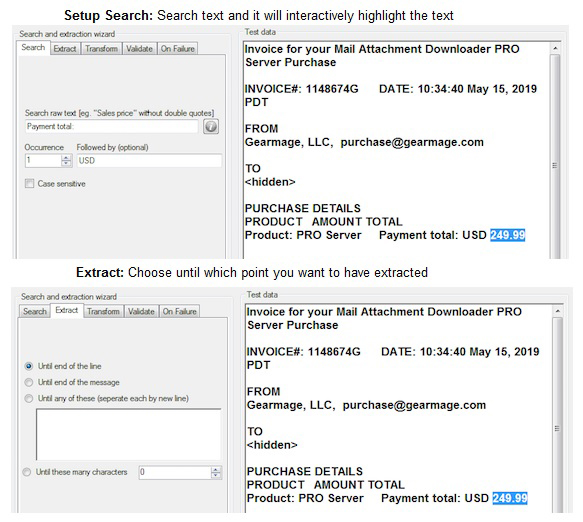
Post download actions
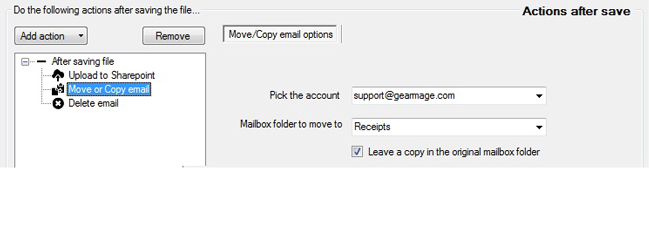
Copy or Move email
Once the download of the file completes for that rule, you may choose to even copy or move the mail to another mailbox folder.
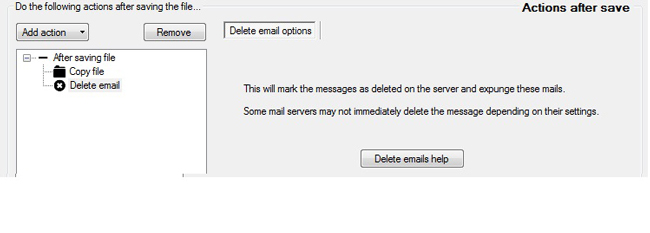
Delete email
Once the download of the file completes for that rule, you may choose to mark the email as deleted.
Mark email as read
After downloading the attachment you can choose to mark the email as read within a specific rule by adding the action "Mark as read" when you click the Add actions button in the rule filter.
Marking emails as read is not necessary for the program to function. The program processes new emails not by their mark as read status. This is purely provided as a convenience. The rules and actions are processed in order from the top down. So this email action is executed after all preceding actions have successfully completed.
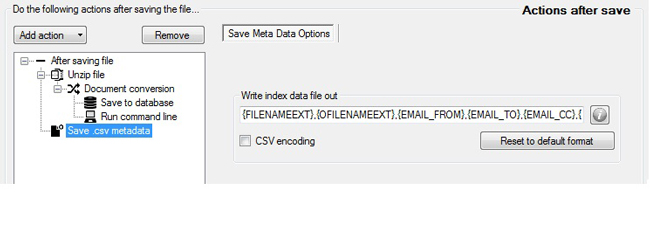
Save .csv with header info
After download, you may choose to save a .csv file with the same name as the downloaded filename, except with the .csv extension and include info from the mail headers.
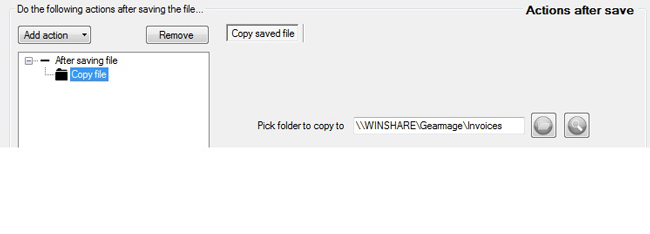
Copy file
Easily copy a file to another folder
This post download action is run after the download completes. You can use this to backup files.
Multiple email accounts
The FREE version only downloads from one account every time the download is initiated. The PRO version lets you select multiple email accounts that you can now use to download from for each session.
You no longer need to manually switch between accounts to download across multiple accounts and instead have the software scan across many email accounts with each download session.
To select from multiple accounts, just pick the multiple@multiple from the Account drop down and pick the accounts as shown in the screenshot to use.
Automate simple tasks like filing away attachments into specific folders in the way you want it or run the many post download actions (like converting documents or images) available with easy setup.
More info from our blog...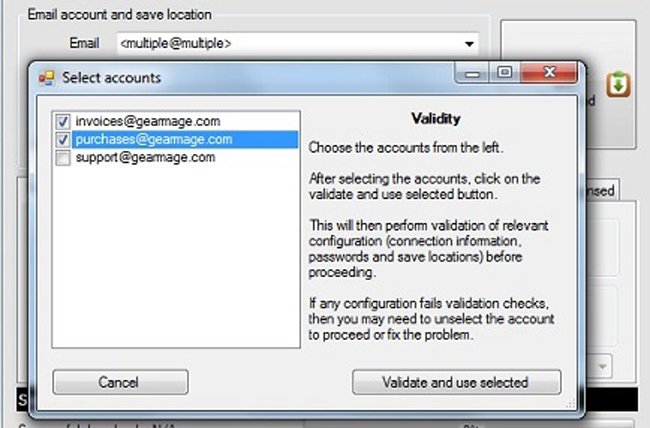
Flexible file formats and locations with user defined fields
For each rule filter, you can choose how the filename should be formatted and where the file should be saved. So you can have many filters and different save locations for each filter if you so choose.

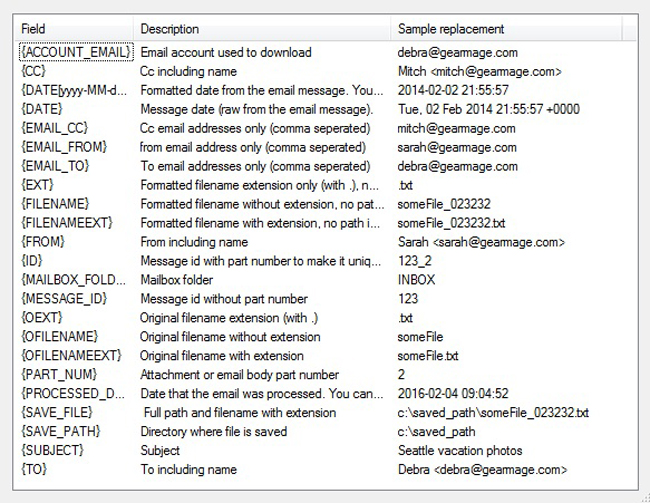
You can choose from various templates as shown to form the filename or even use fields you extracted. For example
{EMAIL_FROM}\Payments_{FILENAME}{EXT}
will create a directory based on the email from and save all attachments from that email in that folder with the specified format like 'Payments_Inv0023.txt'.
You may use any templates within {} as shown on the right as a template in the Filename Format field. They can appear any custom user defined order. You may also use your own filename instead of the attachment filename, if so required.
To insert a template from the list shown, just double click the field and it will be inserted into the textbox at the current cursor position.
Rule Filter
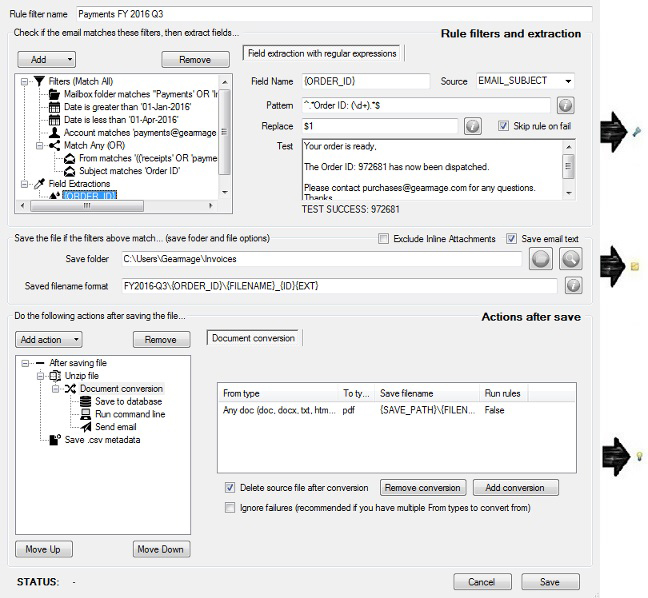
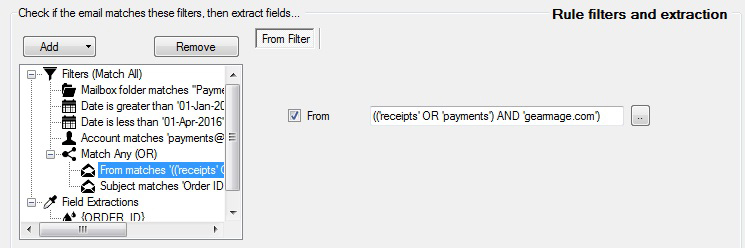
A new rule filter is created by clicking the '+ Add new filter' button in the Global Filters tab. For the 'Payments' filter shown in the Rule Filter screen shot, you can then configure various different features for that specific filter.
Each new filter can now be customized with specific rules that determine how to process an attachment and save it to a specific location. You may also run post-download actions as will be later shown.
Since each filter can have a set of triggers defined (for example, matching From or Subject of the email) and a different save location, you can now have many rules to process attachments in many ways (including the ability to save email attachments to different folders in different formats based on any criteria).
For a more detailed description of each feature, see the descriptions for Flexible filters, Flexible filename format and save locations and download actions (PRO Server only).
Each rule has the following capabilities:
FILTERS: Add a filter by clicking the Add button dropdown and then selecting the Filters option within. By adding multiple filters, you can be sure that this rule will only run when all filters match.
EXTRACTION: Extract data from various email fields like the FROM, TO, BODY by using extractions feature. Add an extraction by clicking the same Add button dropdown and then selecting the Extractions option within.
ACTIONS: Perform various actions if the filters match for an attachment or email. Add an action by clicking the Add action button dropdown and then selecting the action you want to run. For a list of actions look at our features list.
Multiple filters
Setup multiple global rule filters (Global Filters tab as shown) that can be used across all selected email accounts so you don't have to re-enter rules when you switch accounts.
For example, setup one rule filter to look for emails from 'Payments' and have it saved to one folder then run some download actions. And setup another filter for emails from 'Receipts' and have a different save location, file formats and different download actions (like saving to a database, copying a file and more).
RUN FOR ALL ACCOUNTS or a SPECIFIC ACCOUNT: The global rules, by default, are not account specific and can run for any email account. Note that the rules will only run for the Account selected in the Account drop-down in the main program window when you click Connect and Download. You can run the global rules for multiple accounts by selecting multiple@multiple in the Account drop-down.
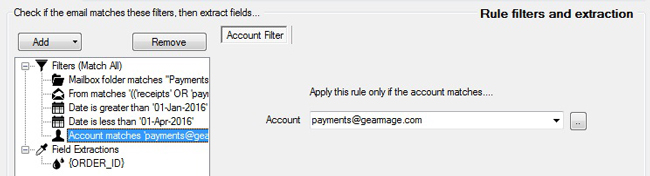
If you wanted a given rule to run for a specific account always and not for any other account, you should add an account filter for that rule (click Add -> Filters -> Account filter inside the rule filter window).
ORDERING: Rules are always processed from topmost rule down. Ordering is important in that when processing an attachment or the email body, if a specific rule matches the filters defined within, then subsequent rules below it for that attachment or email body will NOT be run. You can reorder rules by holding down the CTRL key and dragging and dropping the rule in the Global Filters tab. For example, you should place a catch-all rule at the very bottom.
CLONE RULES: If you are defining many similar rules, you can clone a rule by just editing a rule similar to the new one you want to create and giving it a new name. When you click Save, you will be prompted whether you want to delete the old rule, just select No and you will now have a new rule. We recommend giving meaningful names to rules so they are easy to search if you are defining many of them. For example, if a rule applies to a specific account, include that account name in the rule name.
More info from our blog...Flexible filters - Filter by start or end dates and filter by account or email mailbox folder
Each rule filter can specify which start and/or end dates you want to use for that particular filter.
You can also restrict a rule to apply to only a certain email account as shown or a certain mailbox folder within an email account as shown.
Leaving these blank would make the rule apply to all accounts and mailbox folders.
Flexible filters - Look for specific values in email headers or filter by filename or attachment file type
Each rule filter, can match any email header (From, To, CC, Subject, Body etc.) and also filter by filename or attachment types.
There are three ways you can specify matching criteria with any filter.
- No quotes: Specifying text without quotes will do a substring match. Anywhere that term appears it will do a match.
- Surrounded by quotes: When surrounding search terms in quotes, the program will do a regular expression match. If you don't include any regular expression, it will default to doing a substring match just like the one without quotes. If you want to check for equality you can simply do '^text$' and that will make sure text is the exact string that appears.
- Surrounded by quotes with logic: You can combine many quoted expressions with others using AND keyword, OR keyword and the NOT keyword between quoted expressions.
Any of the match fields like from, to or filename can also contain simple logic like so: 'receipts' OR 'payments'.
Use 'AND' / 'OR': For example, the From value of ('sales@gearmage' OR 'billing@gearmage') will download emails from any email that has 'sales@gearmage' or 'billing@gearmage' appear in the email. So a matching email here would be 'sales@gearmage.com' even though '.com' wasn't specified as part of the match criteria. If we wanted to do an exact match, the match criteria should be set to '^sales@gearmage.com$'.
Negative 'NOT' filter: Or if you want to exclude certain emails, then a negative filter can be applied (NOT 'spam@junk.com') will exclude emails from spam@junk.com when downloading attachments.
Want to understand rules better? Check out our blog post on it.
Flexible filters - Easily test out your rule filters
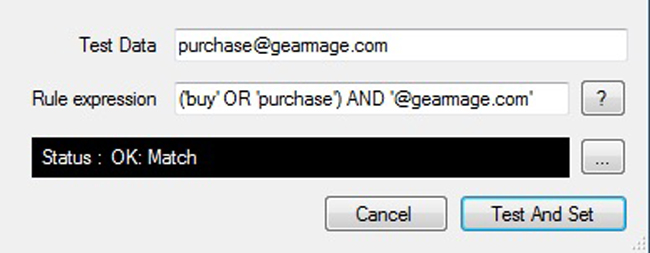
Easily test expressions out by clicking on the '...' button next to each input. You can enter the sample text that you want to test against and also the expression you want to test.
As mentioned earlier, anything enclosed within quotes (') can also include regular expressions and those can be easily verified using the test expression window.
The expressions are also backward compatible and also support all earlier mechanisms of specifying and comparing results (eg. those starting with '!!' etc.).
Save email body
In addition to downloading attachments, the PRO version can now download emails (with or without attachments).
To download messages with or without attachments, check the Inline content checkbox in the Search tab for the account. This will also search through messages without attachments. Leaving this unchecked would only search through emails with attachments.
Also, by default a rule will not download the text or html elements inside the email (eg. body or attachments), if you want the email text or html elements to be saved, check one (or both) of the following checkboxes to choose the format in which you would like to save them.
- The Save as .eml checkbox will save the full email including body and any attachments that are inlined in .eml format.
- The Save txt/html checkbox (previously called 'Save email text') will also save the text and/or html body or text and/or html attachment(s) in the email.
If you choose Save as .eml and want to save emails and attachments into a single PDF, you can do so with the merge functionality available in PRO Server as described in this blog post -- save email and attachments into a single PDF.
If you choose Save txt/html3 option instead and want to simply add email header information like From/To/CC... to the .txt or .html files saved, you can add an action i.e. Add action -> Prepend text elements with header and then choose the headers you want to add. The headers you want to add are fully customizable and this will add the header information at the starting of the .txt or .html file.
3 Note that with the Save txt/html option, the email may contain a text body/attachment or a html body/attachment or a text and html body/attachment. Depending on what the email contains, the program will download and save all elements i.e. text or html or both text and html files. Also, non-text or non-html attachments are always saved as separate files as well along with the text or html files. To avoid this, you can add a filename filter in the Filters area i.e. Add -> Filters -> Downloaded attachment filename and specify the types eg. '.txt' OR '.pdf' in the textbox to only save specific types that you want saved. You can also include a negative filter eg. NOT '.pdf' in that textbox to avoid saving pdf files.
More info from our blog...